
Customer Quotation states a commitment from a seller to offer products or services for a specific price as notified to the buyer. It refers to a document which is generally sent to potential customers with an offer to sell goods or services at a specific price. You can create, edit and delete a customer quotation by using the Deskera ERP’s Proforma Invoice/Quotation feature.
Prerequisites:
1. You have your Deskera ERP URL in place.
2. You are the administrator of Deskera Applications.
3. Ensure good internet connectivity.
Create New Customer Quotation
Step 1: Go to Proforma Invoice/Quotation under Accounts Receivable-Sales tab in Deskera ERP.
Click on Create New. 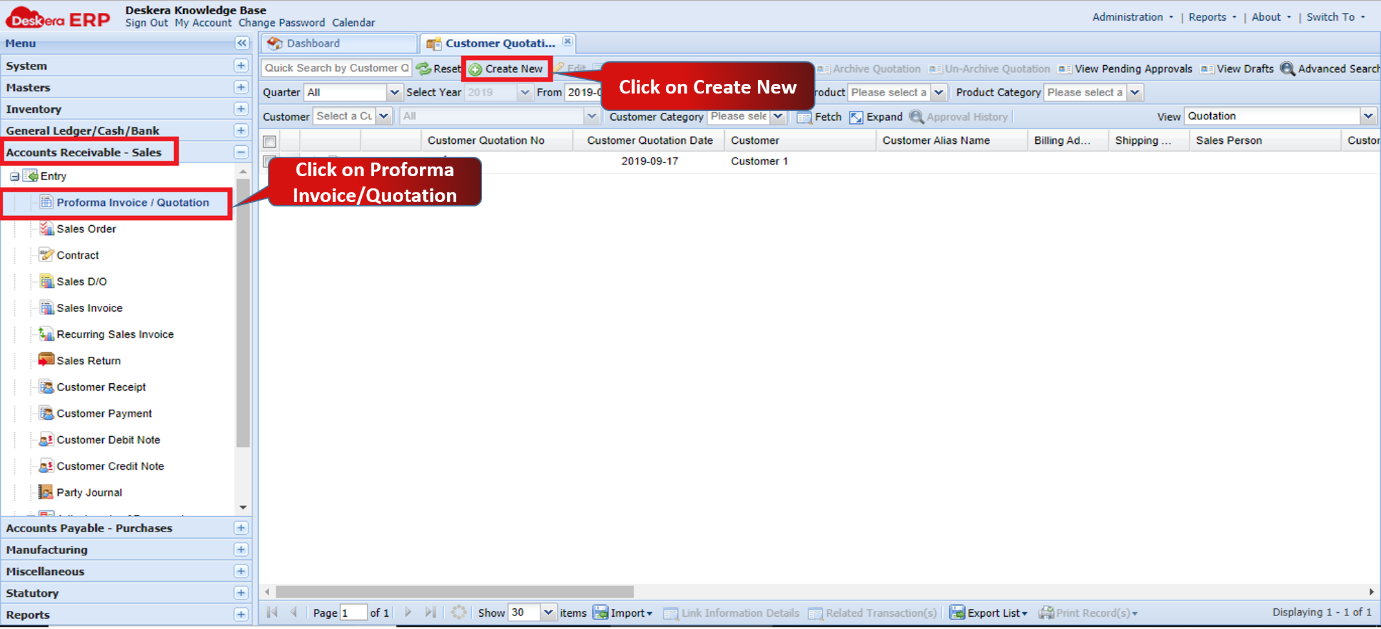 Fig 1.5.1.1.1 Proforma Invoice/Quotation
Step 2: Fill in the required details. 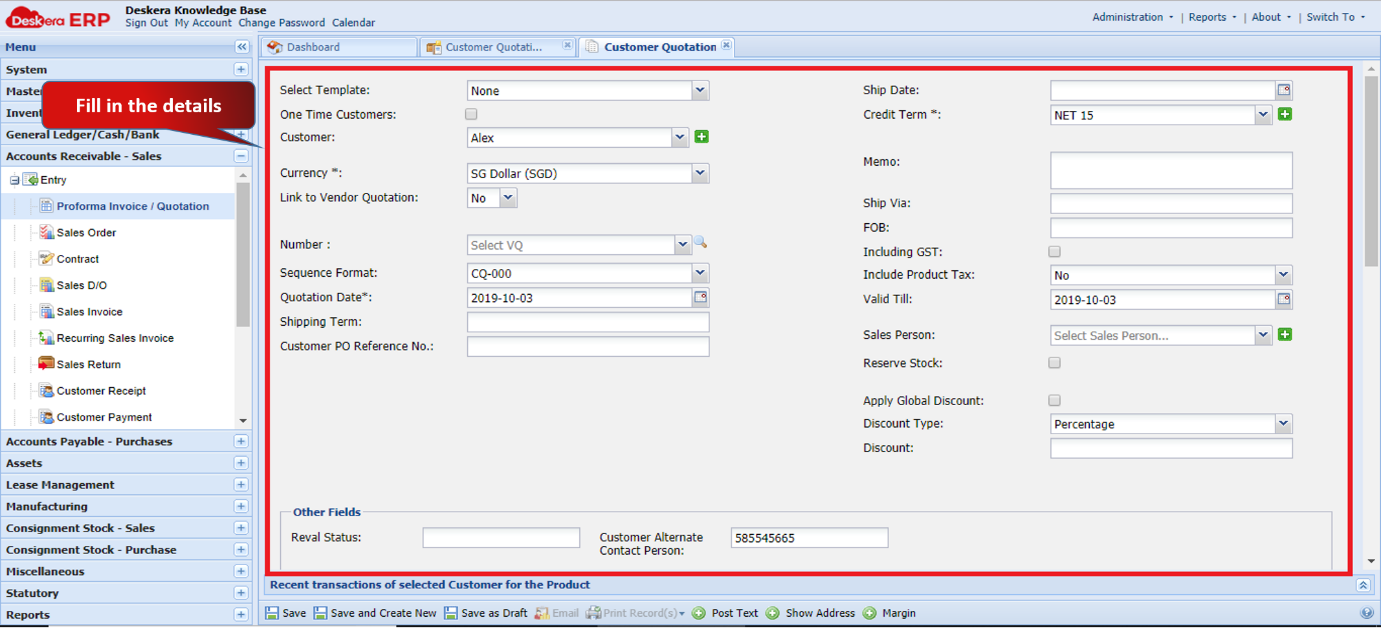 Fig 1.5.1.1.2 Create New Customer Quotation
Step 3: Add the products by clicking on the plus sign. Enter the unit price and the quantity as required.
Click on Save and Create New. 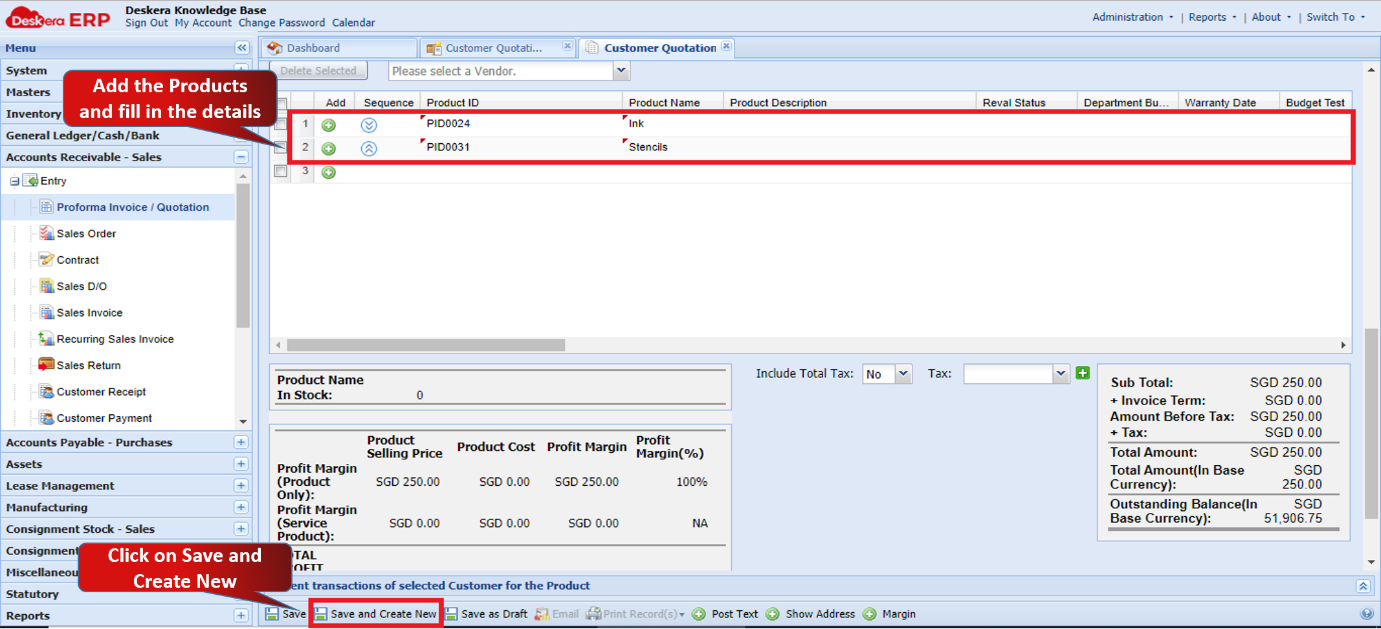 Fig 1.5.1.1.3 Create New Customer Quotation
The new customer quotation will be created. 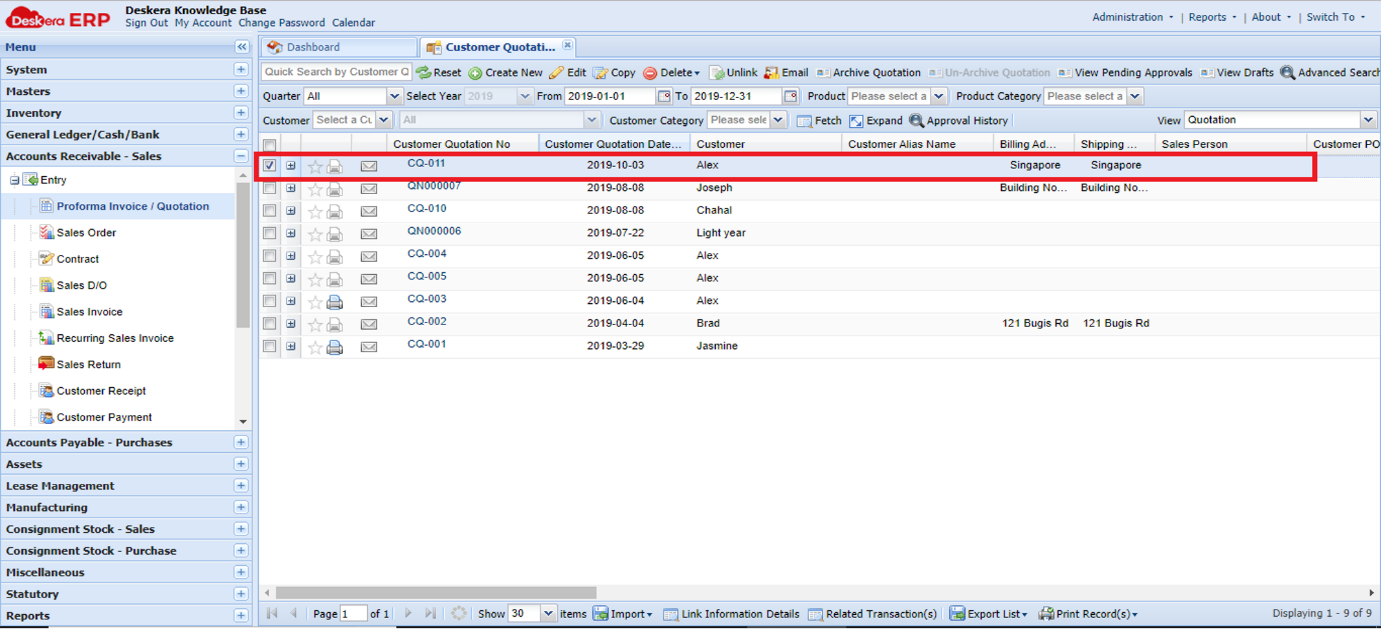 Fig 1.5.1.1.4 Create New Customer Quotation
Edit Customer Quotation
Step 1: Select the Customer Quotation and click on Edit. 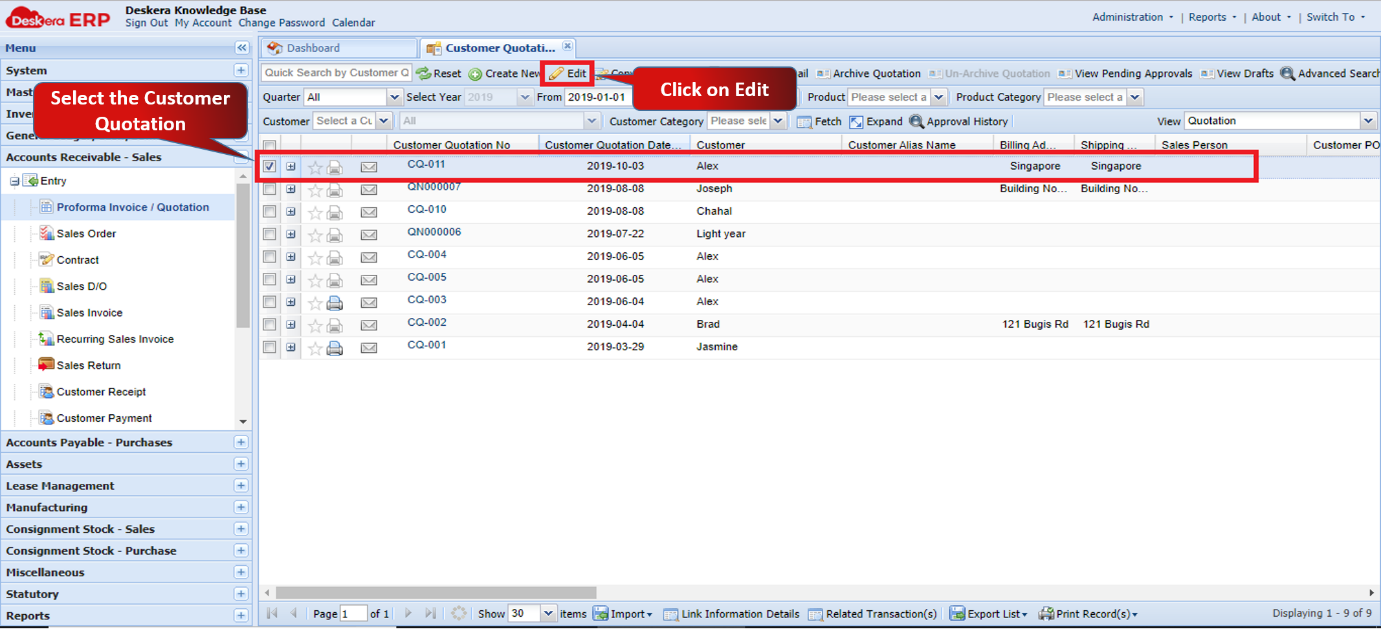 Fig 1.5.1.1.5 Edit Customer Quotation
Step 2: Make the required changes and click on Save.
The changes will be saved. 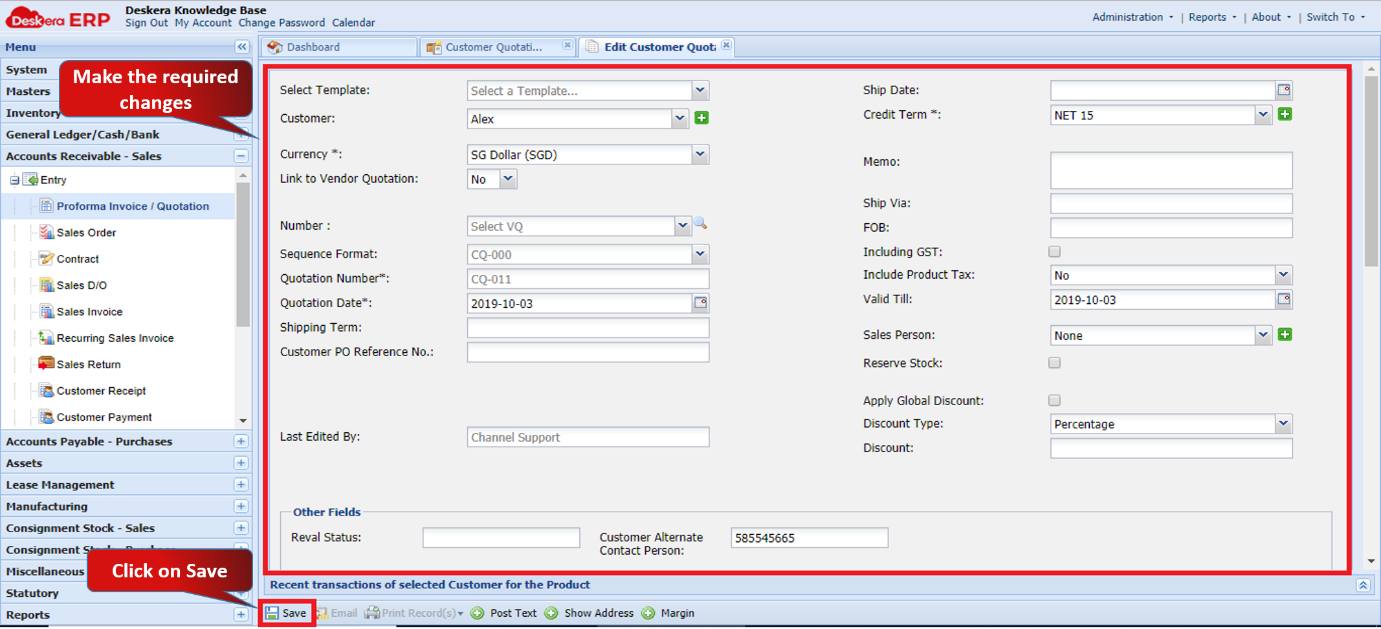 Fig 1.5.1.1.6 Edit Customer Quotation
Delete Customer Quotation
Step 1: Select the Customer Quotation and click on Delete. Select the desired option. 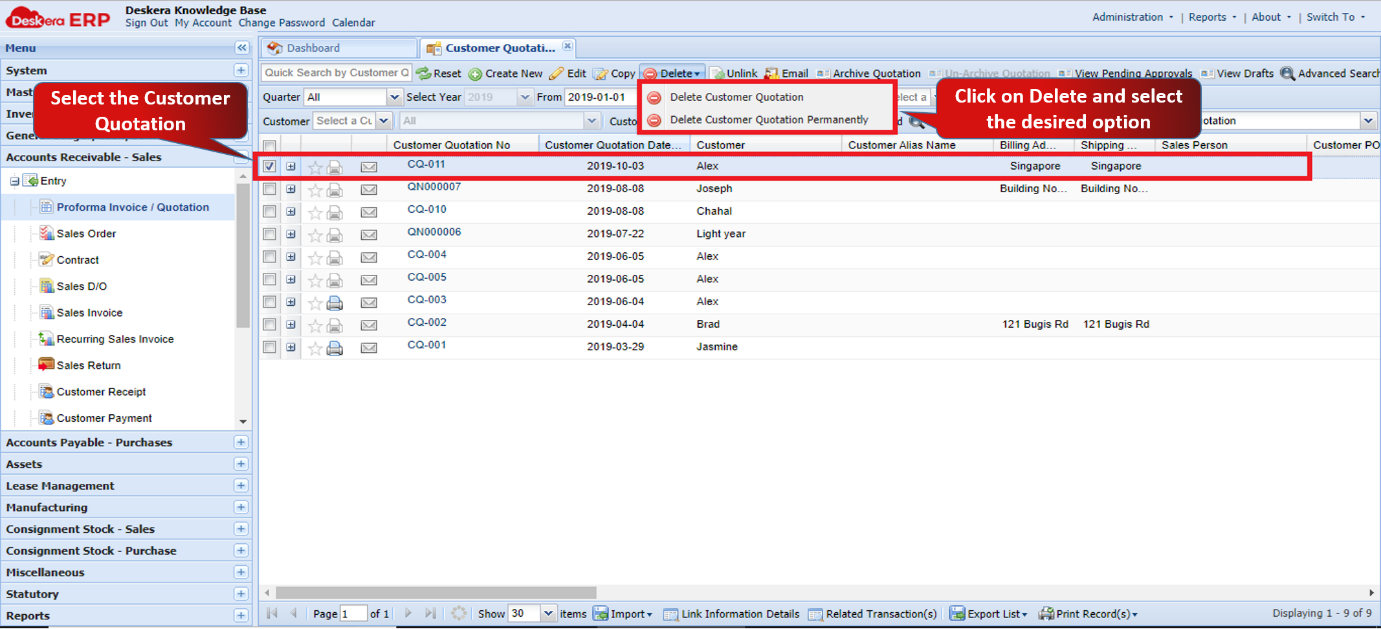 Fig 1.5.1.1.7 Delete Customer Quotation
Step 2: Click on Yes to confirm.
The customer quotation will be deleted. 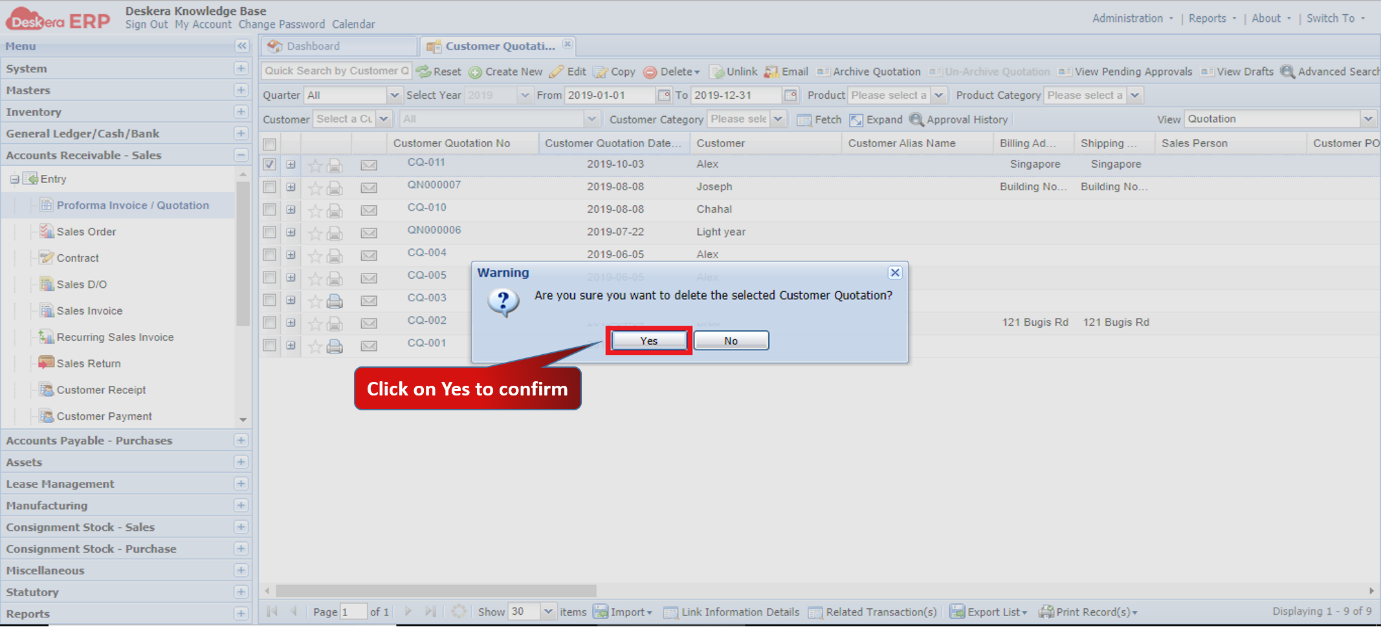 Fig 1.5.1.1.8 Delete Customer Quotation
Comments
0 comments
Please sign in to leave a comment.