
A Sales Order is the next step, following the prospective customer’s acceptance of the Customer Quotation and has shared the Purchase Order (PO) with the seller. Generated by the company itself, a Sales Order is used as an acknowledgement of the PO shared by the prospective customer before delivering the finished good(s).
You can create, edit and delete a sales order by using the Deskera ERP’s Sales Order feature.
Prerequisites:
1. You have your Deskera ERP URL in place.
2. You are the administrator of Deskera Applications.
3. Ensure good internet connectivity.
Create New Sales Order
Step 1: Go to Sales Order under Accounts Receivable-Sales tab in Deskera ERP.
Click on Create New.  Fig 1.5.2.1.1 Sales Order
Step 2: Fill in the required details. 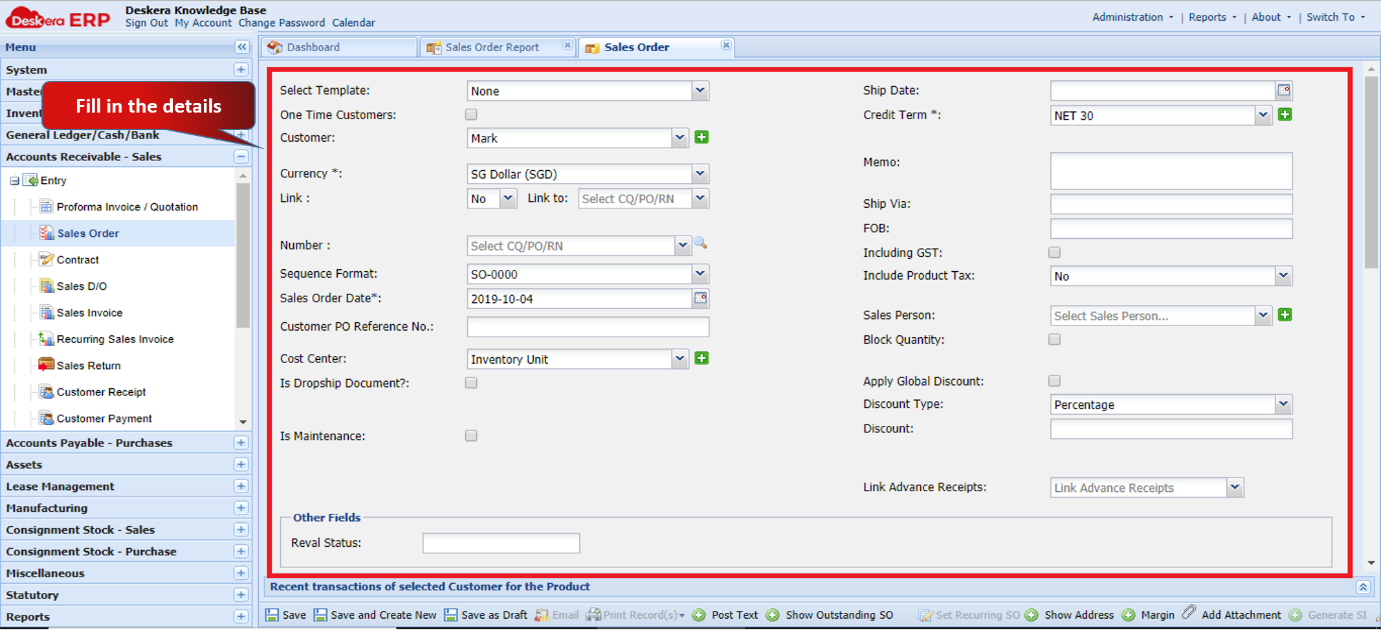 Fig 1.5.2.1.2 Create New Sales Order
Step 3: Add the products by clicking on the plus sign.  Fig 1.5.2.1.3 Create New Sales Order
Step 4: Select the products and click on Add. Enter the unit price and the quantity as required. Fig 1.5.2.1.4 Create New Sales Order
Step 5: Click on Save and Create New. 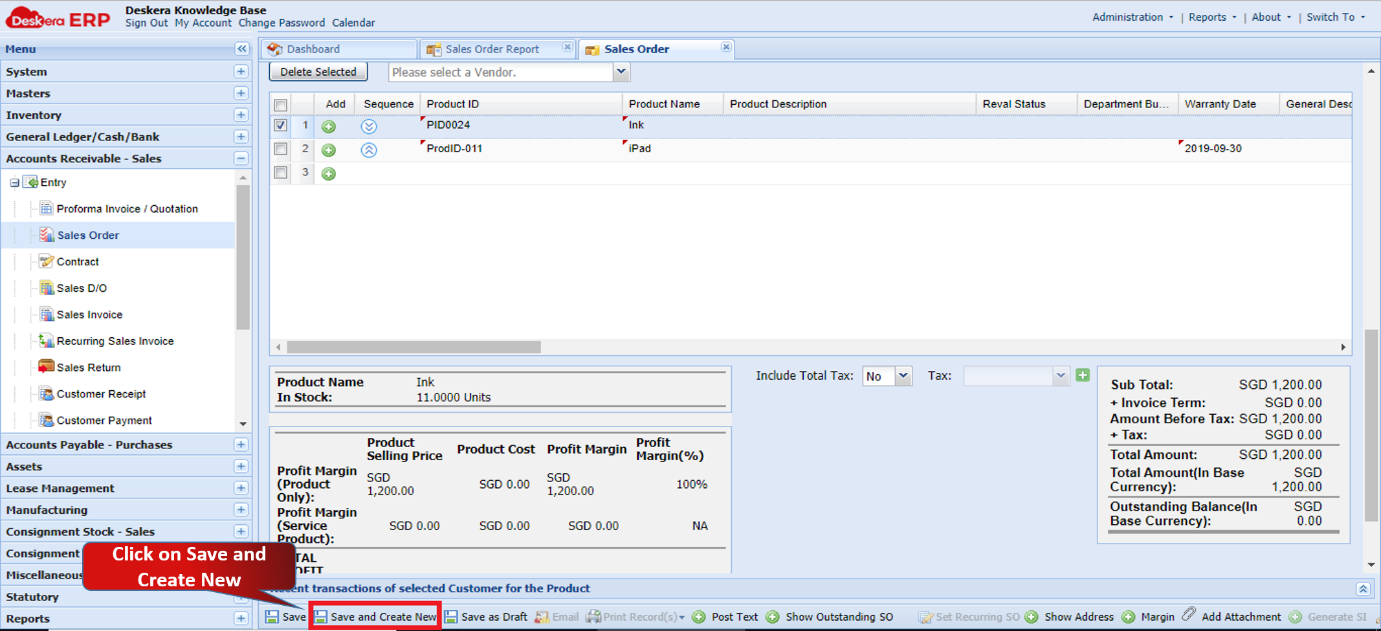 Fig 1.5.2.1.5 Create New Sales Order
The new sales order will be created. 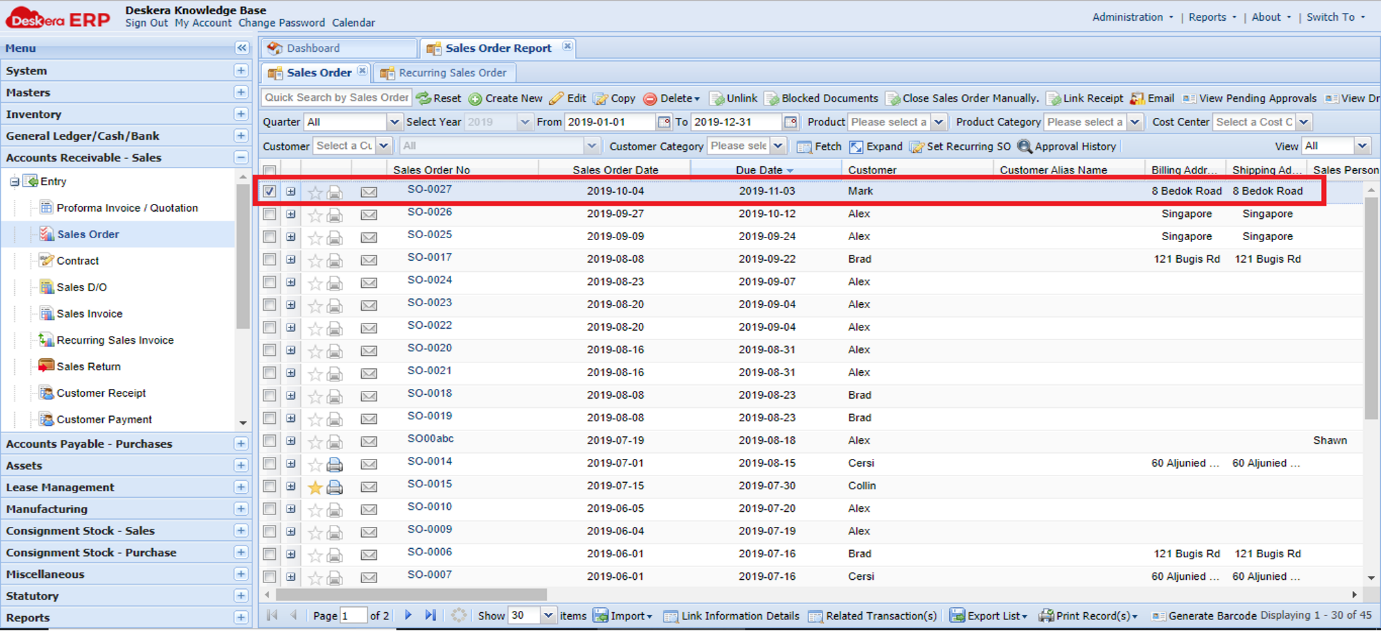 Fig 1.5.2.1.6 Create New Sales Order
Edit Sales Order
Step 1: Select the Sales Order and click on Edit.  Fig 1.5.2.1.7 Edit Sales Order
Step 2: Make the required changes and click on Save.
The changes will be saved. 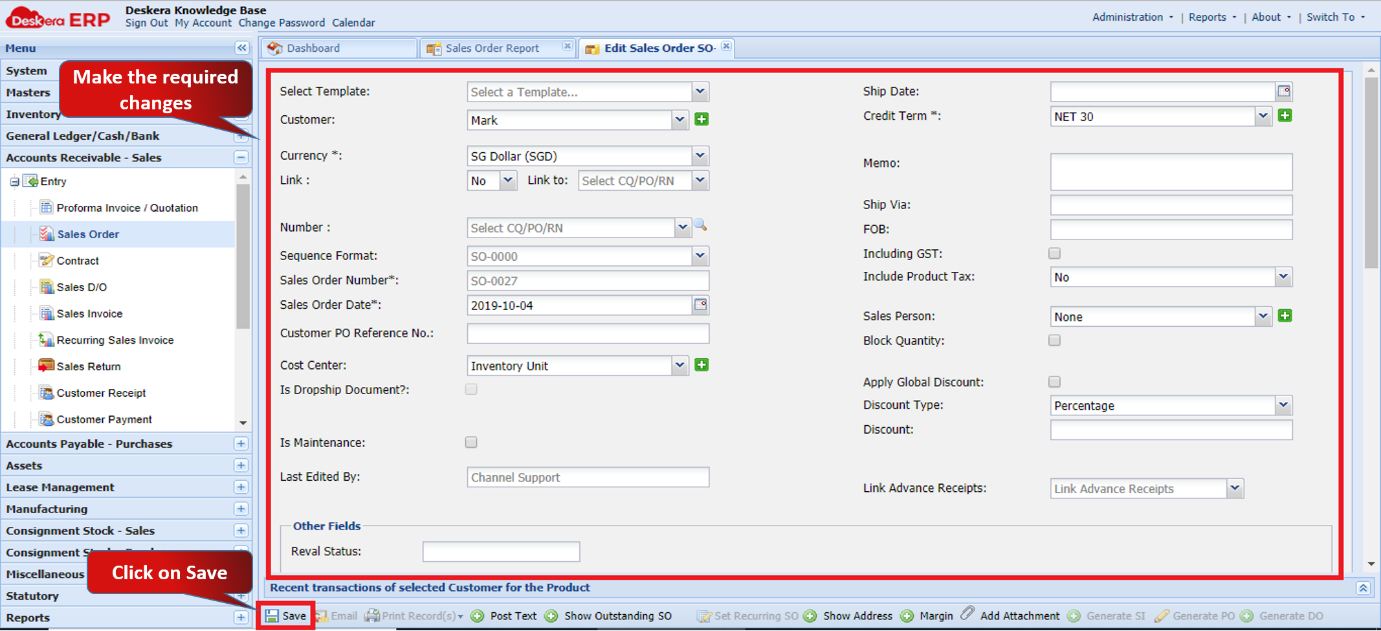 Fig 1.5.2.1.8 Edit Sales Order
Delete Sales Order
Step 1: Select the Sales Order and click on Delete. Select the desired option. 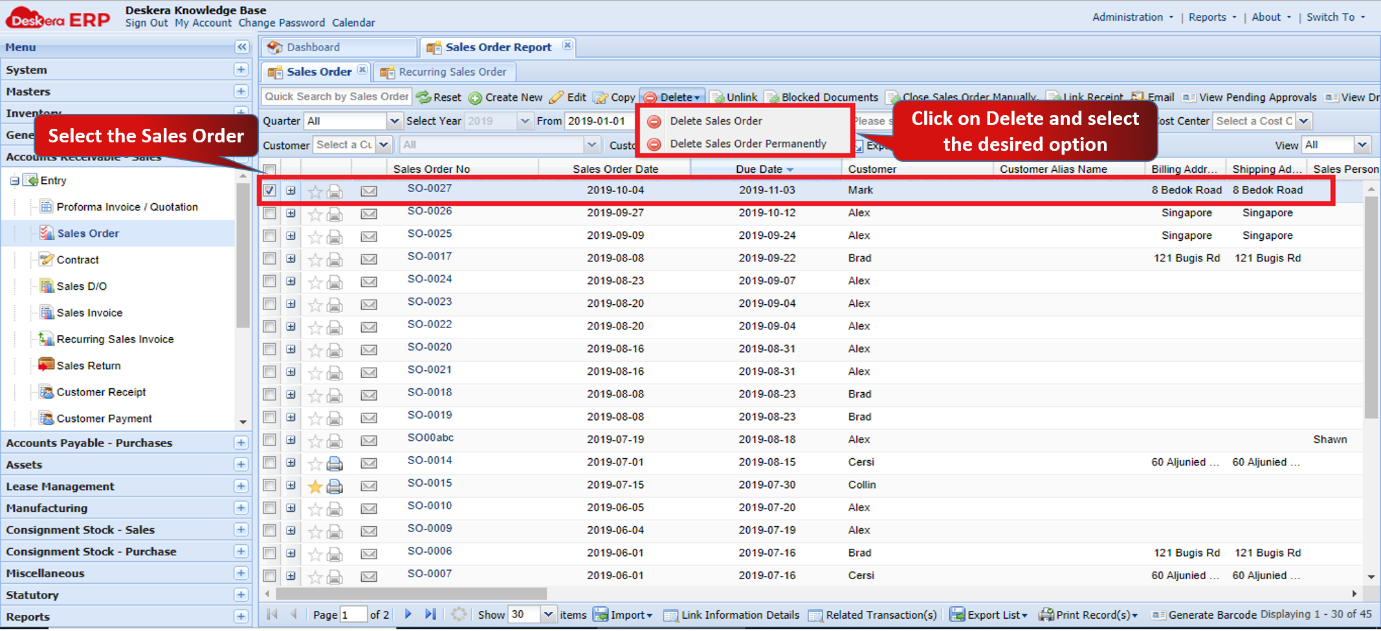 Fig 1.5.2.1.9 Delete Sales Order
Step 2: Click on Yes to confirm.
The sales order will be deleted.  Fig 1.5.2.1.10 Delete Sales Order
Comments
0 comments
Please sign in to leave a comment.