
Deskera eLeave Application allows the users to efficiently manage the leave application and approval process for the employees. Deskera eLeave provides a Time-Off function that allows employees to apply for an absence from work for a fixed period of time. This article focuses on how the user can go about to edit or cancel an existing time-off application.
Prerequisites:
1. Ensure you have your Deskera eLeave application URL in place.
2. Ensure you are logged in as the concerned applicant of the time-off.
3. Ensure the time-off application has been submitted and not approved.
4. Ensure a good internet connectivity
Step 1: Go to Edit/Cancel Time-off Applications under Time-off Manager on eLeave Dashboard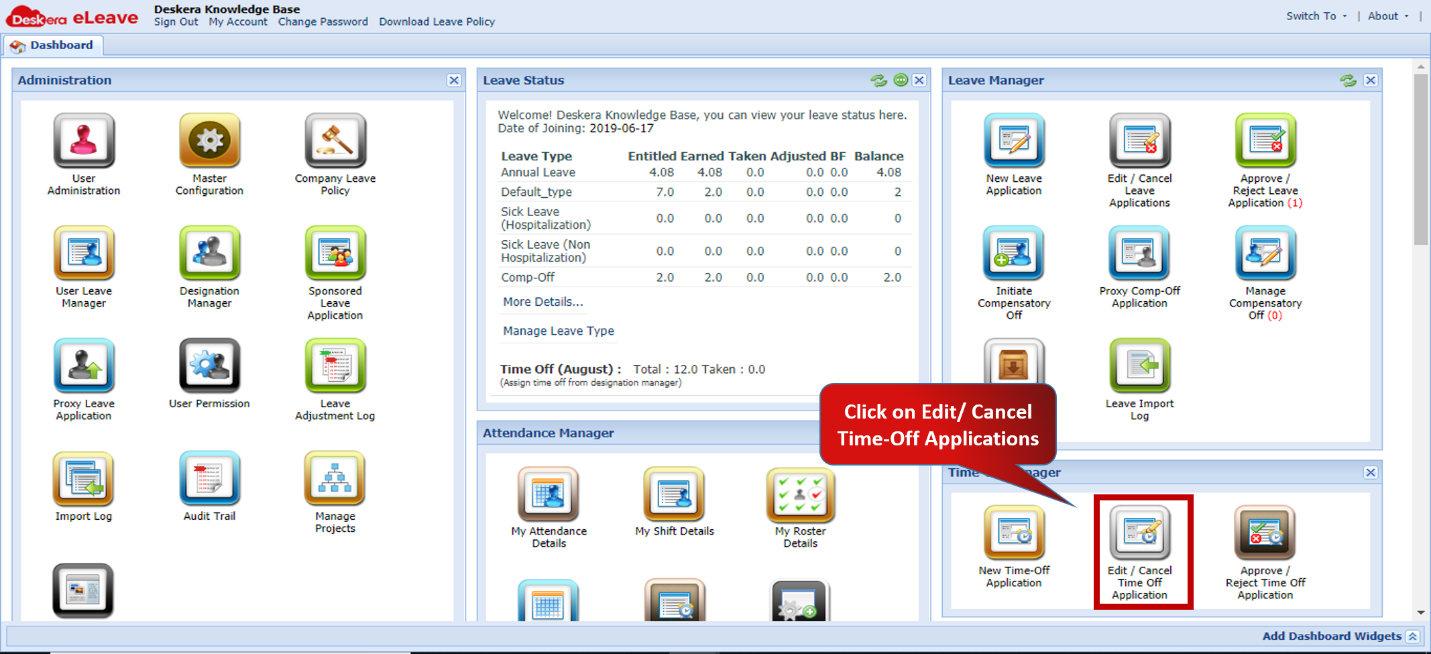 Fig.3.4.2.1 eLeave Dashboard
Step 2: Select the Time-off application that has already been submitted by the user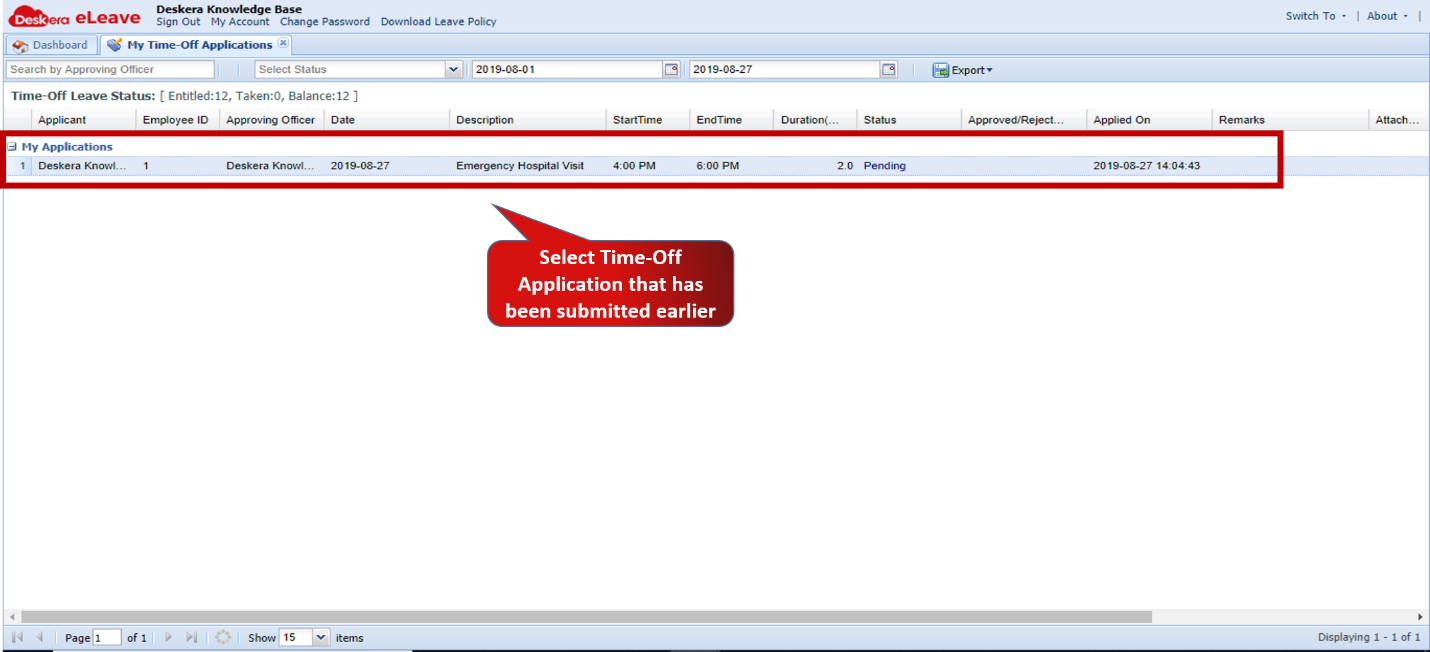 Fig.3.4.2.2 My Time-Off Application Form
Step 3: To Edit Time-off application click on Edit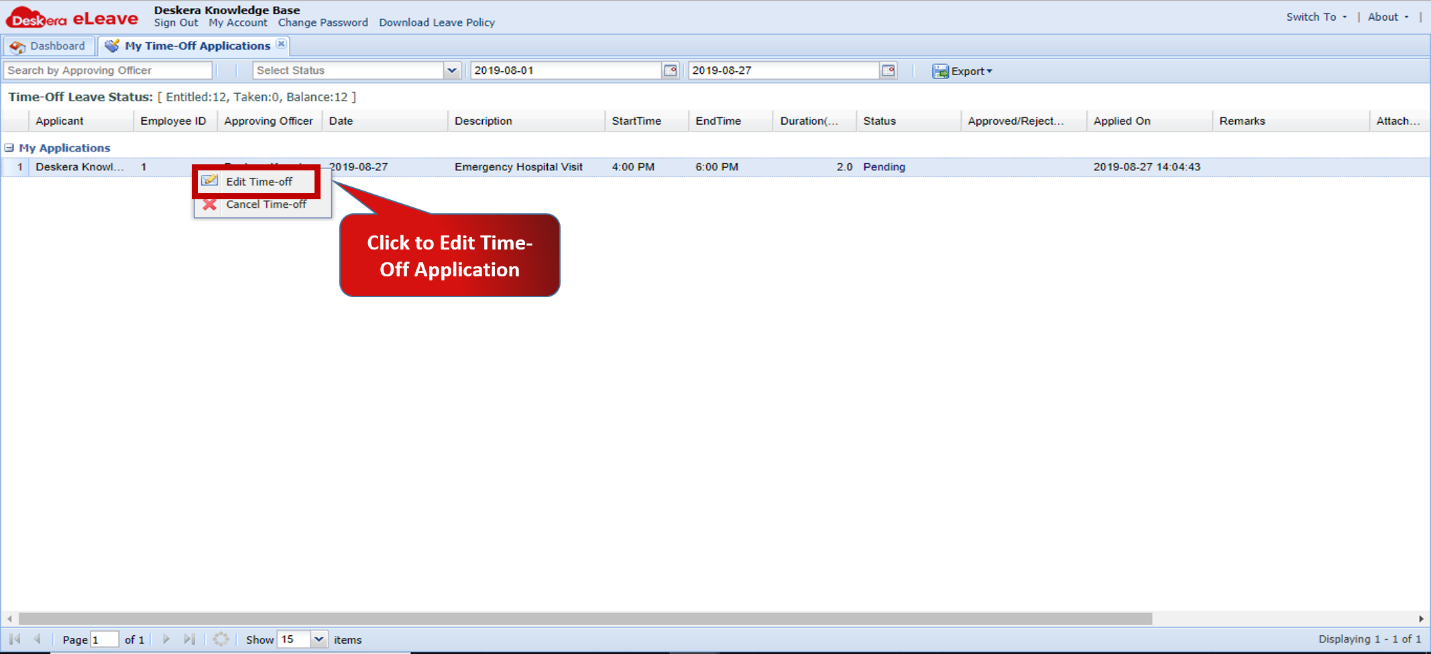 Fig.3.4.2.3 My Time-Off Application Form
Step 4: Enter required changes and click on Update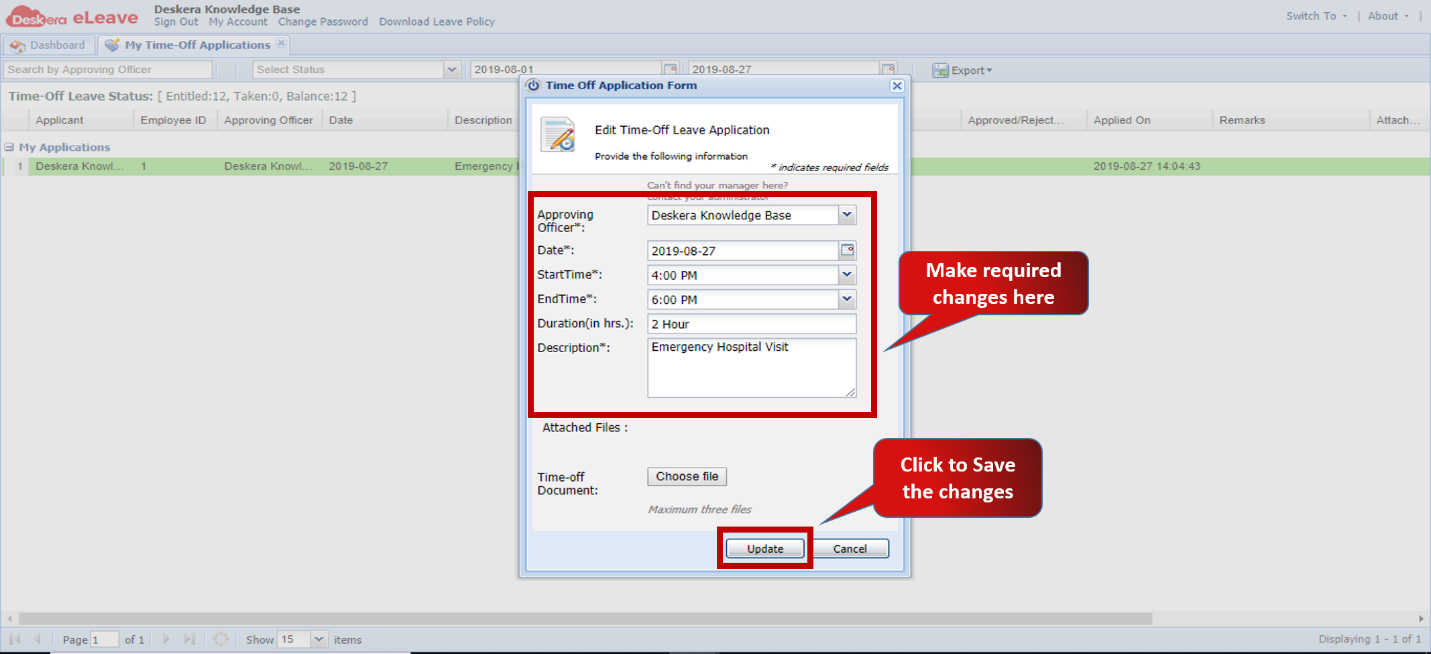 Fig.3.4.2.4 Edit Time-Off Application Form
Step 5: To Cancel Time-off application click on Cancel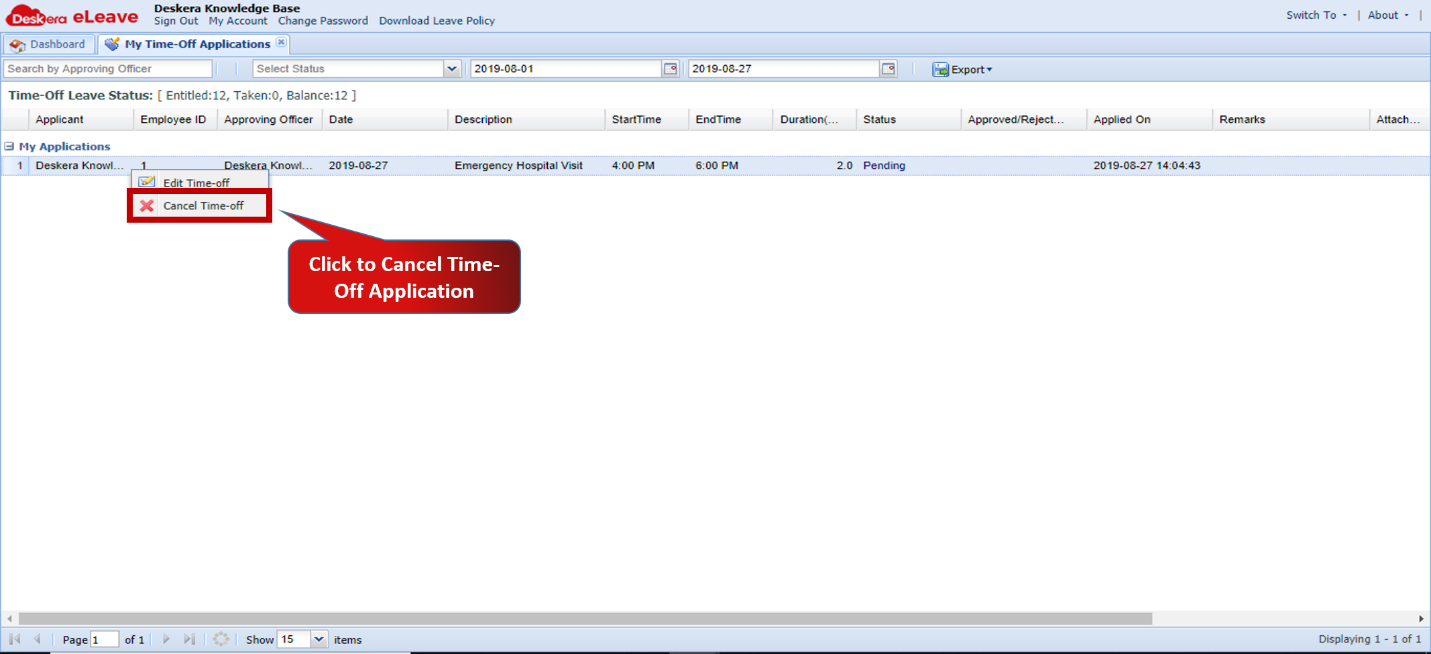 Fig.3.4.2.5 My Time-Off Application Form
Step 6: Click on Yes to confirm Cancellation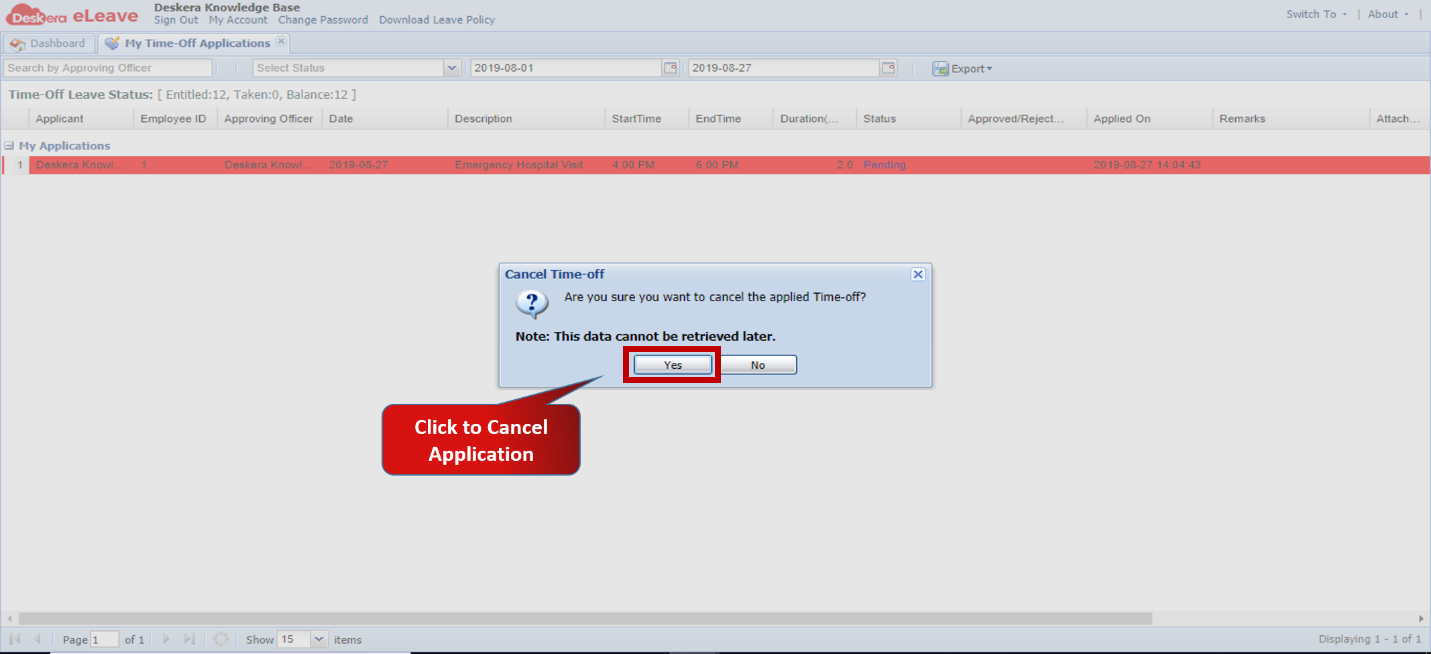 Fig.3.4.2.6 Cancel Time-Off Application Form
Comments
0 comments
Please sign in to leave a comment.