
Deskera eLeave allows the users to generate various types of reports on the data that is generated regarding employee leaves, leave types, shifts, attendance, roster, etc. This article focuses on the Employee Leave Balance Report that can be generated under the Reports section in Deskera eLeave.
This report shows the number of leaves for an employee that is entitled, earned, availed, applied, rejected, adjusted, etc.
Note: Individual users can generate this report only for themselves or as per their role hierarchy. The company administrator can generate the report for all employees.
Prerequisites:
1. Ensure you have your Deskera eLeave application URL in place.
2. Ensure you are logged in as the company administrator.
3. Ensue that Employee Leave Balance Report is enabled under Reports in Master Configuration
4. Ensure a good internet connectivity
Step 1: Go to Employee Leave Balance under Report Manager on eLeave Dashboard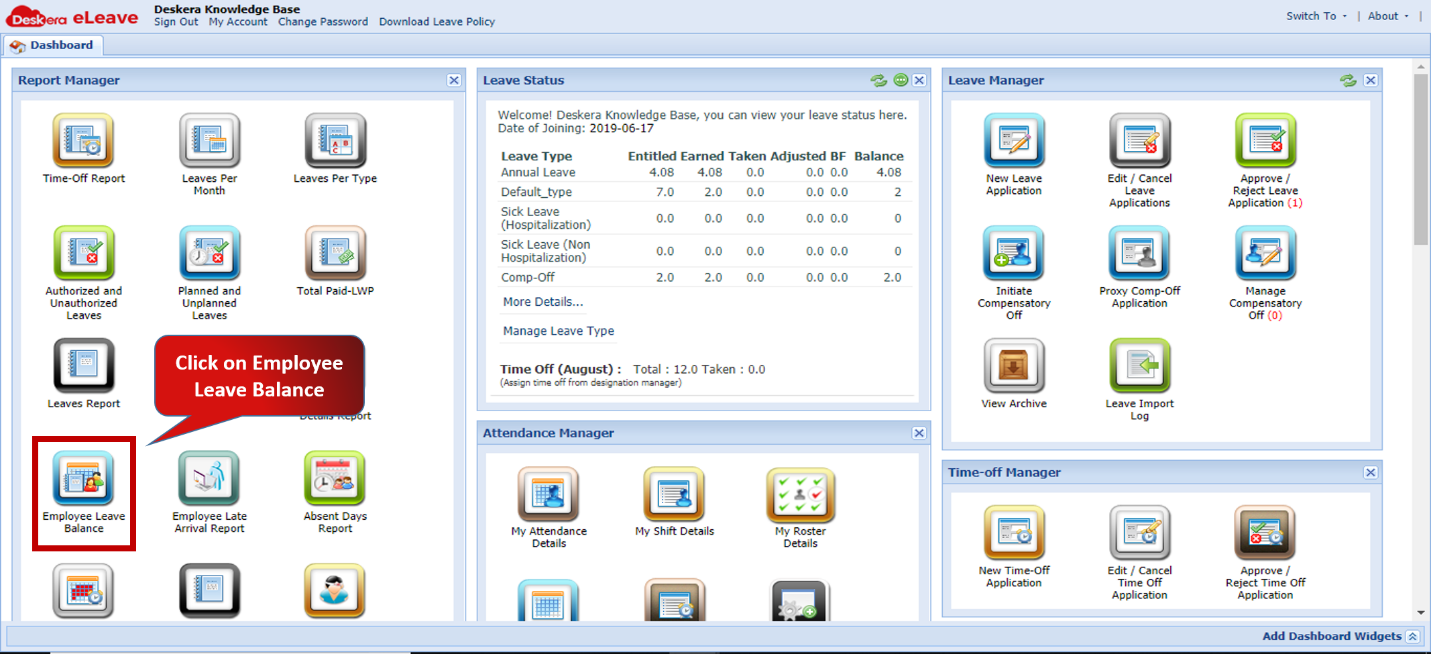 Fig.3.5.1.1 eLeave Dashboard
Step 2: Enter user name/ ID and select User type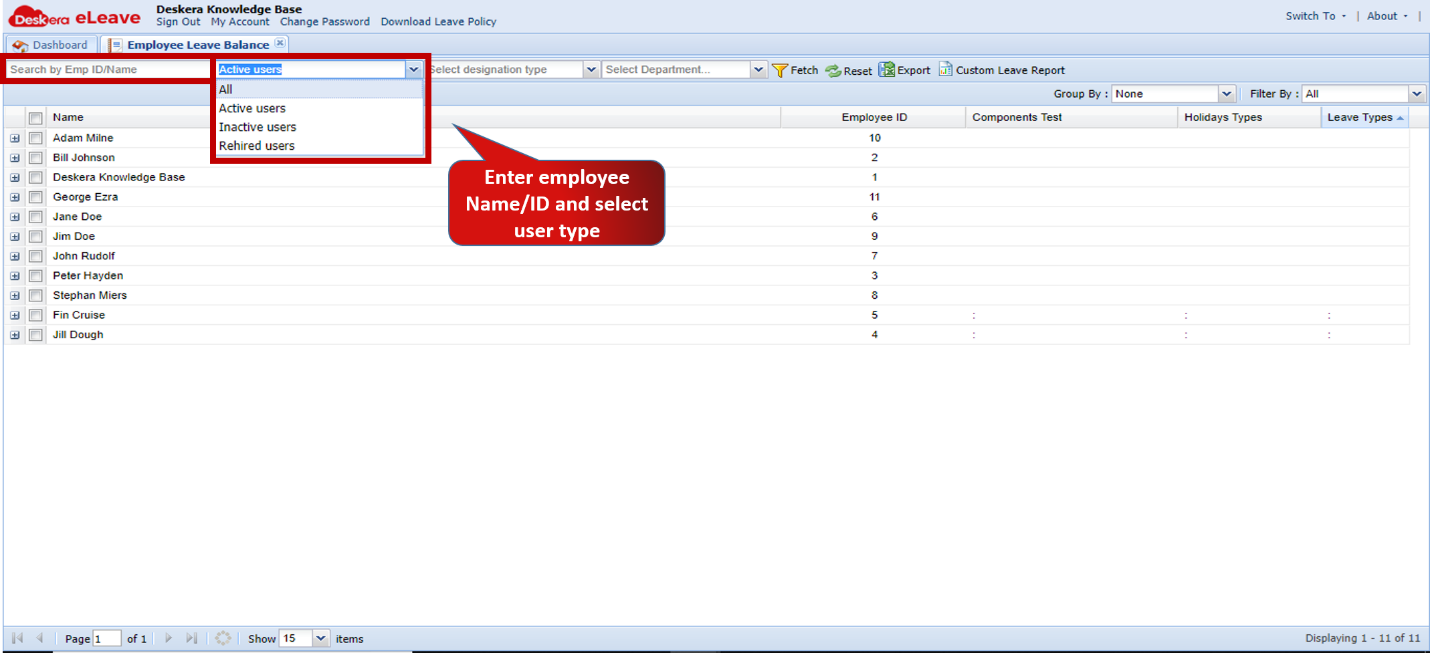 Fig.3.5.1.2 Employee Leave Balance
Step 3: Enter Additional filters on the basis of Department and Designation if needed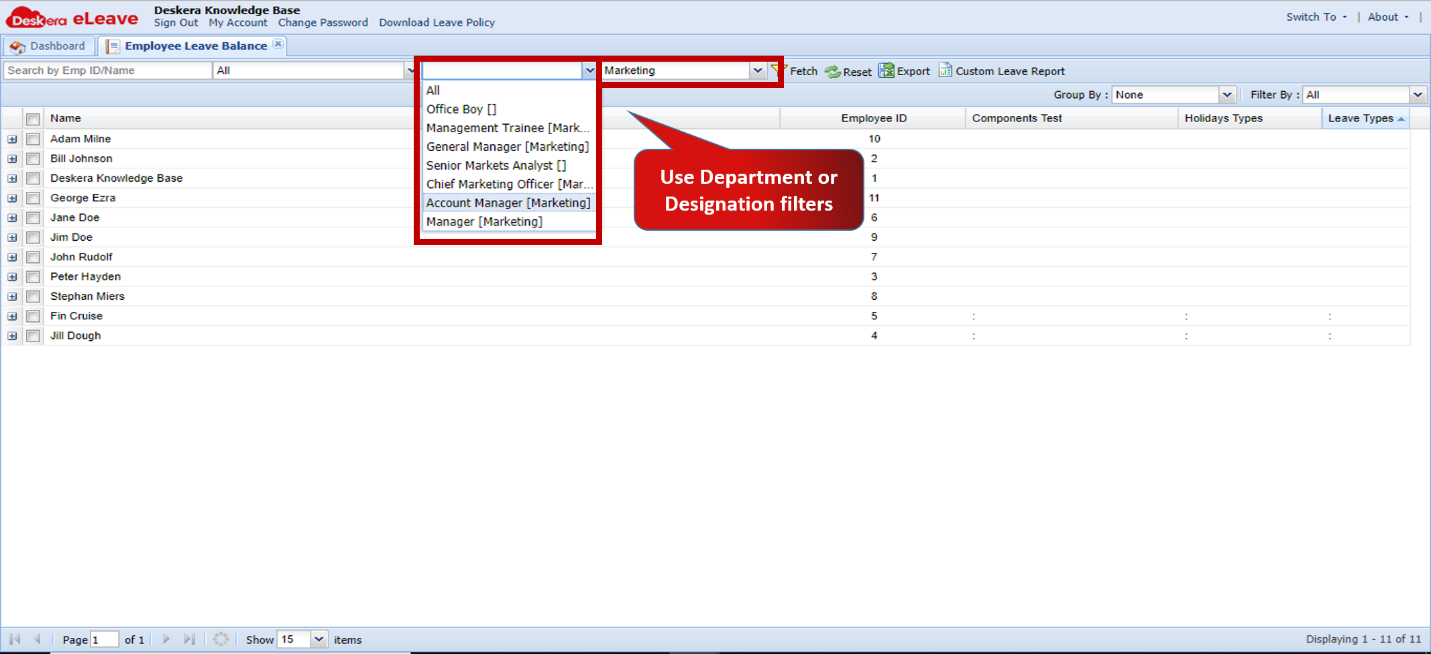 Fig.3.5.1.3 Employee Leave Balance
Step 4: Select user for whom report is to be generated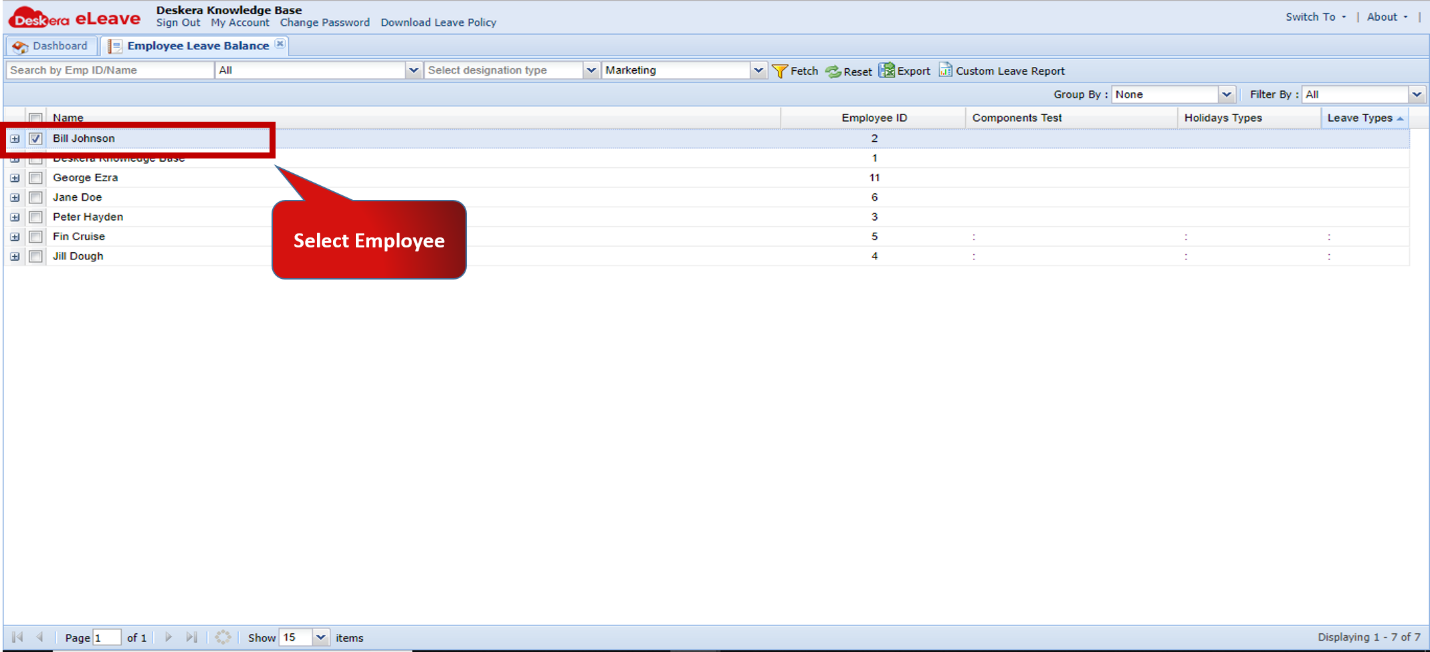 Fig.3.5.1.4 Employee Leave Balance
Step 5: Click on Export to Download Report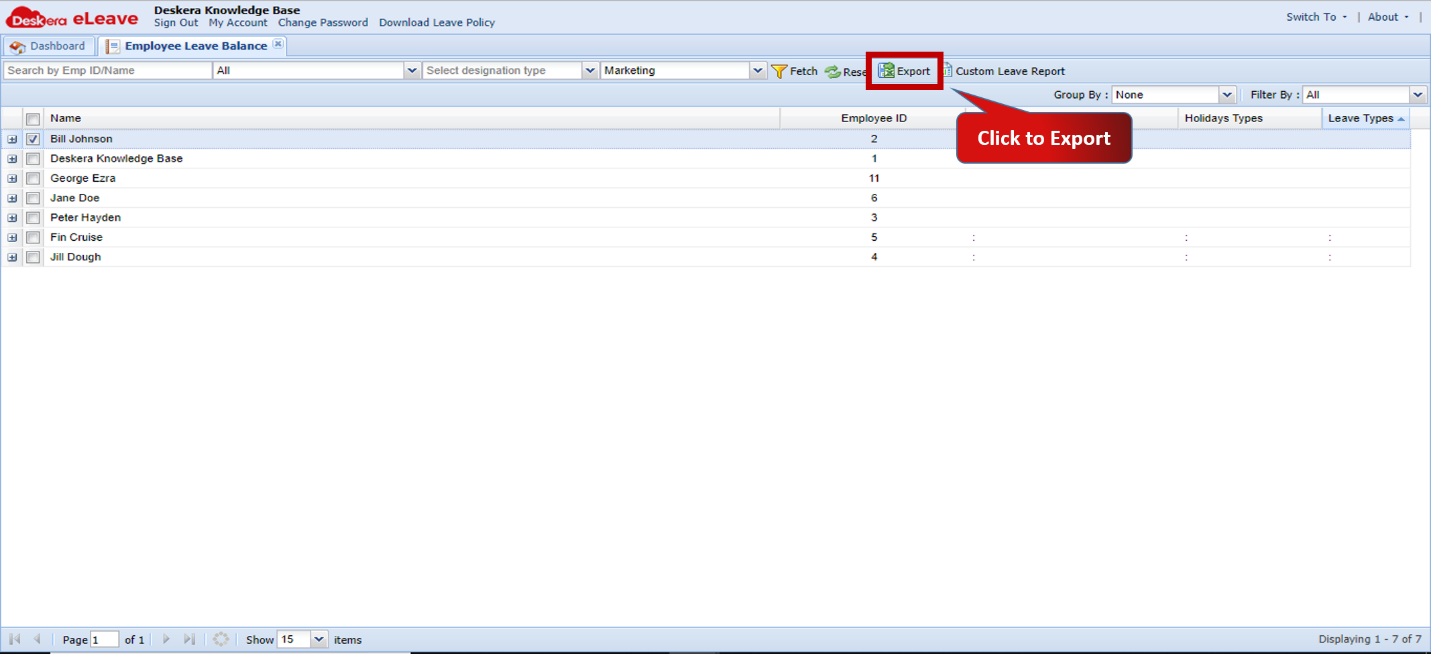 Fig.3.5.1.5 Employee Leave Balance
 Fig.3.5.1.6 Employee Leave Balance Report
Step 6: To customize report on the basis of Leave Types click on Custom Leave Report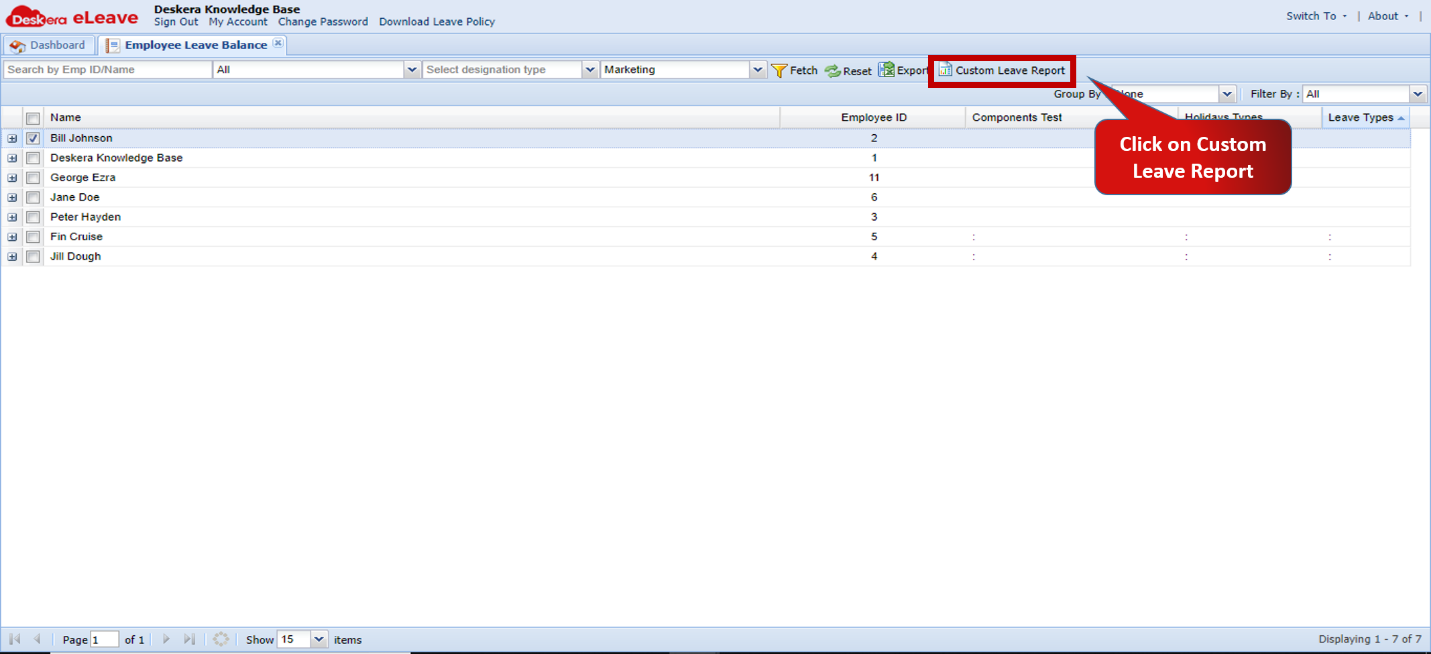 Fig.3.5.1.7 Employee Leave Balance
Step 7: Select the leave types to include in report and Click on Submit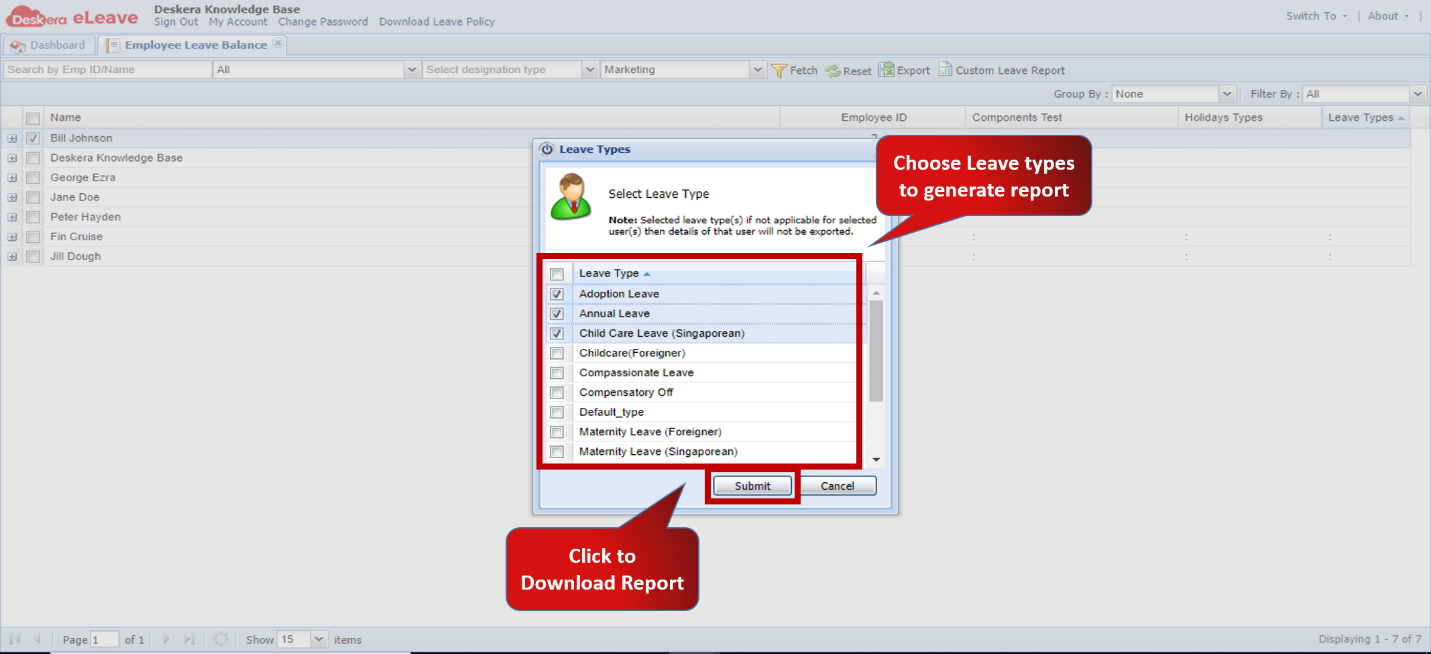 Fig.3.5.1.8 Select Leave Types
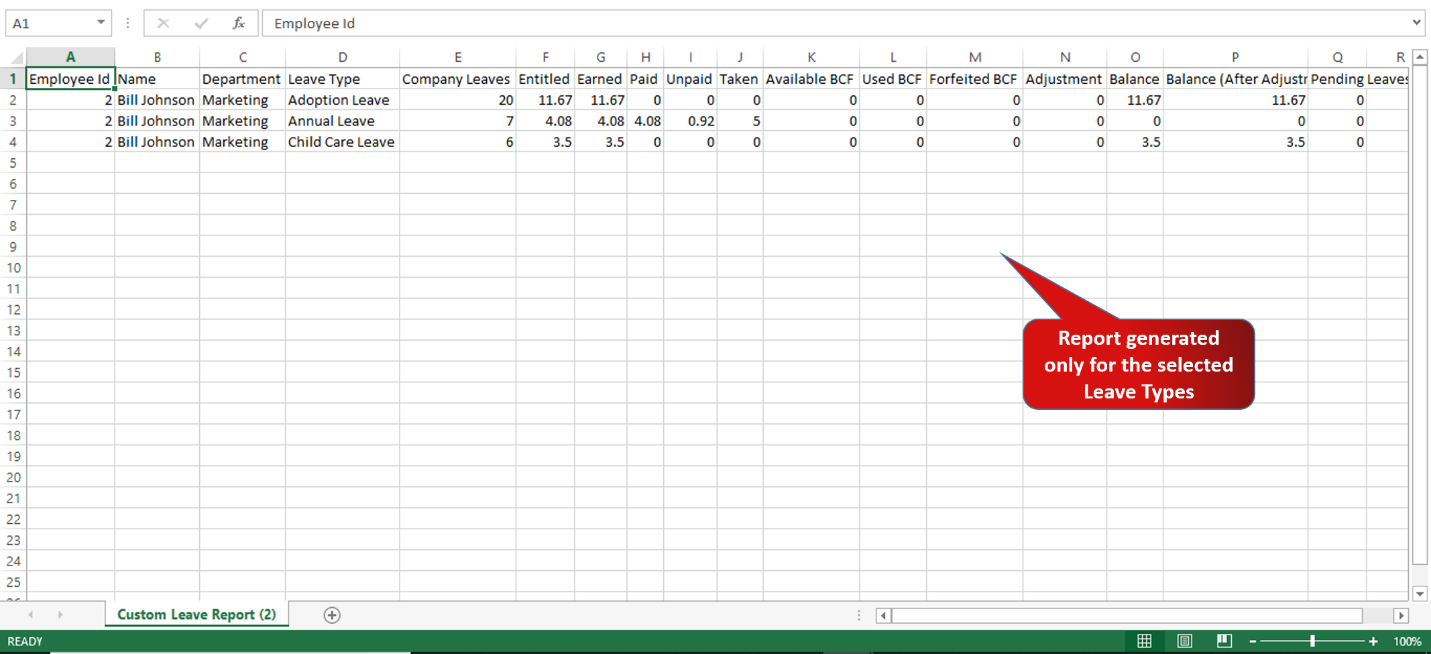 Fig.3.5.1.9 Employee Leave Balance Report
Comments
0 comments
Please sign in to leave a comment.