
Deskera allows integration across the various applications of the Deskera suite to improve efficiency and smoothen the process of running your business. The HRMS-eLeave Integration article describes the various points of integration between HRMS and eLeave applications.
Prerequisites:
1. Ensure you have your Deskera HRMS application URL in place
2. Ensure you are the administrator of the HRMS application
3. Ensure a good internet connectivity
How to enable integration across HRMS and eLeave?
Step 1: Go to Master Configuration under Administration Module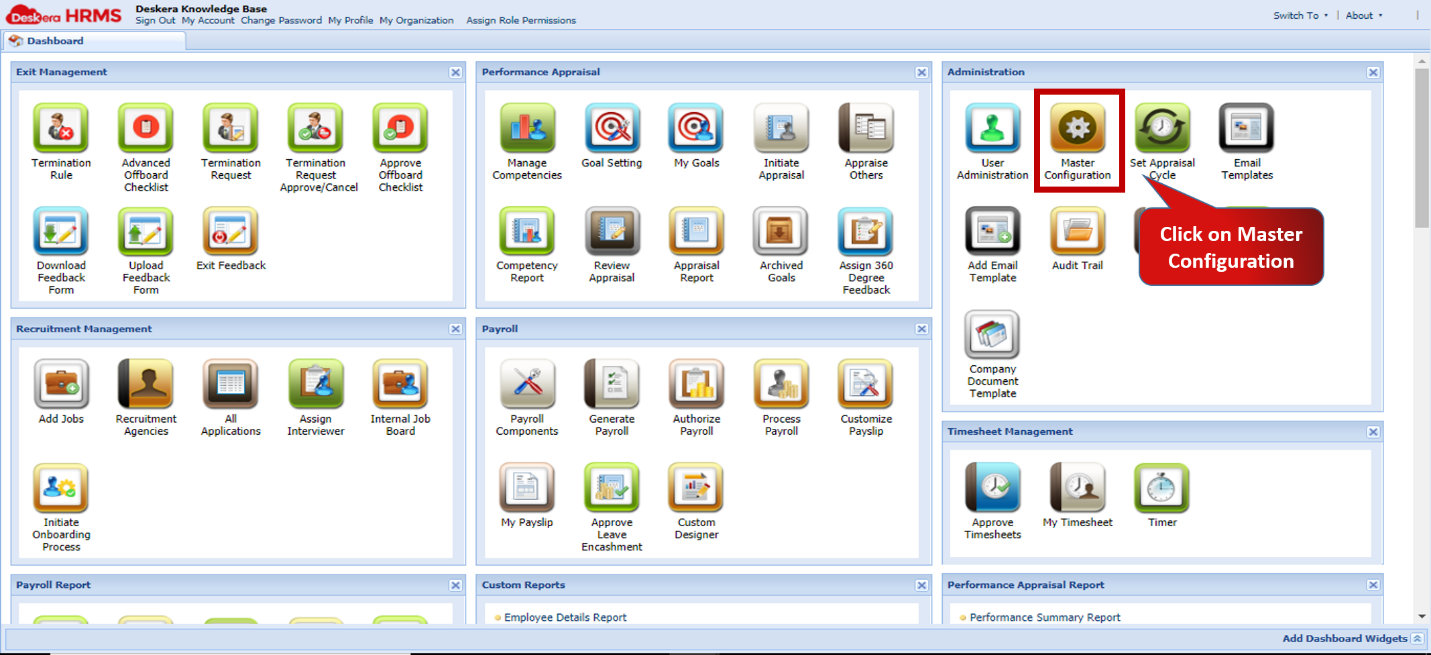 Fig.2.10.3.1 HRMS Dashboard
Step 2: Enable eLeave Integration check-box and Save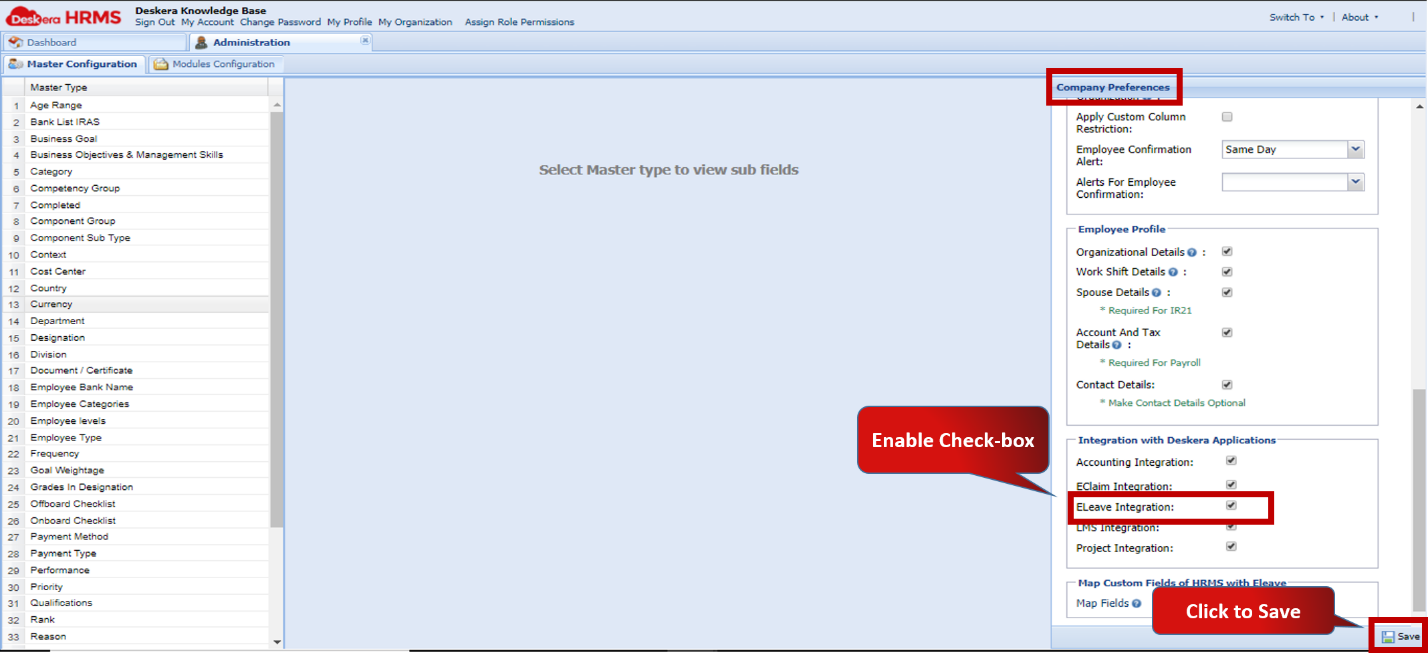 Fig.2.10.3.2 Company Preferences
1. Sync Employee Details- Date of Joining, Termination etc.
When the administrator changes the employee details on HRMS the same will be reflected in eLeave application.
For example if an employee is hired and his details are entered in HRMS, the integration function will update the same in eLeave application. 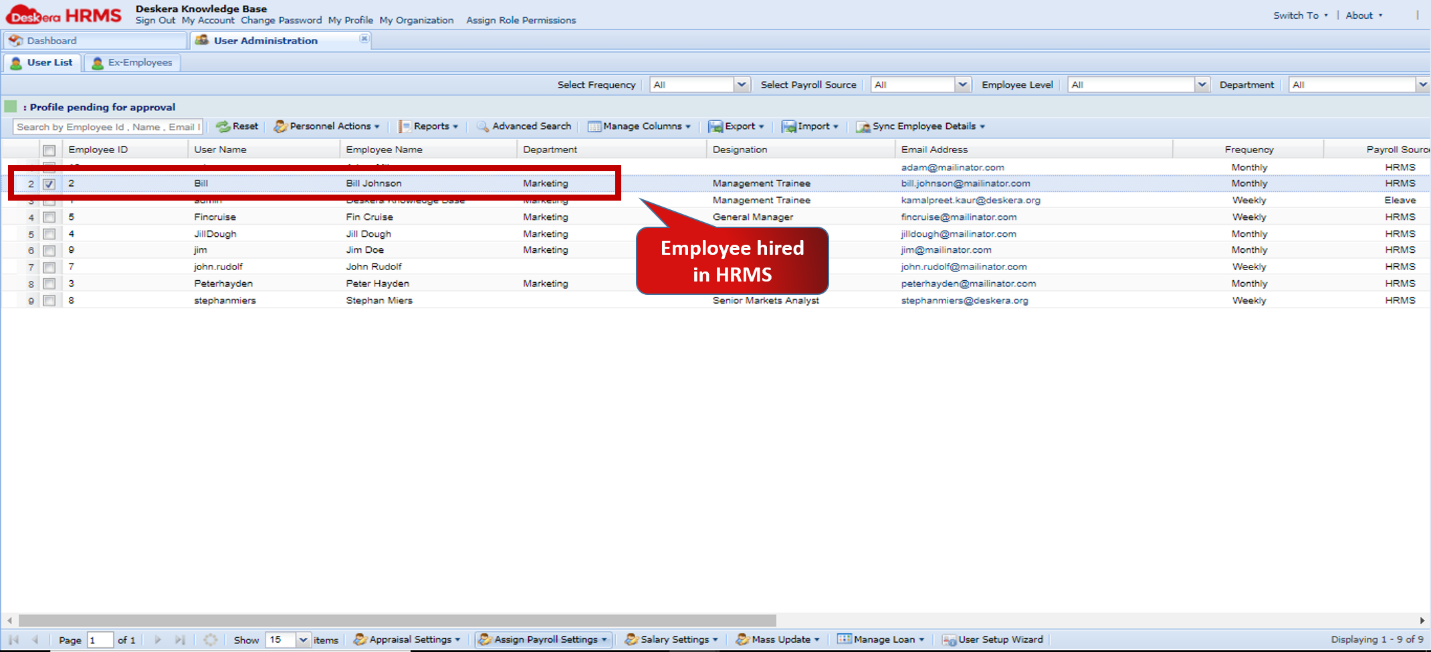 Fig.2.10.3.3 User Administration
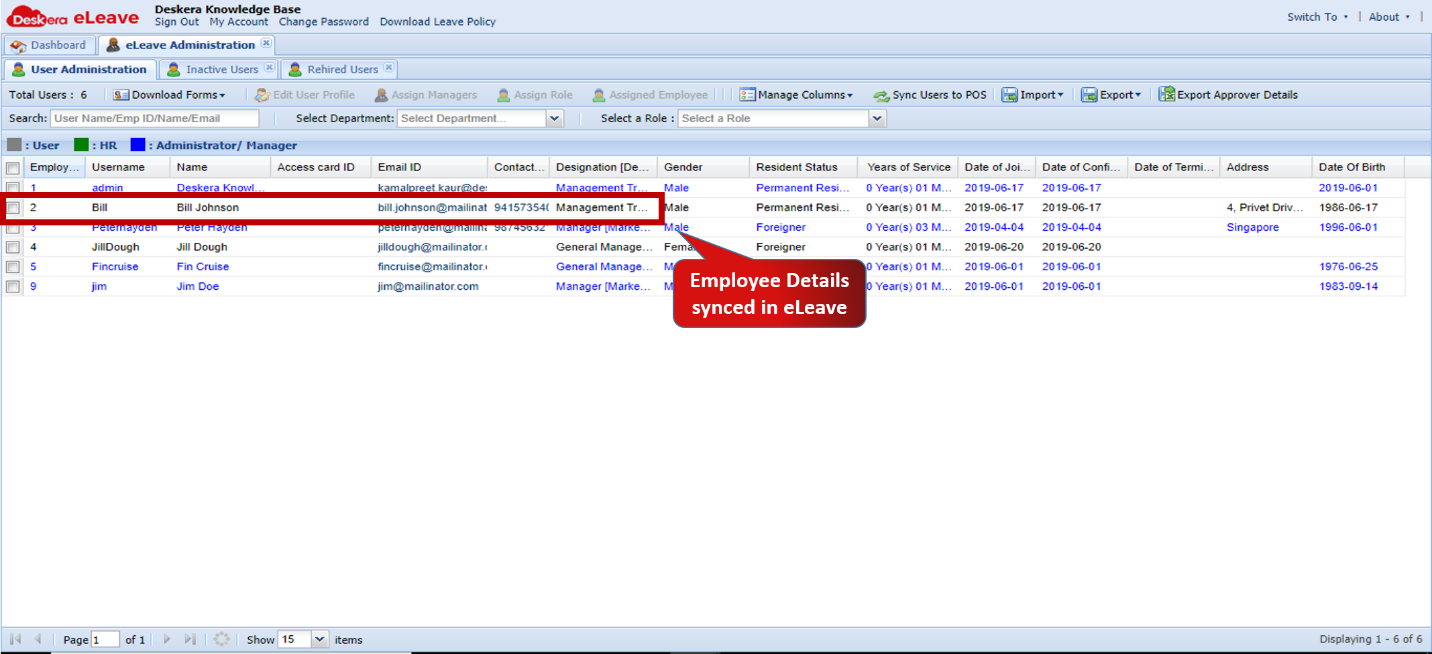 Fig.2.10.3.4 User Administration
Similarly, if an employee is terminated from HRMS he will also be removed from eLeave.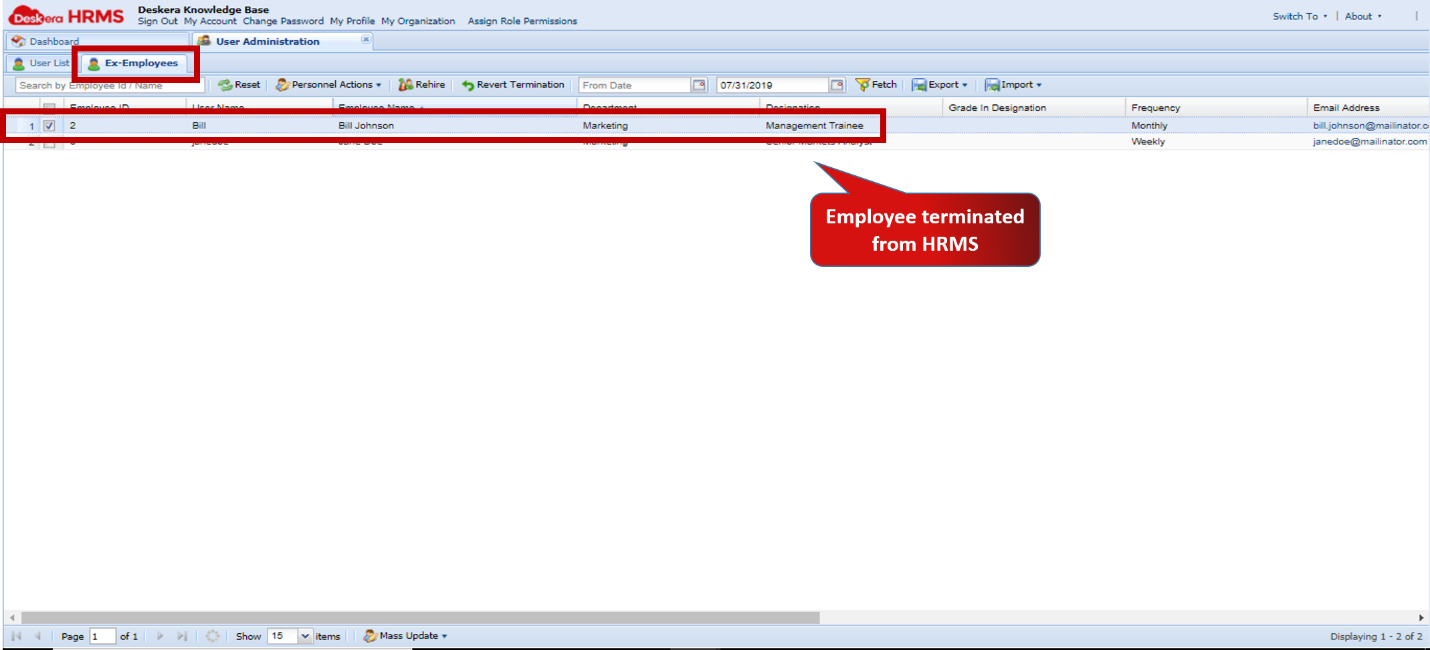 Fig.2.10.3.5 User Administration
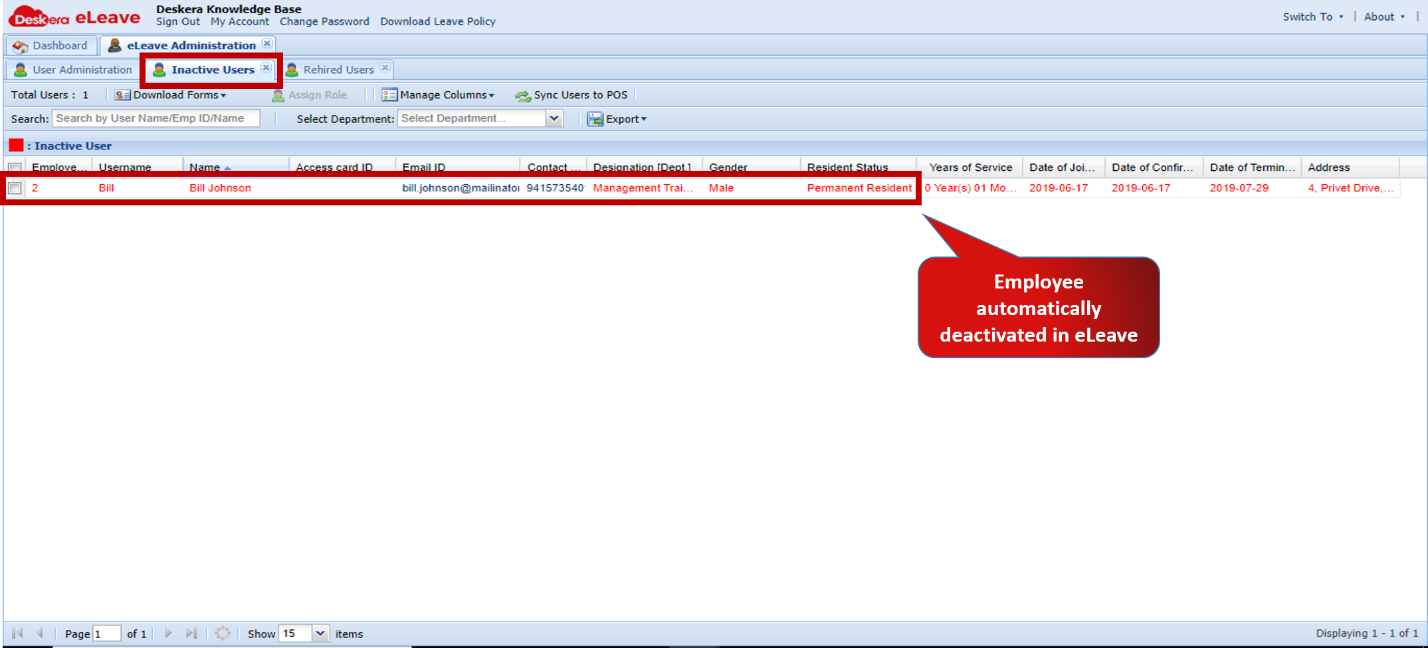 Fig.2.10.3.6 User Administration
2. Sync Attendance Management for Over Time Calculation
Deskera HRMS can automatically pick up the OT amount from Attendance Management in eLeave if the employee is entitled to OT allowance and has been assigned the default OT component in his Payroll.
Ensure that the Payroll Source for the employee is set as eLeave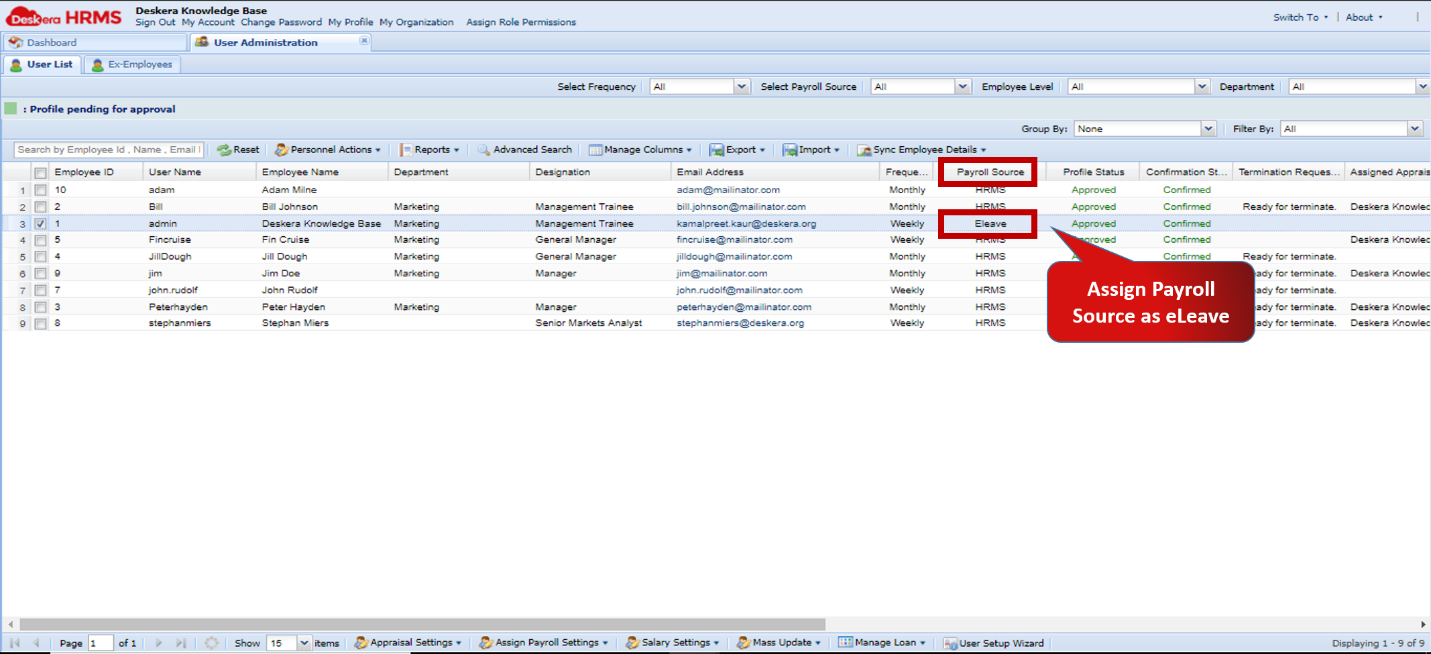 Fig.2.10.3.7a User Administration
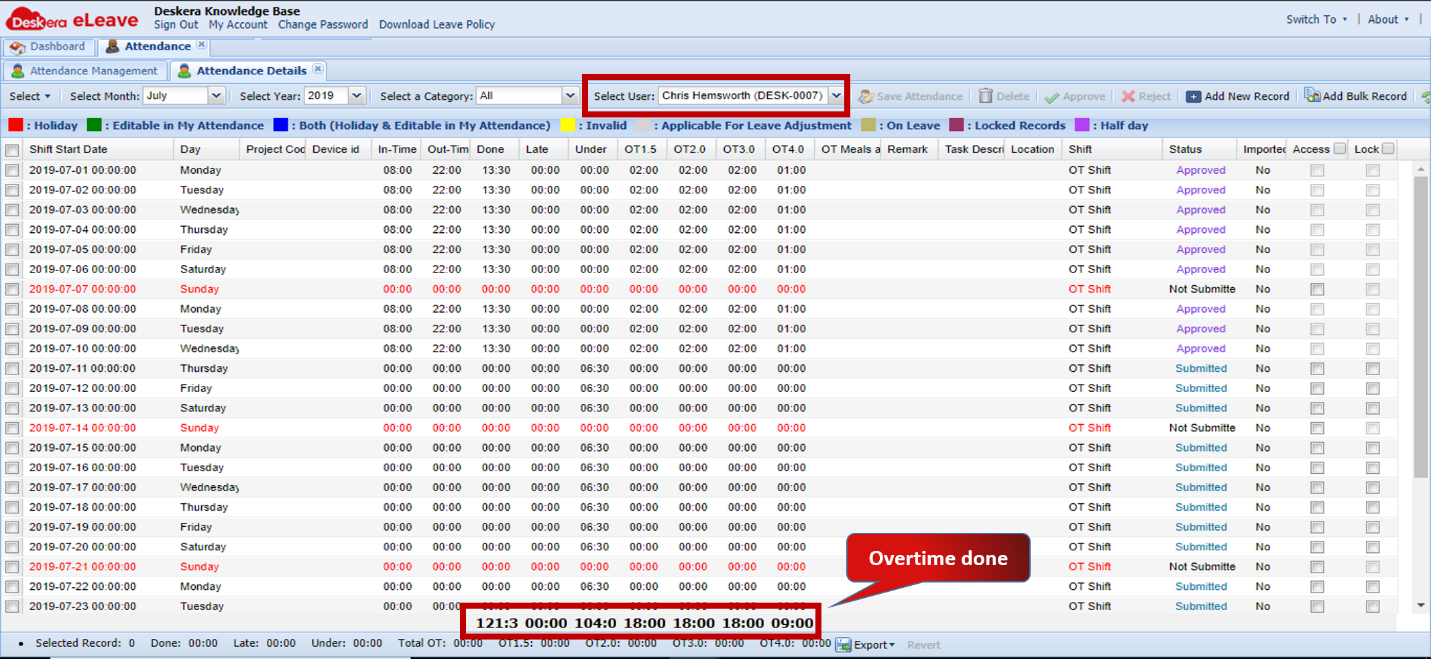 Fig.2.10.3.7b Attendance Management
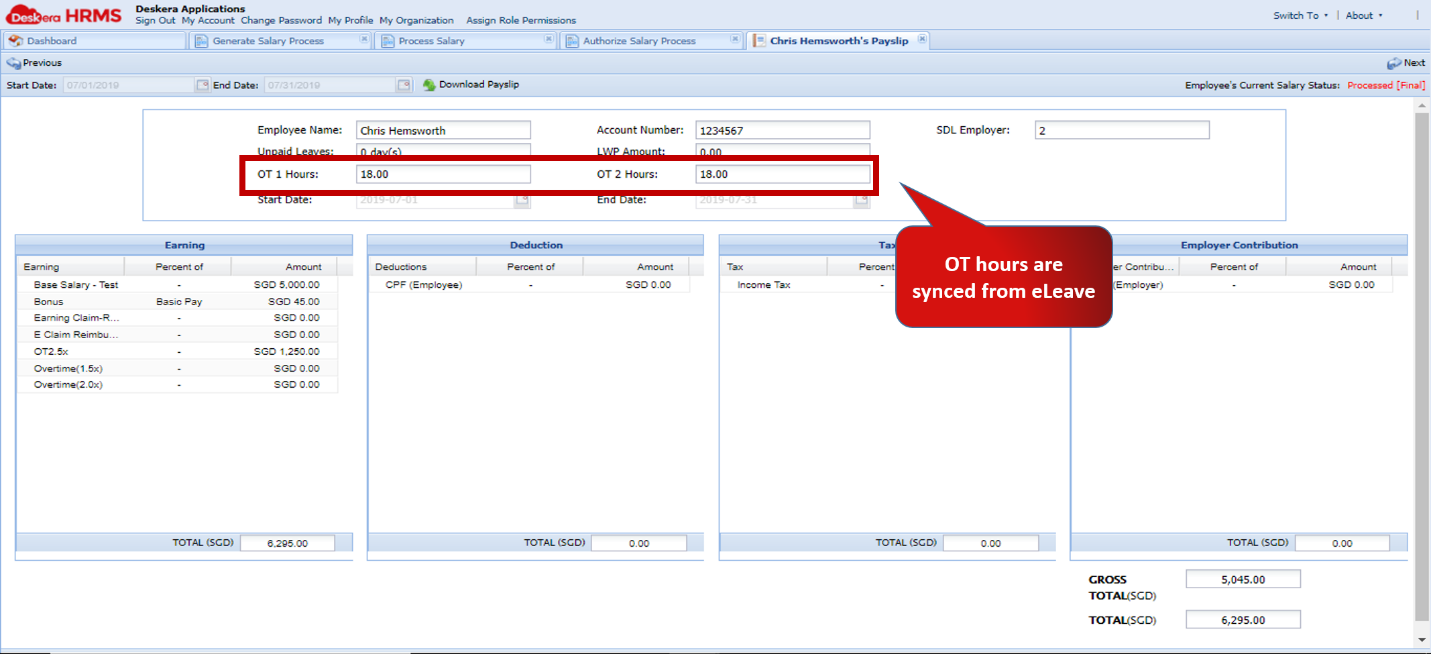 Fig.2.10.3.8 Employee Payslip
3. Sync Unpaid Leaves for Payroll Processing
Deskera HRMS automatically picks up any unpaid leaves availed by an employee. These leaves are then used to determine the deductions made from the employee’s monthly payroll. The unpaid leaves fetched from eLeave can be viewed during the Calculate stage in the Payroll process.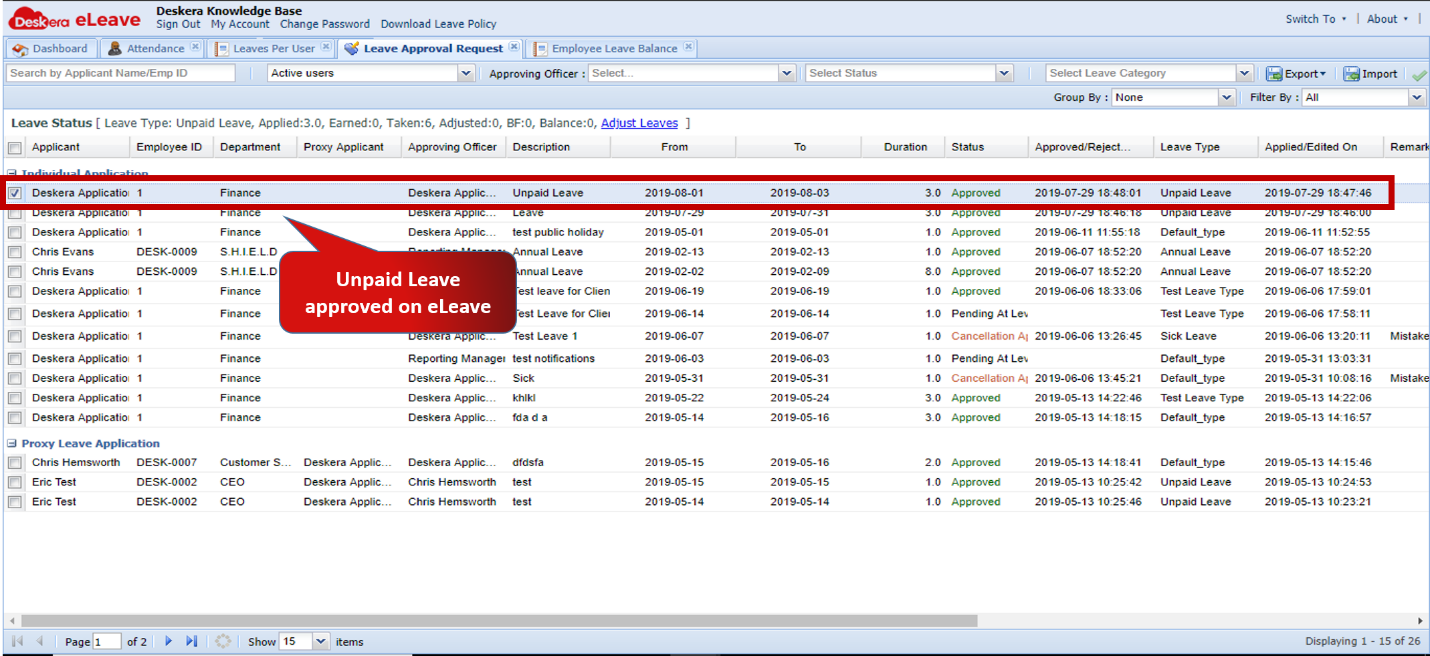 Fig.2.10.3.9 Leave Approval
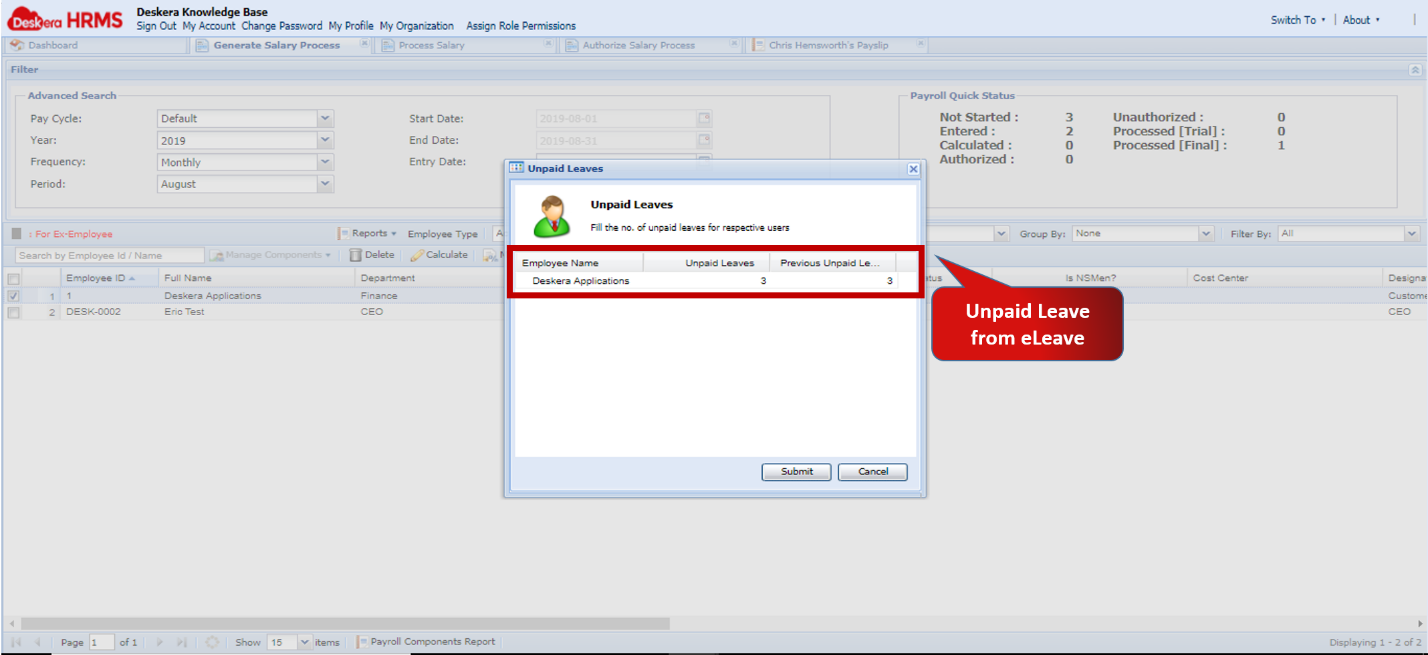 Fig.2.10.3.10 Calculate Payroll
4. Map Custom Fields from HRMS to eLeave
This functionality allows to sync custom field data from HRMS to eLeave for same field type. The data entered in the mapped fields will be visible across both applications.
Step 1: Go to Master Configuration under Administration ModuleFig.2.10.3.11 HRMS Dashboard
Step 2: Click on Map Custom Fields of HRMS with eLeave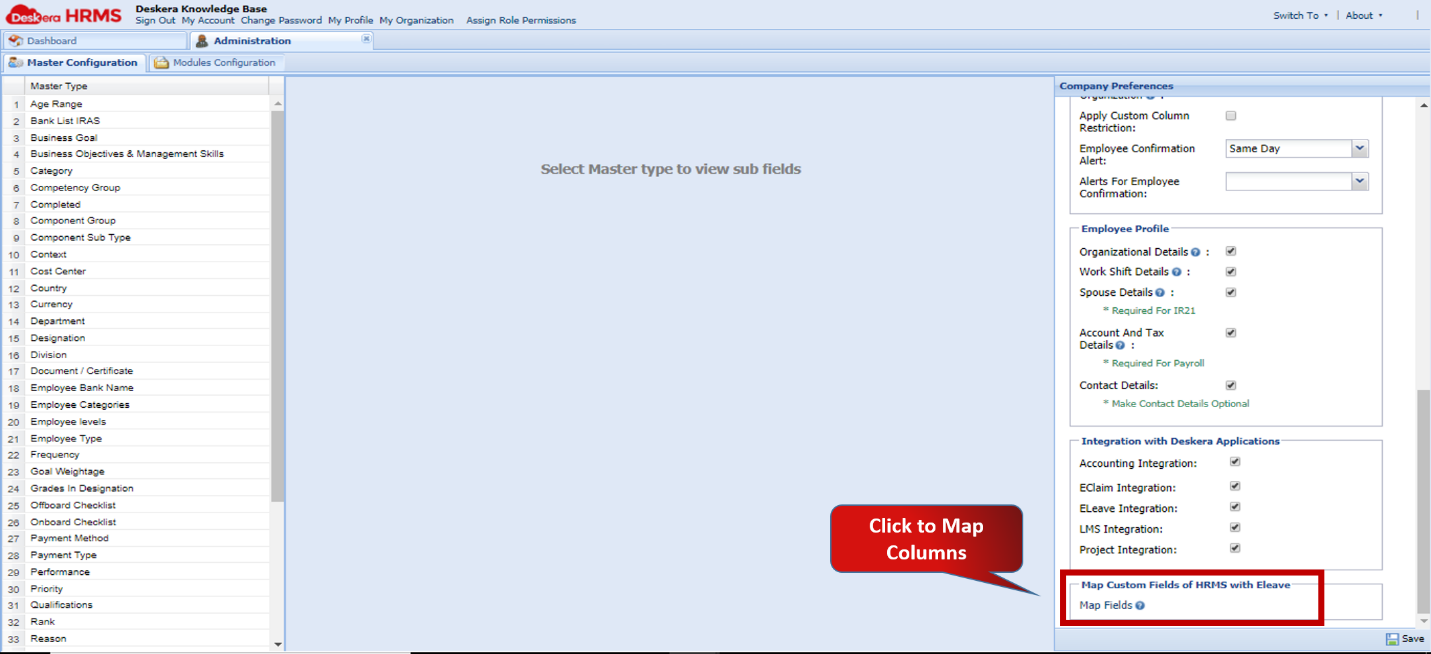 Fig.2.10.3.12 System Preferences
Step 3: Drag fields and place alongside corresponding field to map 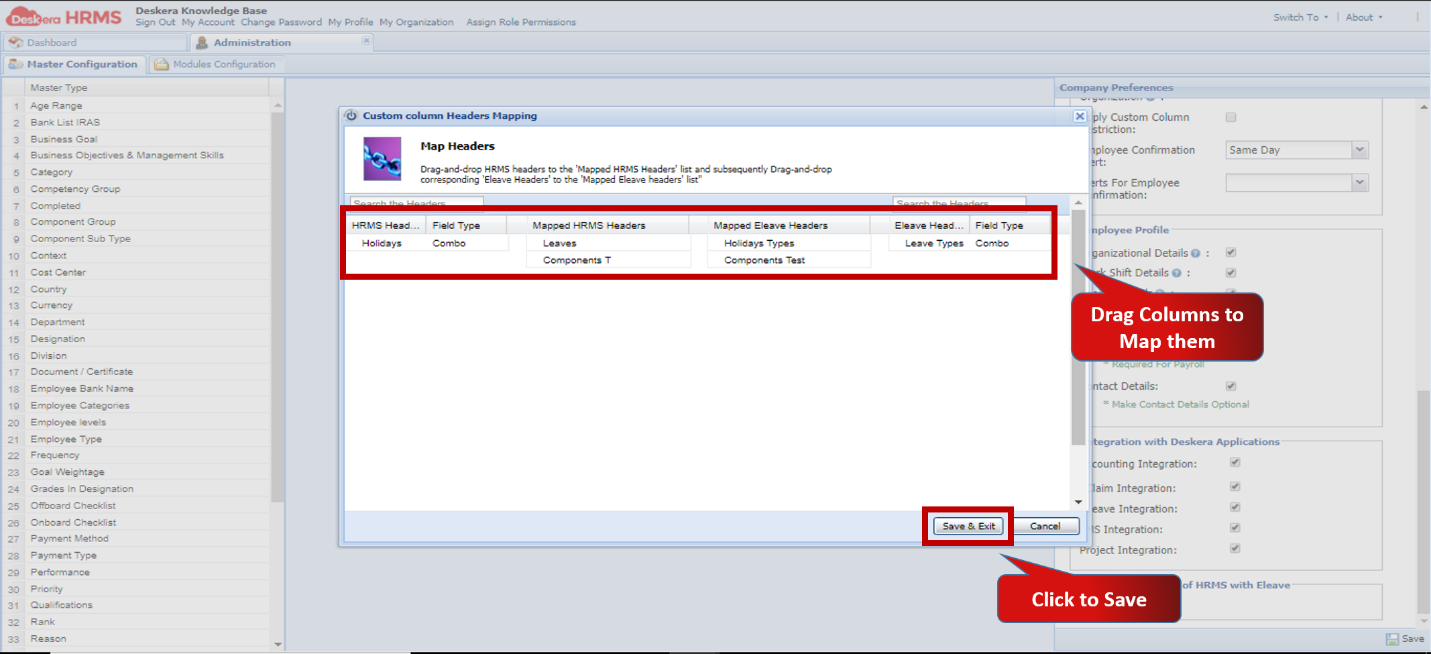 Fig.2.10.3.13 Map Headers
Comments
0 comments
Please sign in to leave a comment.