
Custom Column feature allows you to make your own section to add new data according to your preferences. You can easily add, edit and delete custom columns according to your requirement.
Prerequisites:
- You have your Deskera HRMS application URL in place.
- You are the administrator of the HRMS application
- Ensure a good internet connectivity
Create a Custom Column
Step 1. Go to User Administration under Administration widget in HRMS.
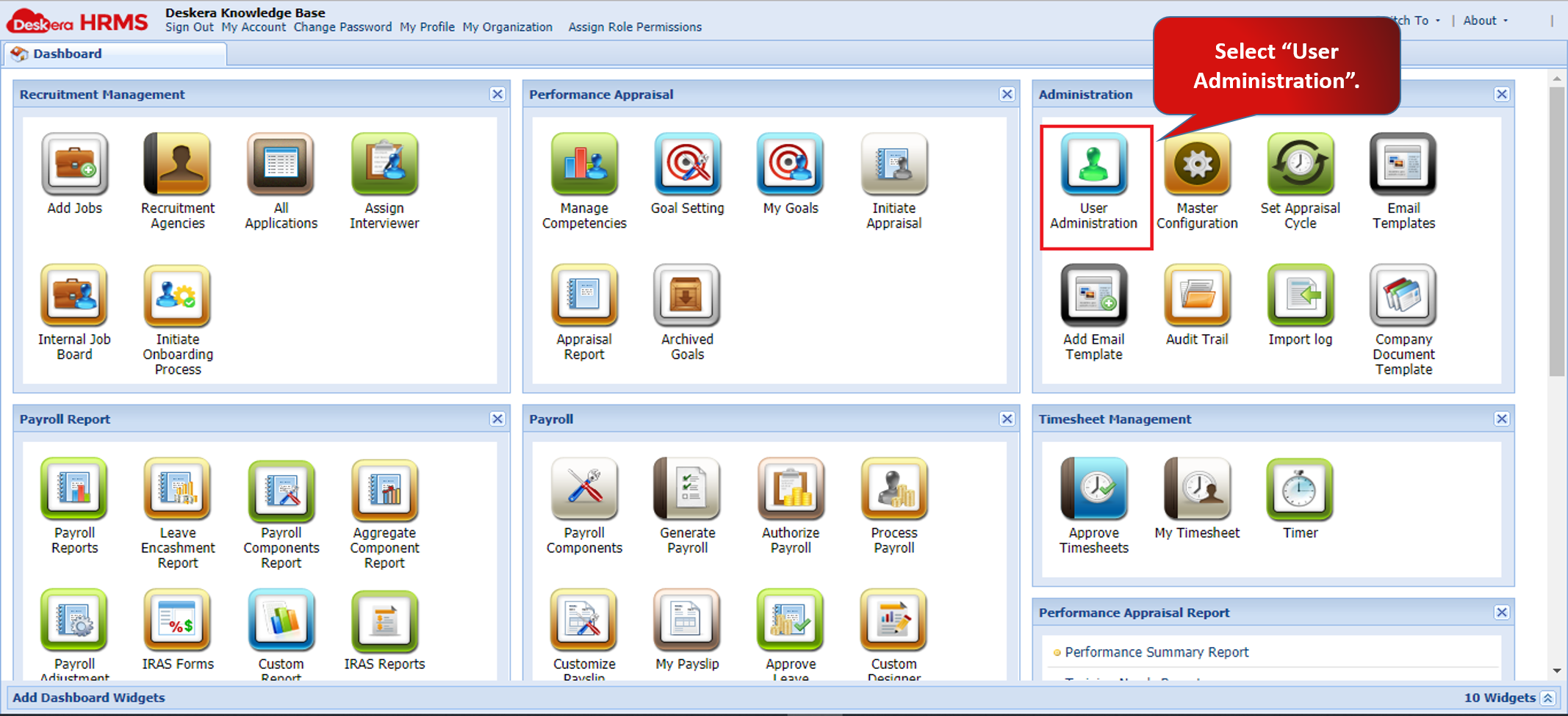
Fig 2.1.4.1 HRMS Administration
Step 2. Select Manage Custom Columns and click on Add Custom Column.
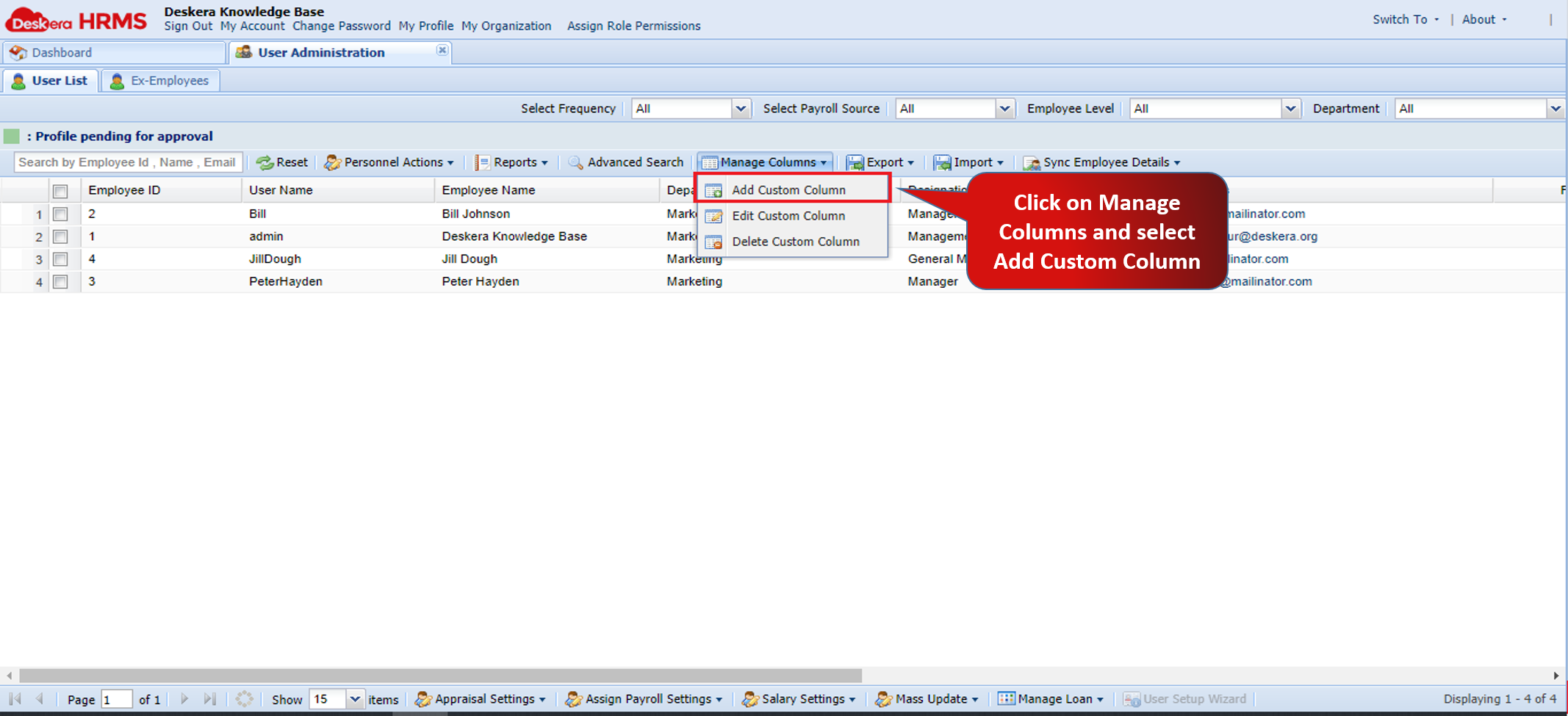
Fig 2.1.4.2 User Administration
Step 3. A new Create Custom Column window will open.

Fig 2.1.4.3 Create Custom Column
Step 4. Fill in the required details and click on create. The new custom column will appear on the User List page.
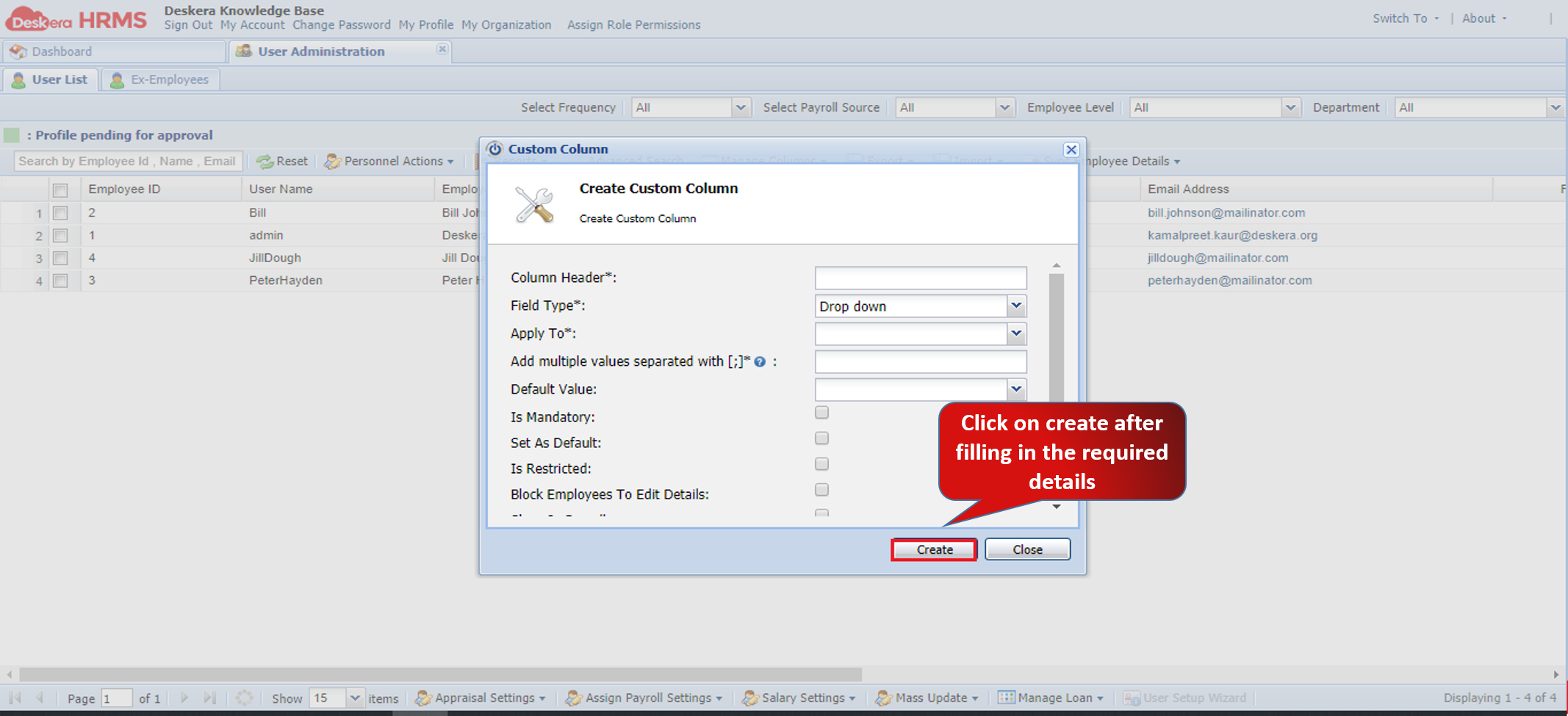
Fig 2.1.4.4 Create Custom Create
Edit Custom Column
Step 1. Go to User Administration under Administration widget in HRMS.
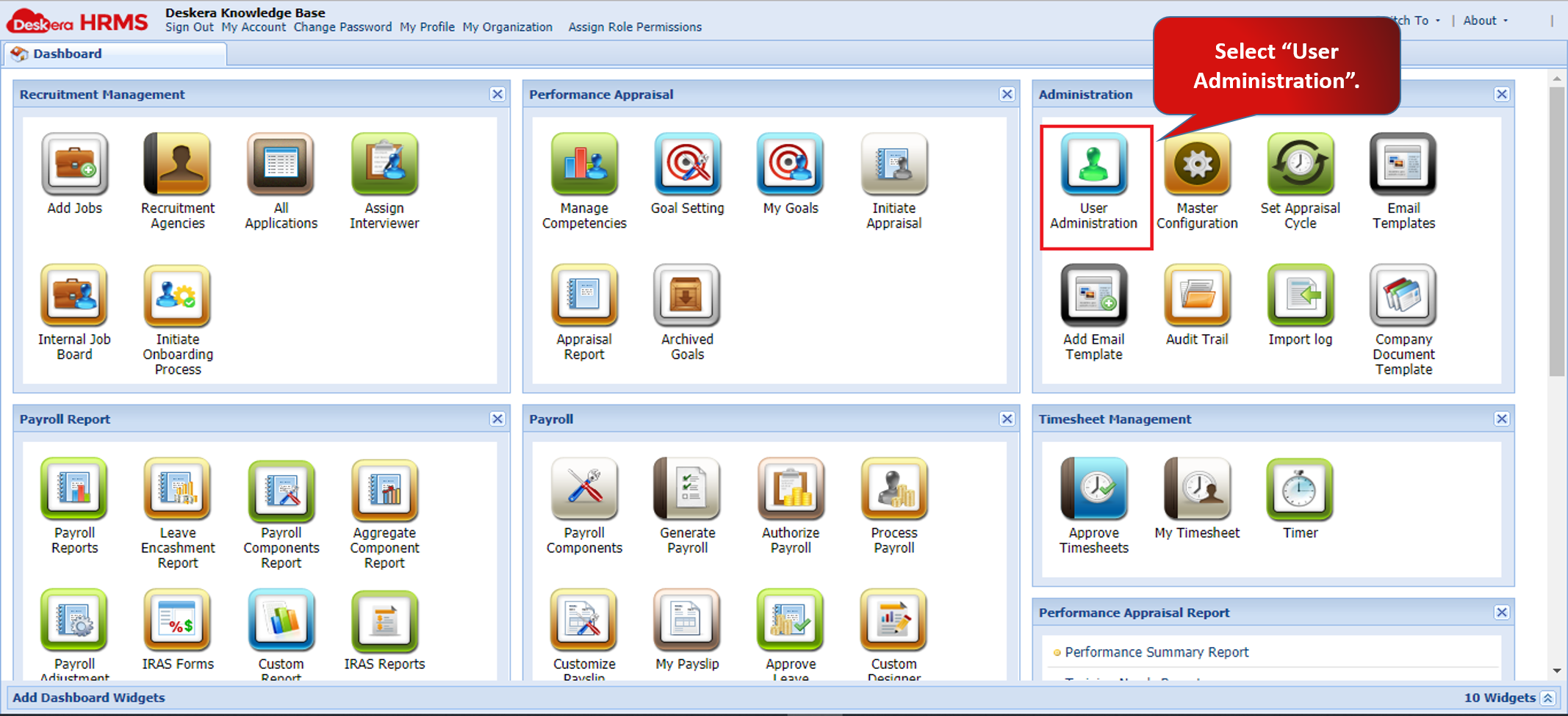
Fig 2.1.4.5 HRMS Dashboard
Step 2. Select the custom column and click on Manage Custom Columns and select Edit Custom Column.
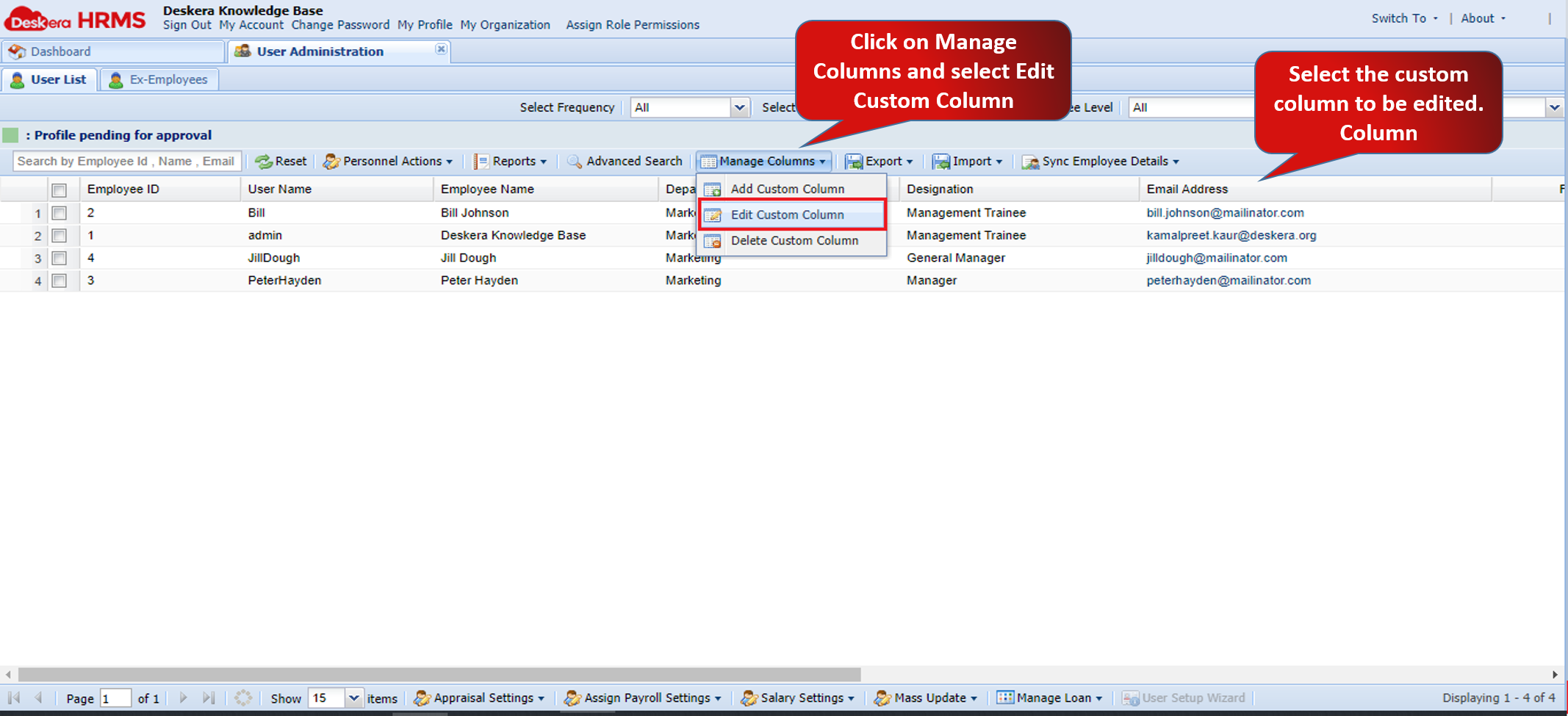
Fig 2.1.4.6 User Administration
Step 3. Fill in the required details and click on Save.
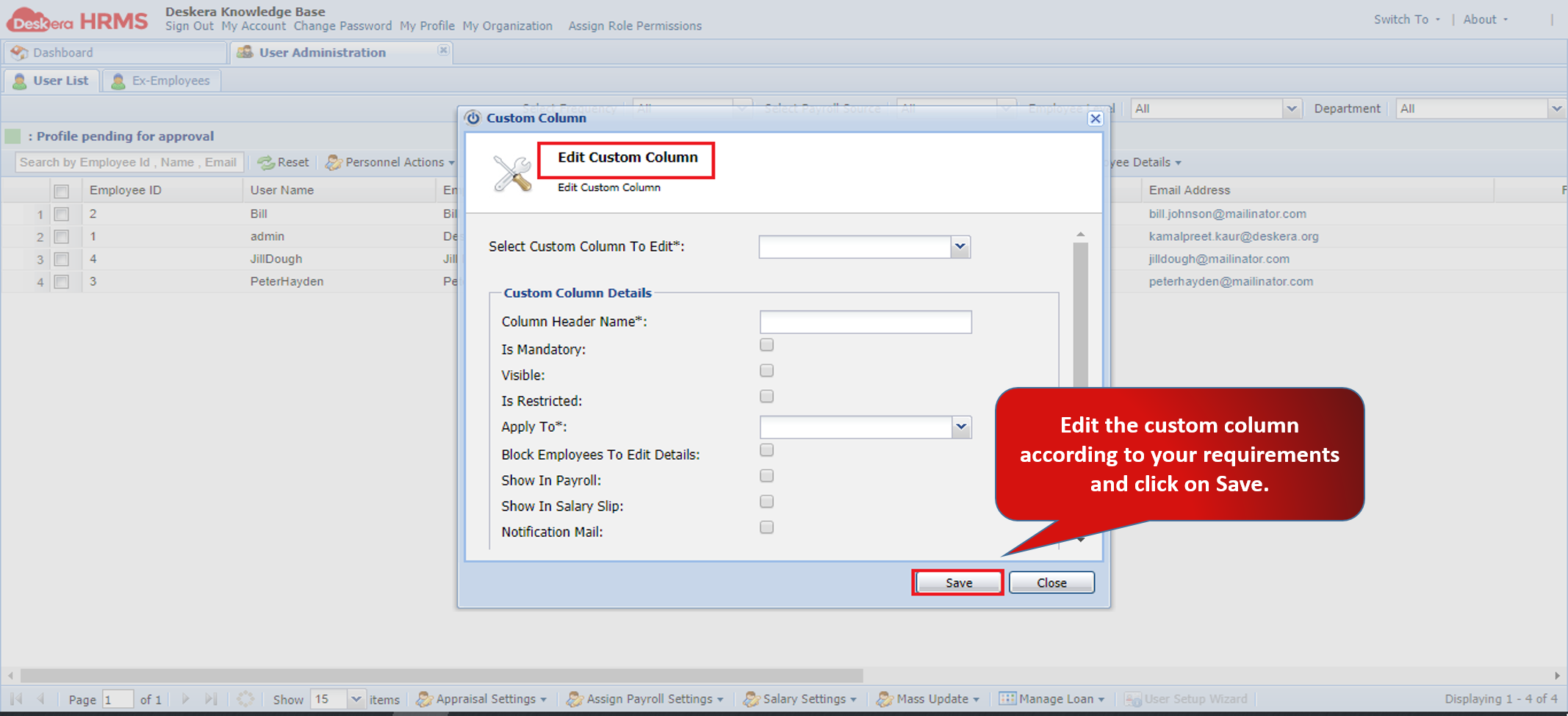
Fig 2.1.4.7 Edit Custom Column
Delete Custom Column
Step 1. Go to User Administration under Administration widget in HRMS.
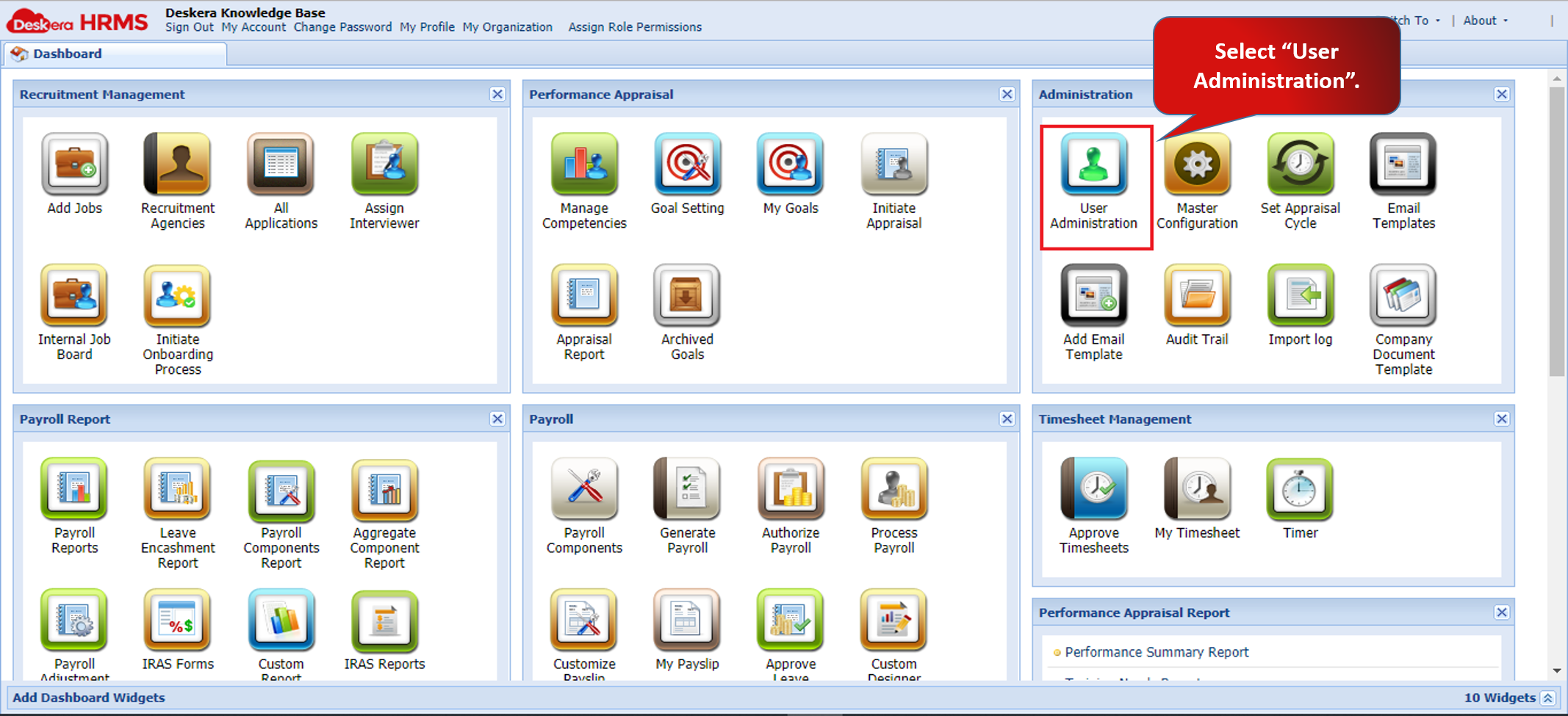
Fig 2.1.4.8 HRMS Dashboard
Step 2. Select the custom column and click on Manage Custom Columns and select Delete Custom Column.
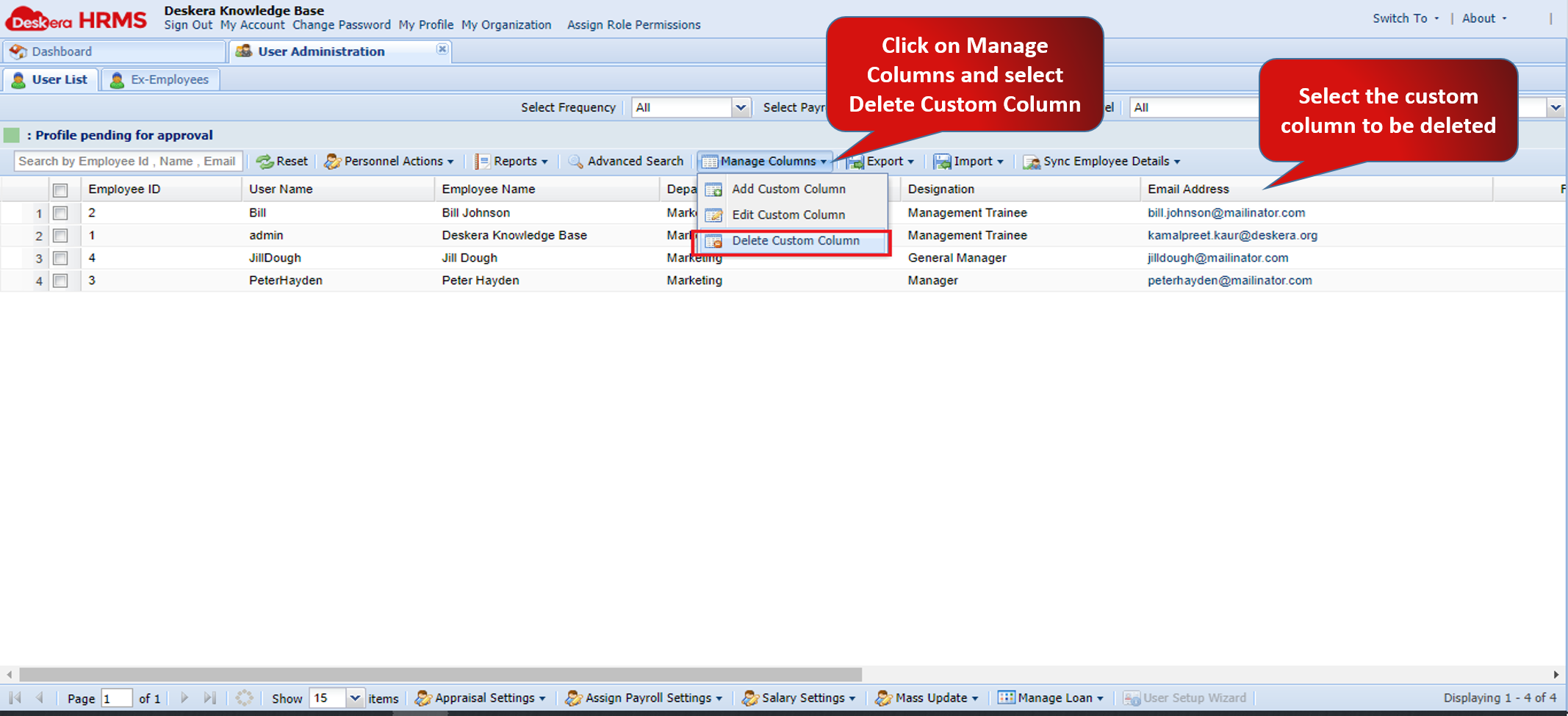
Fig 2.1.4.9 User Administration
Step 3. Check the fields which you want to delete and click on Delete.
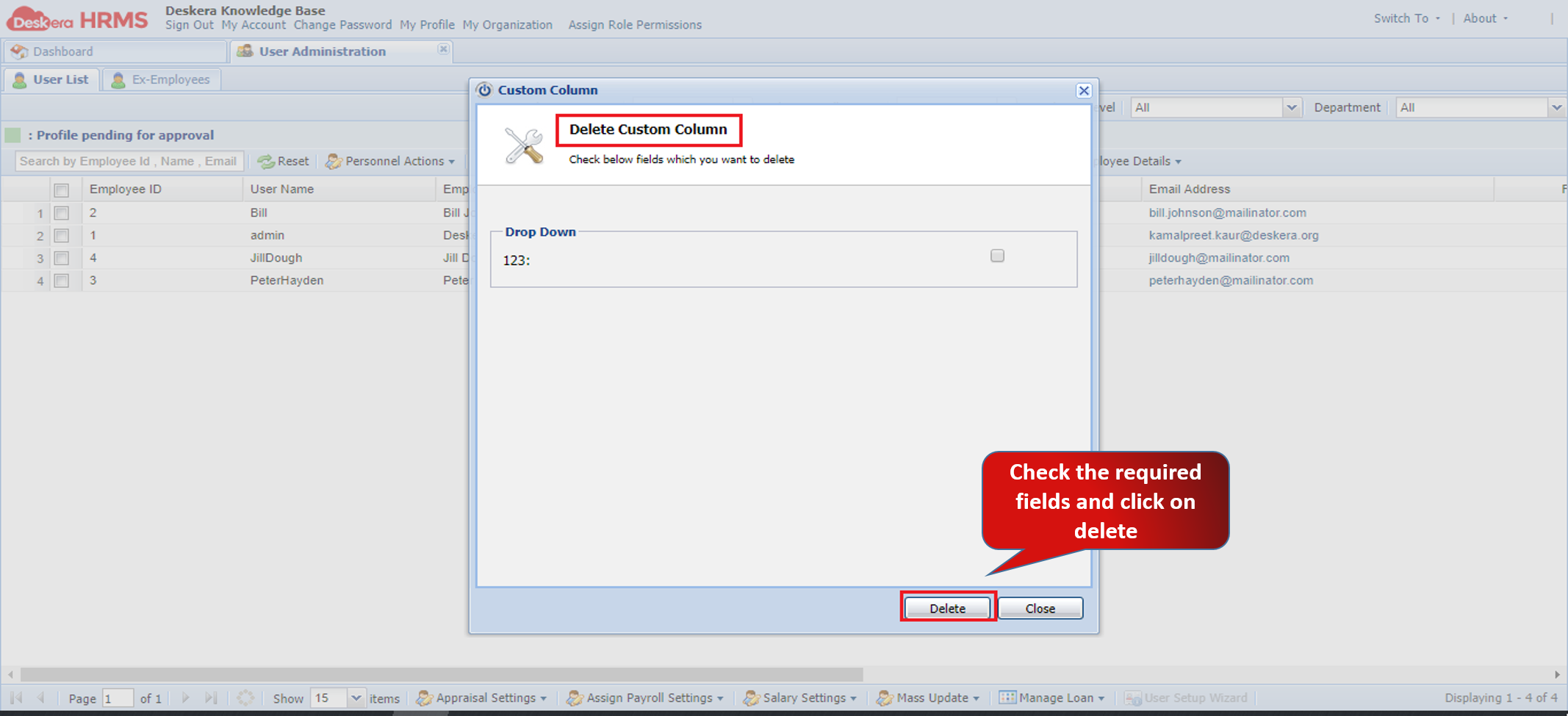
Fig 2.1.4.10 Delete Custom Column
Comments
0 comments
Please sign in to leave a comment.