
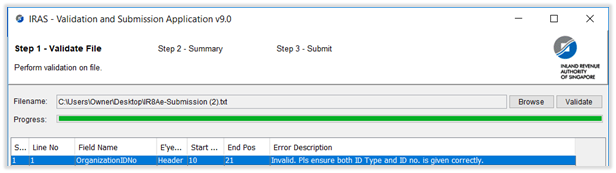
1. I have 2 CPF accounts, when I upload the second CPF account IR8A e-submission file, an error for “OrganizationIDNo” shows “Invalid. Pls ensure both ID Type and ID no. is given correctly”
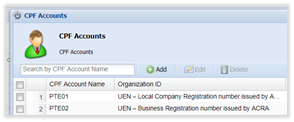
Please go to Master Configuration à Module Configuration à Add/Edit CPF Account. Check your Organization Number, and then check your Organization ID Type.
2. I cannot submit my CPF e-submission file. It said “One or more CSN in your file does not match the CPF Submission No. Please amend your file and re-submit.” or “The file contains invalid advice code (i.e advice code not in 2 digit format, e.g. 1 instead of 01).


Open the e-submission file and make sure that the text string after the F match perfectly with your company CPF Submission No. (Disregard all the dash - ).

In this case, the number in the text file is 200209824WPTE02, but the accurate CPF Submission number is 200209824WPTE01
You can change your company CPF setting by going to Master Configuration à Module Configuration à Add/Edit CPF Account à Edit
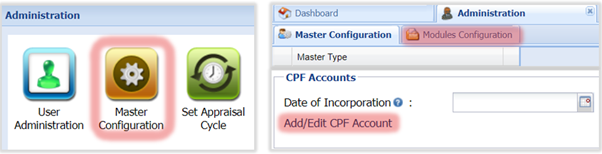
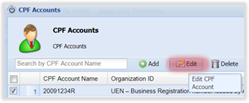
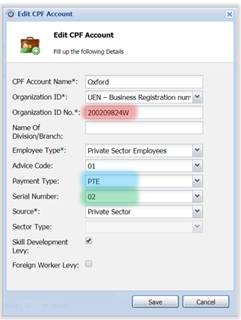

Edit the information, Save, then recreate the CPF file again. We have color-coded so you would know which section affect which part of the CPF e-submission number.
3. When I upload the CPF e-submission file. An error “Line xxx: The file contains invalid CPF Account No.x”
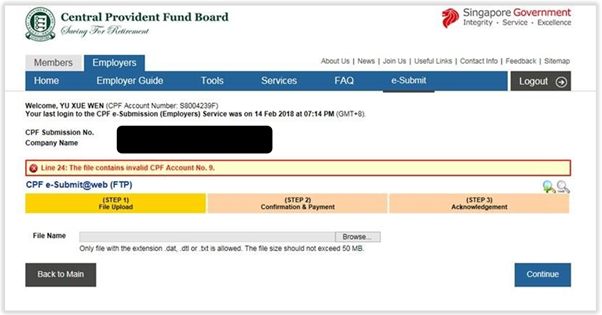 There are many reasons for this problem. The most common mistakes are:
- Enter wrong CPF details for that particular employee.
- Did not enter any details regarding that employee.
- Enter details for employees but forgot to save.
- This problem is much rarer, you have set an employee as Singaporean, run the payroll, then remember that he/she is a foreigner, so you go back and change that particular employee to foreigner again. In this case, you will have to rerun the payroll for that employee.
- When I upload the CPF e-submission file. An error “Line xxx: The file contains invalid CPF Account No.x”. I opened the file but it’s too messy. How do I know which employee has errors?
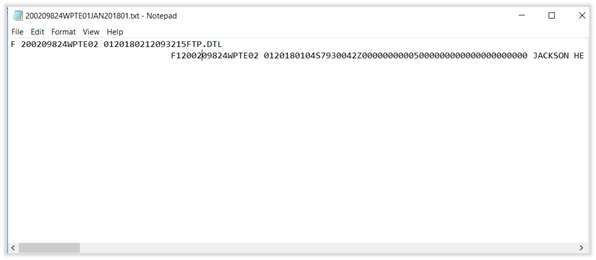
This problem is mostly for Windows user. Instead of open the file using the default program (notepad), Right-click on the file, choose Open with, click Excel. It would be much easier now to see all information line by line. Do not try to edit and save this file using Excel.

A better method is to download the “Sublime text” freeware, which can be downloaded for both Mac OS and Windows.

 |
Run Your Business with Deskera |
Comments
0 comments
Article is closed for comments.