
Follow all of these step to successfully generate IR8A e-submission file.
For common errors, please click on This article
A/ Tag the component to IRAS Section:
This step will help to auto sum value of the component each year and post it to the selected IRAS section that you selected
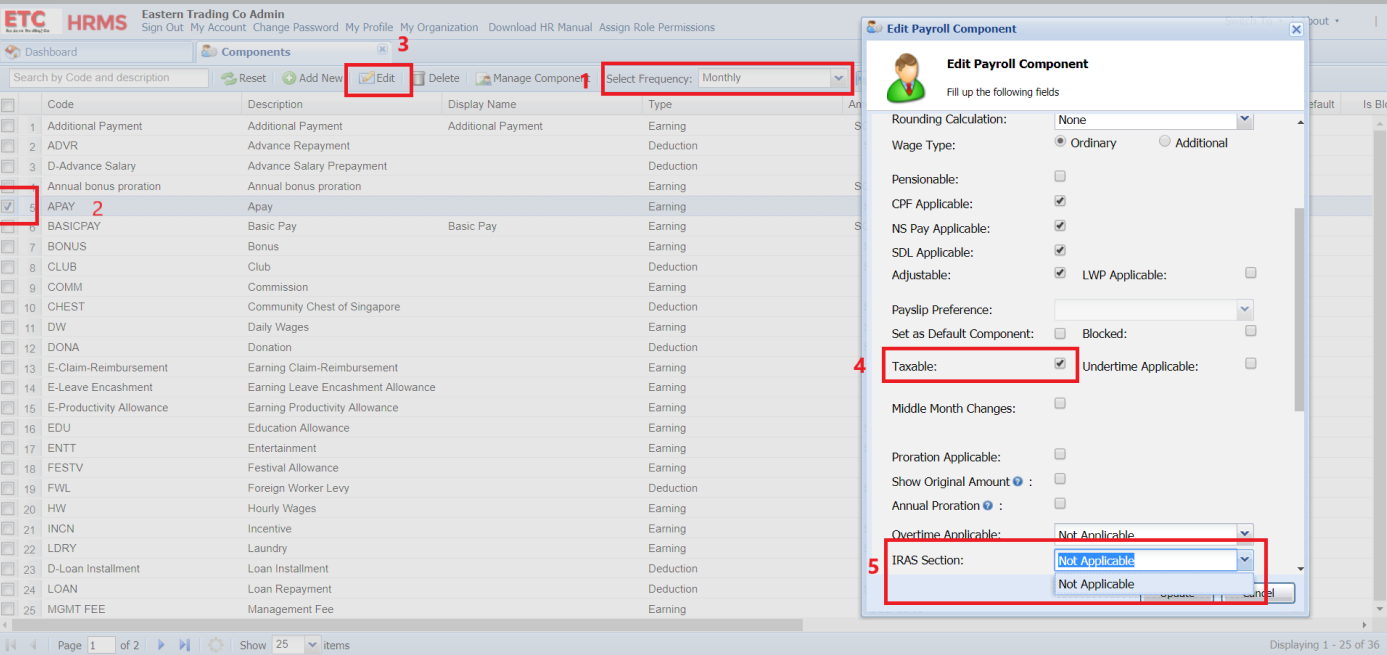
1/ Go to Payroll Component.
a. Select the correct Frequency
b. Select the Component which is taxable and click edit.
2/ Ensure Taxable is ticked.
3/ In the IRAS Section, select the corresponding section that the amount should appear in the IR8A Form
B/ Check and Submit (Approve) IR8A details
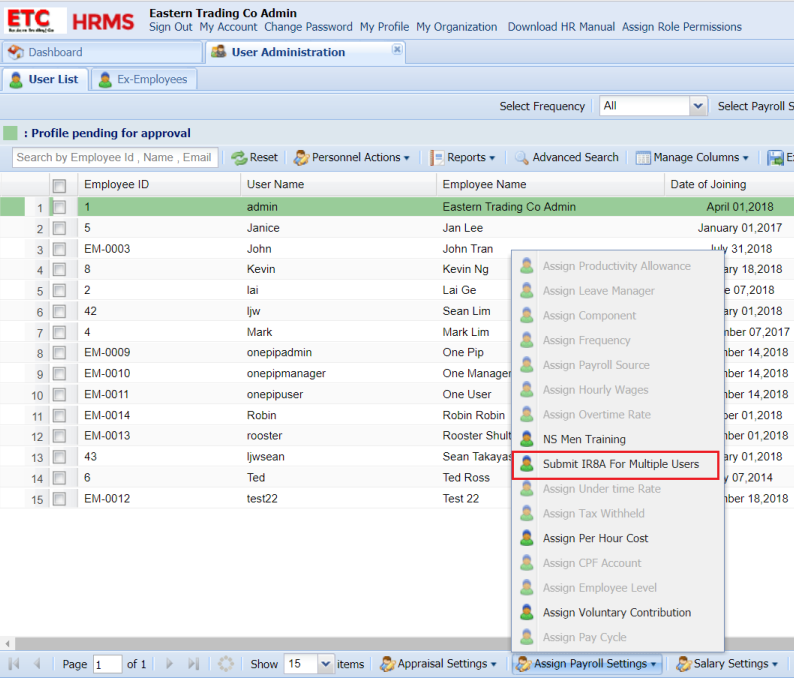
1/ From Dashboard, go to User Administration, click Assign Payroll Setting from the bottom Panel, click Submit IR8A for Multiple Users
2)Select IR8A Year, for eg 2018. 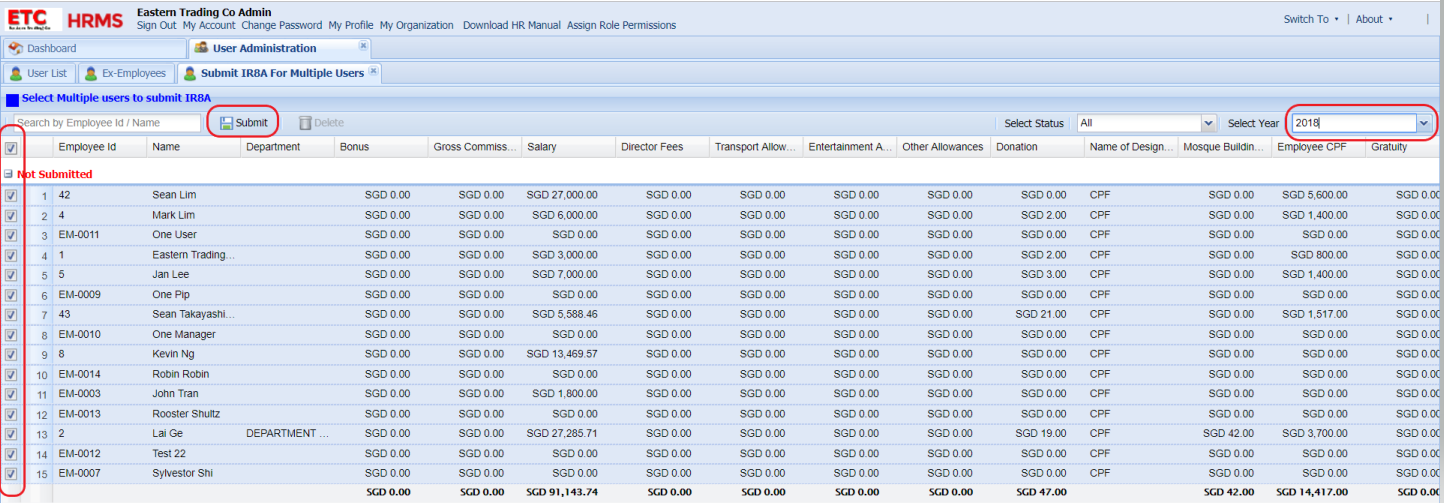
3) If required, double click and amend the amount if needed
C/ Download IR8A e-file
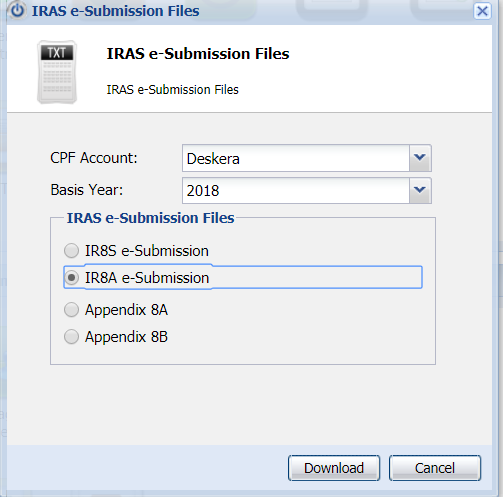
1) From Dashboard click on IRAS e-Submission file and Select :
a) Correct Base Year- eg 2018
b) Select IR8A e-Submission
C) Download the file and upload the file to IRAS
 |
Run Your Business with Deskera |
Comments
0 comments
Article is closed for comments.