
To create and assign Expense Type, go to Manage Expense Types under Master Settings
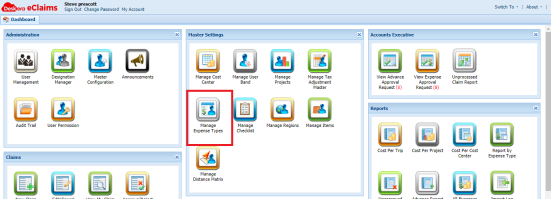
From Active Expense Types tab, you can add more expense type by clicking New
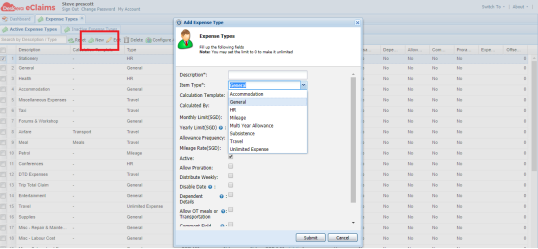
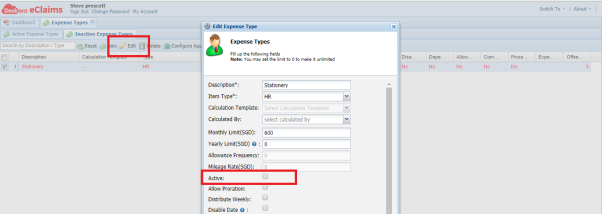
From this window, you can enter the name of the expense type in Description and select Item Type from the dropdown list. You can also set the monthly and yearly limit. If you untick the Active box, the expense type will be moved to Inactive Expense Type and will not be available for the employees. On the other hand, you can also re-activate an expense type from the Inactive Expense Type list
To assign expense types to users, you can select the types and choose Assign Users to Expense Type
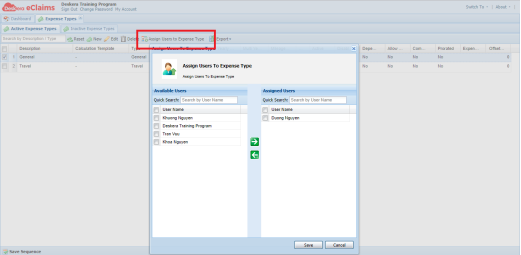
Once assigned the user will be able to see this expense type under his/her Balance Status
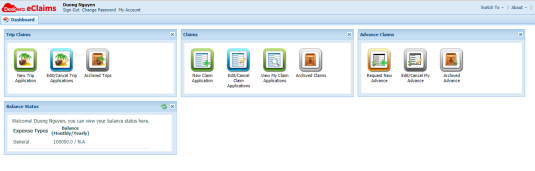
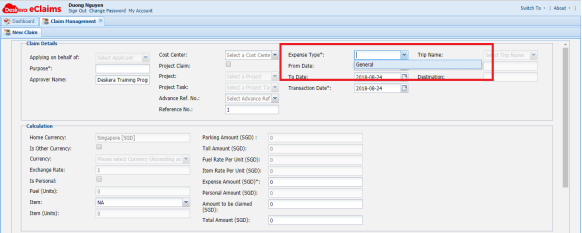
At the same time, when the employee applies for a new claim, he/she will be able to see the expense type from the dropdown list
Please note that when an expense type is first created, it will be assigned to everyone by default. However, once you assign to at least one user, the rest of the users will not be able to see this expense type anymore.
 |
Run Your Business with Deskera |
Comments
0 comments
Article is closed for comments.