
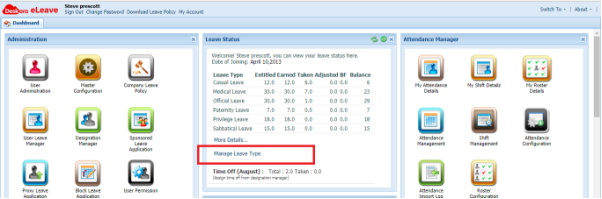
To view all the Leave Types currently available, you can go to Manage Leave Type
From the Manage Leave Types window, if you scroll down all the way to the bottom you can create more leave types by typing in the blank fields
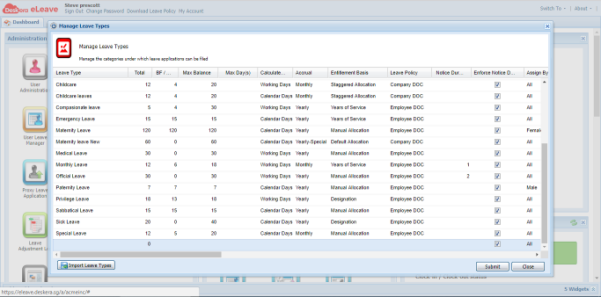
Total: total number of paid leaves to be assigned to user per year
BF per year: Max number of leaves that can be carried forward per year
Max Balance: Max number of paid leaves that user can take per year
Calculated By:
- Working Days: calculated excluding intervening holidays (a leave on Friday and Monday will be counted as 2 day leave)
- Calendar Days: calculated including intervening holidays (a leave on Friday and Monday will be counted as 4 day leave
Accrual:
- Monthly: Leaves acrrued monthly in a prorated manner
- Yearly: Leaves acrrued fully at the start of the year
- Yearly-Special: Leaves acrrued monthly in a prorated manner, Balance will be considered as per leave entitlement
- Ad-hoc: Total leaves acrrued as per entitlement. Financial year will not be considered. Please note for ad-hoc, the Entitlement Basis must be Manual Allocation.
- Half-Yearly: Leaves would be earned in two halves
Entitlement Basis:
- Default Allocation: Leaves assigned equally to all employees
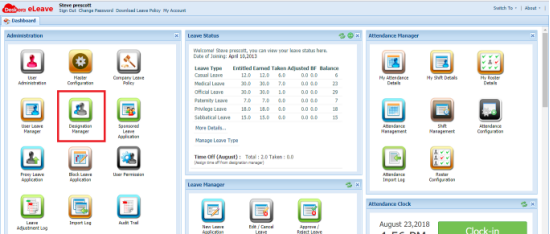
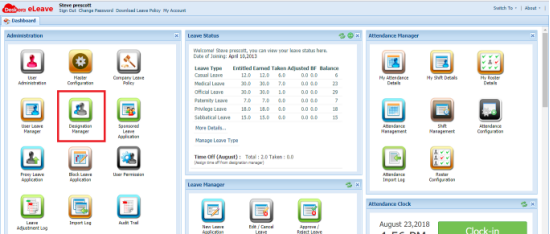
- Designation: Leaves based on Designation. To access this setting, go to Designation Manager
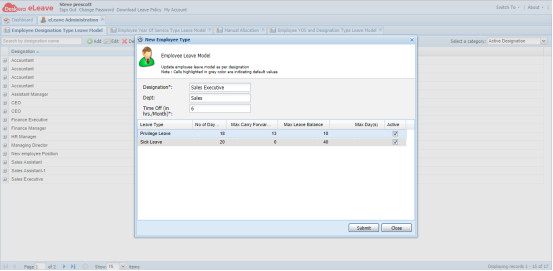
Under Employee Designation Type Leave Model, you can add more designation. All the leaves with Designation as Entitlement Basis would appear in this window. You can input the details and tick Active to assign leave types to this designation
- Manual Allocation: Leaves assigned manually to each employee. To access this setting, go to Designation Manager
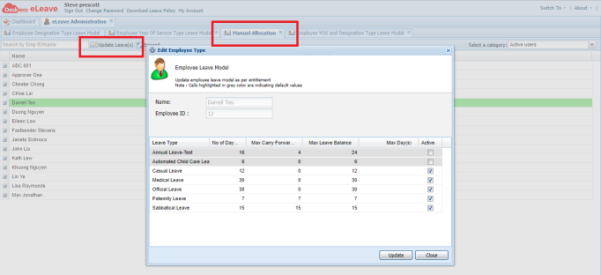
Under Manual Allocation, you can select a user and choose Update Leave(s). All the leaves with Manual Allocation as Entitlement Basis would appear in this window. You can input the details and tick Active to assign leave types to this employee
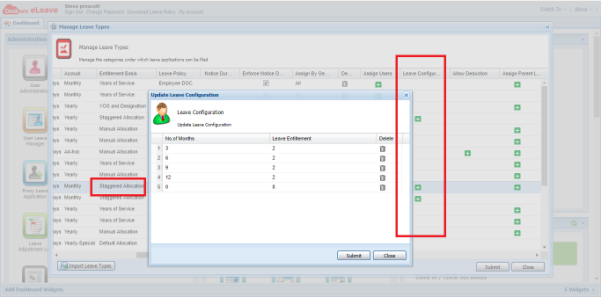
- Staggered Allocation: Leaves based on month of service. To access setting for this leave type, you need to scroll to the right and click on green button under Leave Configuration column. You can fill in the details from the pop-up window
- Years of Service: Leaves based on year of service. To access this setting, go to Designation Manager
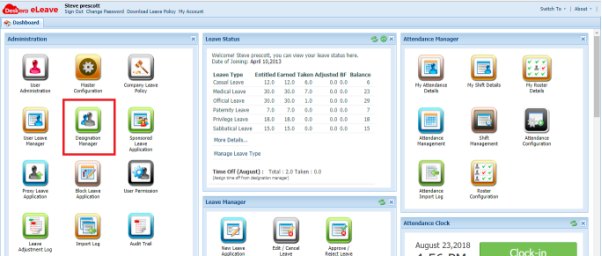
Under Employee Year of Service Type Leave Model, you can add more YOS Range. All the leaves with Years of Service as Entitlement Basis would appear in this window. You can input the details and tick Active to assign leave types to this YOS Range
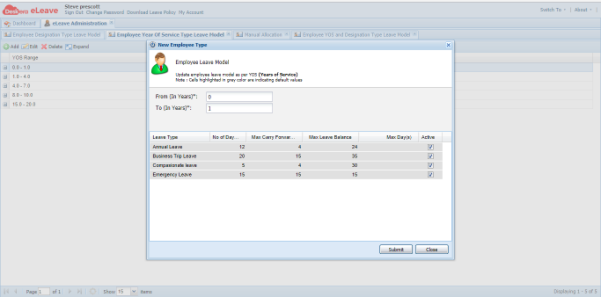
- YOS and Designation: Leaves based on a combination of Years of Service and Designation. To access this setting, go to Designation Manager.
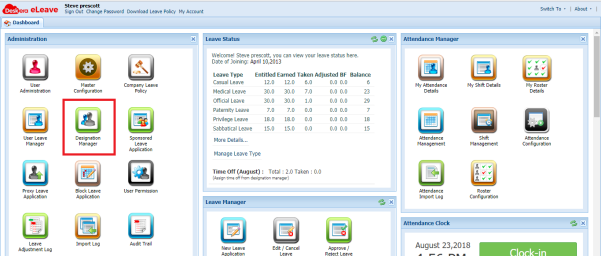
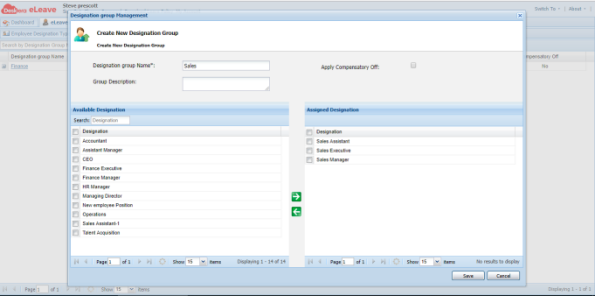
Under Employee YOS and Designation Type Leave Model, you can add more designation group. You can move the designations from the left side to the right side to assign these designations to this designation group.
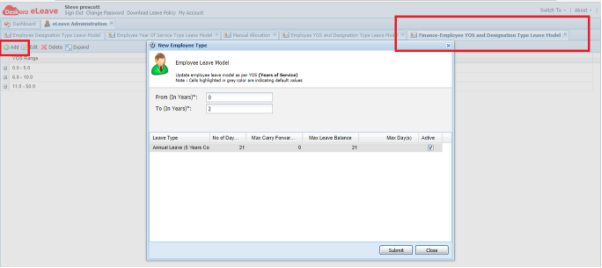
To view the settings for a specific designation group, you can click on it

This will pop up a tab for you to fill in the YOS Range. All the leaves with YOS and Designation as Entitlement Basis would appear in this window. You can input the details and tick Active to assign leave types to this YOS Range and designation group.
Leave Policy: This will determine how the leave policy works for the company.
- Company DOC and company DOJ: for these two options, the system year would be based on the company year and the company year is set up in Company Leave Policy
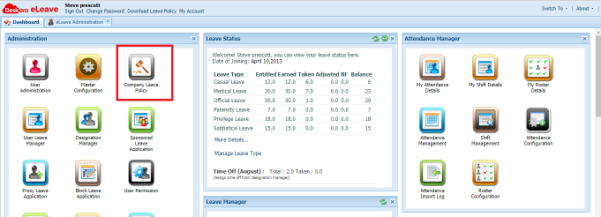
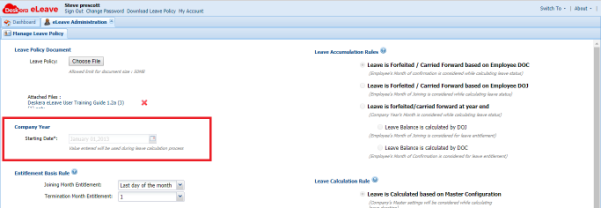
In this case because the Company Year has starting date as Jan 1st 2013 so the system year would be from January to December.
Next, to understand the difference between Date of Joining (DOJ) and Date of Confirmation (DOC), let’s look at the example: An employee joins the company on July 1st and annual leave is set as 12/year (assumming annual leave has Allow Proration ticked)
Company DOJ: employee is entitled with 6 leaves (prorated from 12 leaves/year)
Company DOC: employee is entitled with 3 leaves (assumed his DOC is Oct 1st)
- Employee DOJ and Employee DOC: for these options, the system will have different year basis for different employee based on their DOJ or DOC.
Employee DOJ: employee joins in July 1st so his year basis for leaves would be from July 1st to June 30th next year. Hence even he joins in July 1st, he is entitled to 12 leaves (up to June 30th next year)
Employee DOC: employee joins in July 1st and has DOC on Oct 1st then he is entitled to have 9 leaves (prorated from Oct 1st to June 1st next year)
Assign Users: You can click on this button to assign users to a particular leave type. However, for leaves with Manual Allocation as Entitlement Basis, this button is not available because you need to allocate leaves manually to each employee under Designation Manager
Leave Configuration: This button allow you to configure setting for leaves with Staggered Allocation as Entitlement Basis
Active: You can activate/deactivate a leave type by check/uncheck this box
Allow Unpaid: If this check is ON for a leave type, then you can apply for leave with leave duration exceeds leave balance
Allow Proration: If this check is ON for a leave type, then the leaves entitled would be prorated. For example if an employee joins on July 1st and annual leave is set as 12 per year with entitlement basis as Company DOJ then he will be entitled as 6/12 * 12 = 6 leaves
Allow Expiring of Carry Forward: if this check is ON for a leave type, the BF leaves would have expiry date. To set up expiry date, you need to do so under Company Leave Policy

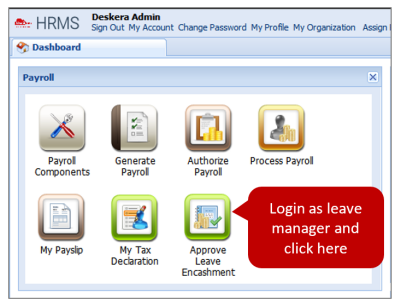
Encashable Leave Type: If this check is ON for a leave type, employees can apply to encash the leaves from the leave balance. Employees need to go to HRMS and apply encash leave under Payroll
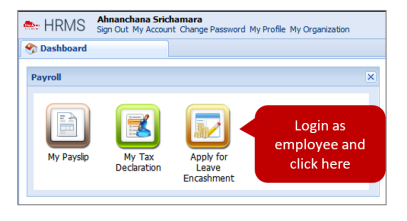
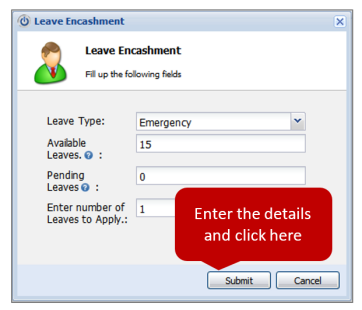
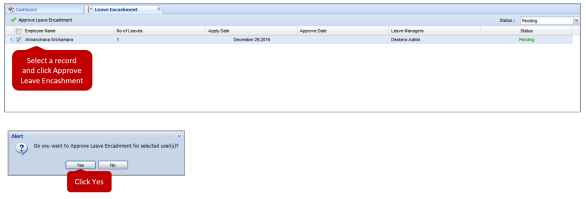
Then the manager also needs to approve in HRMS under Payroll
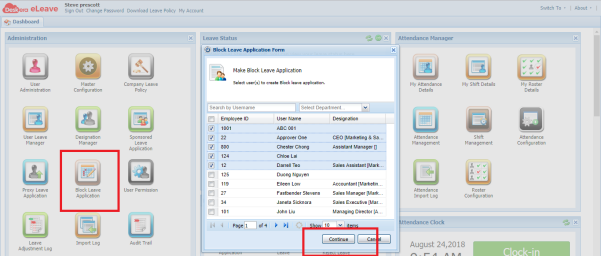
Allow Block Leave: If this check is ON for a leave type, admin can apply block leave for multiple employees
Allow to Apply Leave before Date of Confirmation: If this check is ON for a leave type, employees would be able to apply for leaves before their Date of Confirmation
Leave Entitlement From highest YOS: If this check is ON, leave entitlement would be based on the higher YOS Range. For example, let’s look at this scenario:
- Leave Policy is set as Company DOJ and company year is from Jan to Dec
- Entitlement Basis is set as Years of Service, YOS Range 0-1: 12 and 1-2: 14
- An employee joins on July 1st 2017 would be entitled 6 leaves for his first 6 months of service
- In 2018, Jan-June is still in YOS 0-1, while July-Dec is in YOS 1-2, but because this check is ON, so he is entitled with 14 leaves for 2018
- In this check is OFF, he is entitled with: (6/12)*12 + (6/12)* 14 = 13
 |
Run Your Business with Deskera |
Comments
0 comments
Article is closed for comments.