
- Email Notification
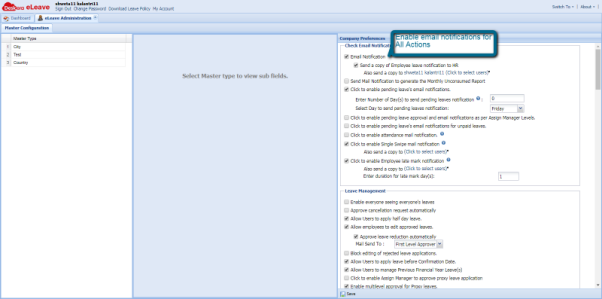
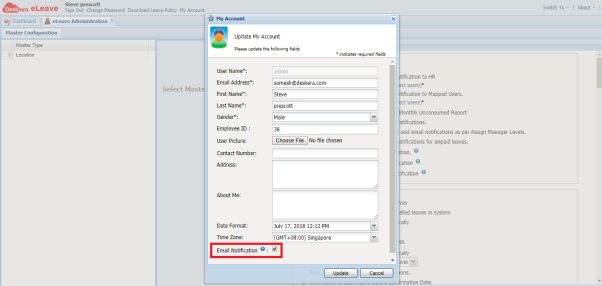
This check enables email notification for all actions. Additionally, if above check in Master Configuration is enabled , you can set your email to receive all the notifications as well by checking in the checkbox below under My Account tab on the top of the screen.
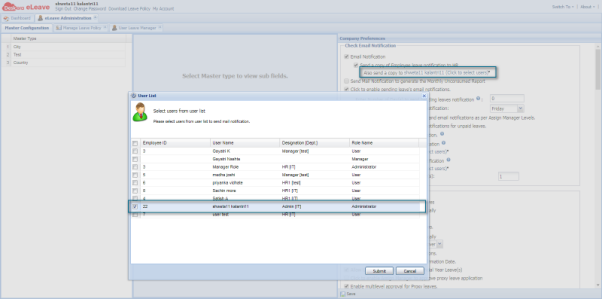
Notification email can be set to be sent to HR department and copy to other users by clicking on the link “Click to select users” as shown below.
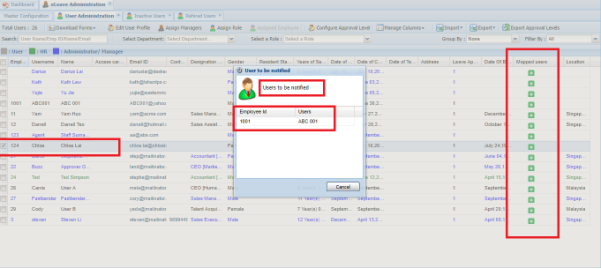
Similarly, you can set to send leave notification to Mapped Users by clicking on the link “Click to select users” and assign the users as shown below.
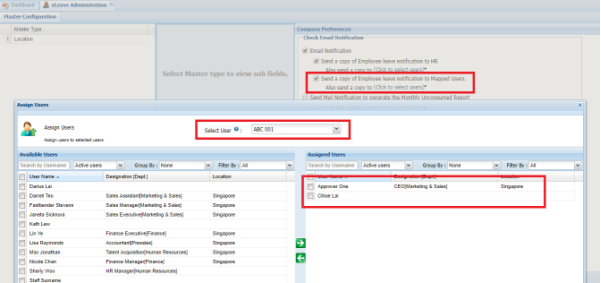
In this particular case, user ABC 001 will be notified by email for leave actions taken by user Approver One or Chloe Lai. Moreover, under User Administration, a new column would also be created to reflect the Mapped user, who is to be notified as shown below.
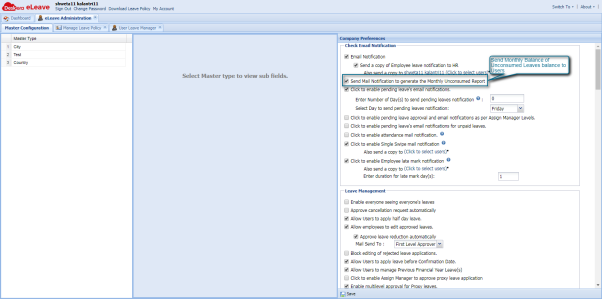
- Send Mail Notification to generate the Monthly Unconsumed Report
This enables system to send Monthly Balance of Unconsumed Leaves to users
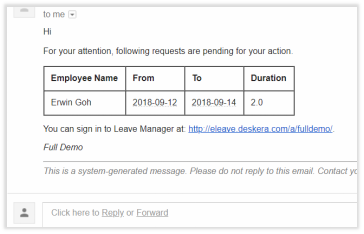
- Click to enable pending leave's email notifications.
Notification will be sent to Approver based on either of the following two options. You must specify one option if not the system will not allow you to save with this checkbox checked.
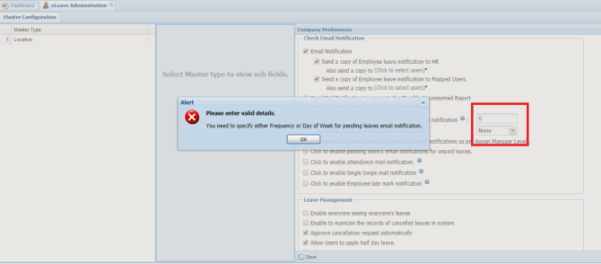
- Enter Number of Day(s) to send pending leaves notification:
Notification will be sent to approvers on each nth day (n is the numbered here).
- Select Day to send pending leaves notification:
Notification will be sent every week on the specific day selected (Saturday, Sunday, etc
4. Click to enable pending leave approval and email notifications as per Assign Manager Levels. Note: In order to check this option, you must uncheck options 10 and 14 from Leave Management (Enable multilevel approval for (Proxy) Leaves)
- Click to enable pending leave approval as per Assign Manager Levels.
In here, administrator can add level and the duration for each level. If level 1 manager does not perform action on leave within the specified duration, leave is escalated to level 2 manager and so on.
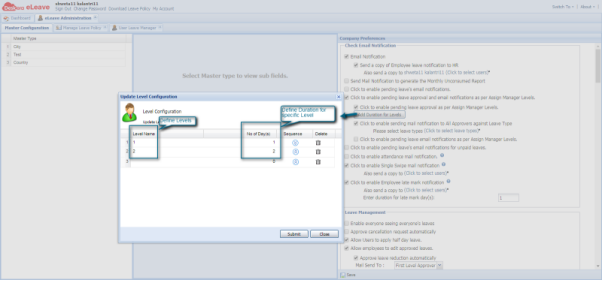
Then administrator can assign level for each manager in User Administration à Assign Manager.
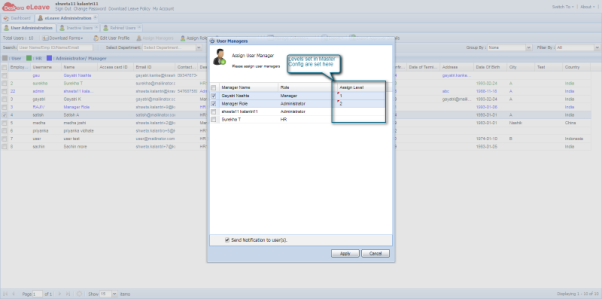
An example would be if User Satish has applied leave which will be Pending at Level 1 at Gayatri's Approval. If Level 1 Manager does not perform action in 1 day, Leave will be escalated to Level 2 Manager.
- Click to enable sending mail notification to All Approvers against Leave Type.
Send email notifications to selected type of Approver based on Leave Type.
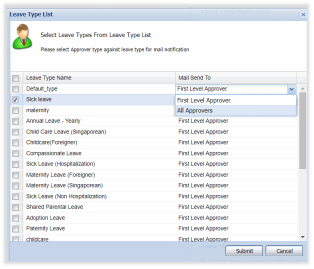
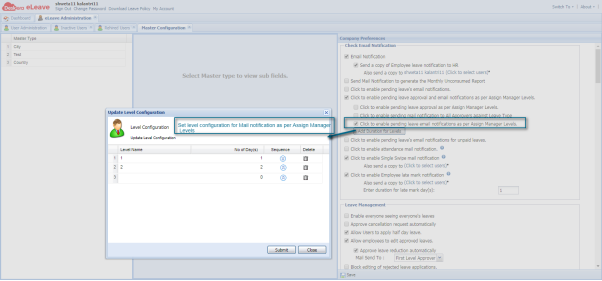
- Click to enable pending leave email notifications as per Assign Manager Levels.
Employee A is assigned to Manager 1 (level 1, duration set for 1 days) and Manager 2 (duration set for 2 days). A applied for leave on April 1 and his leave application is Pending. If no action is taken, notification email will be sent to Manager 1 on April 2. If Manager A does not do anything, on April 3, email notification will be sent to Manager 2
- Click to enable pending leave's email notifications for unpaid leaves.
If Leave is Applied/Approved when leave balance is already used up, unpaid leave notification is triggered to HR. You can select the HR user by clicking on link “Click to select users”
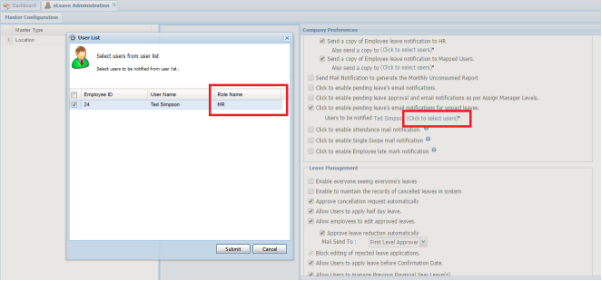
- Click to enable attendance mail notification.
When employee submitted attendance records manually, the manager will receive email for approval. If approved, the employee will receive approval email notification.
- Click to enable Single Swipe mail notification
Employees will receive email notification if they only enter Time In, or Time Out in the Attendance Sheet. You can also copy other users by click on the link “Click to select users”
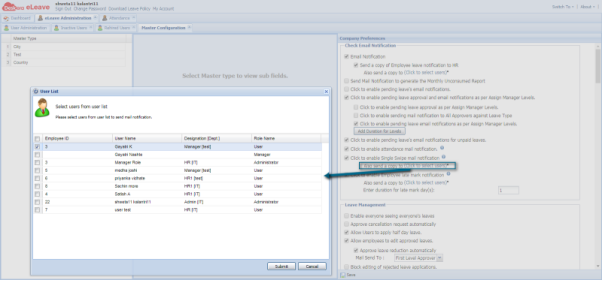
- Click to enable Employee late mark notification
If Employee has In time late than Shift's In Time, Late mark notification is notified to User after specified duration in Enter duration for Late mark day(s)
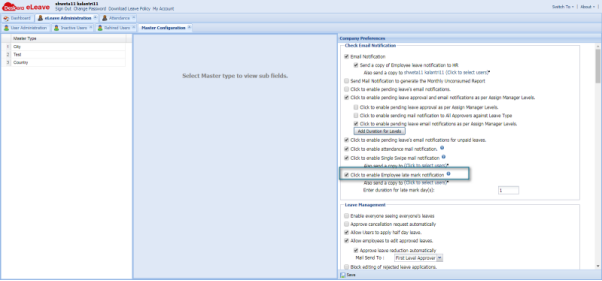
In this case as shown in the picture above, if User A has submitted attendance for 10/02/2018 as 09:10 to 18:00. (Shift Time being 09:00 to 18:00). Late mark notification will be triggered after 1 day i.e. on 11/02/2018. You can also copy other users by click on the link “Click to select users”.
 |
Run Your Business with Deskera |
Comments
0 comments
Article is closed for comments.