
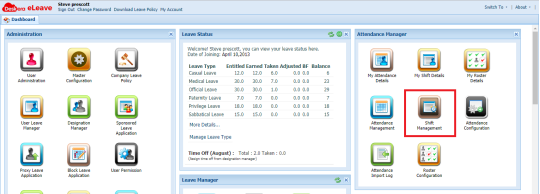
To create and assign shifts to users you need to go to Shift Management under Attendance Manager
From the Shift Management tab, you can add more shift and key in time in and out for each day.
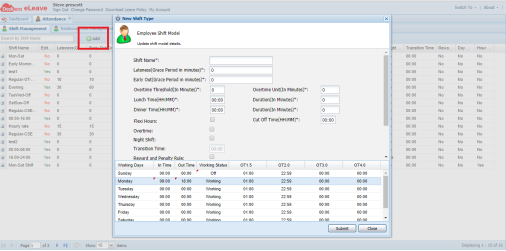
Lateness and Early Out (Grace Period in minutes): set allowed time to be arrive late or get out early.
Overtime Threshold: to be considered over time, extra time must pass this threshold.
Overtime Unit: OT will be round to Overtime Unit if Extra work time pass Threshold, the next Threshold is Current Threshold + Over time Unit.
|
Extra work time (min) |
Counted as OT (min) |
Next threshold (min) |
|
24 |
0 |
25 |
|
26 |
30 |
25 + 30 = 55 |
|
54 |
30 |
25 + 30= 55 |
|
55 |
60 |
55 + 30 = 85 |
|
84 |
60 |
55 + 30 = 85 |
|
86 |
90 |
85 + 25 = 110 |
You also can also determine the time and duration for lunch and dinner
Cut Off Time: after which user is applicable for applying claims against OT Meal and transportation
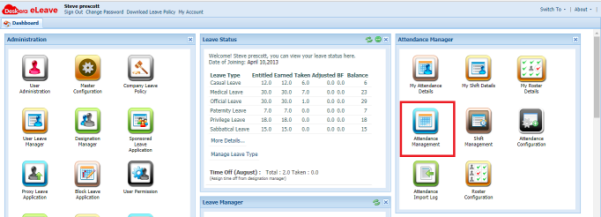
To assign shift to users, you need to go to Attendance Management
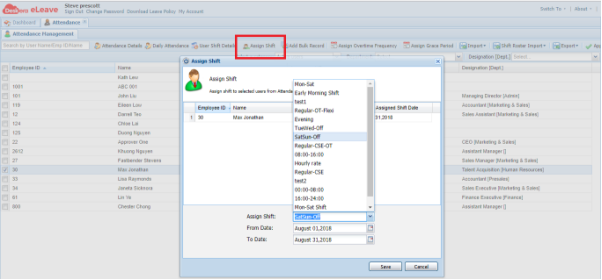
You can select an user and choose Assign Shift. From the pop-up window, you can select a shift from the dropdown list and choose from and to date.
After shift assigned to an user, you can view his attendance details
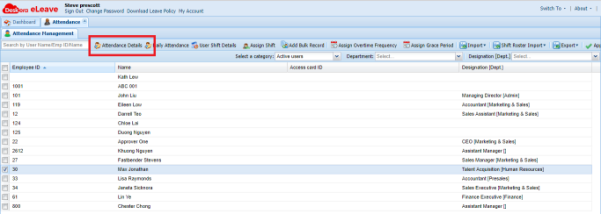
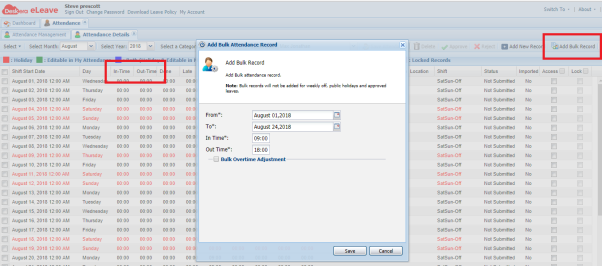
From the Attendance Detail tab, you can enter In-Time and Out-Time for each day or Add Bulk Record for a period of time
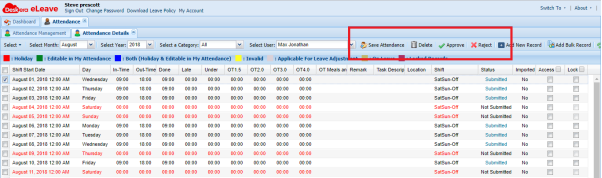
Once a record entered, to change status from Not Submitted to Submitted, you need to select the record and click Save Attendance. An admin can approve/reject this record by selecting it and choose Approve/Reject
 |
Run Your Business with Deskera |
Comments
0 comments
Article is closed for comments.