
- Enable everyone seeing everyone's leaves
Everyone will be able to see other employee's leave in Calendar.
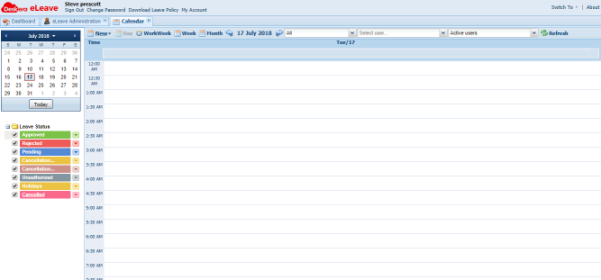
Show leave(s) as per Department:
Based on this check , User will be able to see leave of same Department employees with only Leave dates and not Description.
- Enable to maintain the records of cancelled leaves in system: This enables the system to keep recodrs of cancelled leaves
- Approve cancellation request automatically
If this is ON: an employee can cancel approved leaves automatically. This will revert back the leave balances of the employee.
If this is OFF: when an employee cancel approved leaves, this cancellation will need to get approved by his approving manager, meaning this cancellation also need to go through normal approval flow just like when he apply for a leave.


- Allow Users to apply half day leave. Allow 0.5 day leave, if not then employee have to apply for full day leave.
- Allow employees to edit approved leaves.
Approved Leaves of Employee can be edited (Date/Duration/Leave type) and Status of Approved Leave is Pending
Administrator can also set to approve edited leaves automatically if leave days are reduced.
Mail will be sent to either First Level Approver or All Approvers.
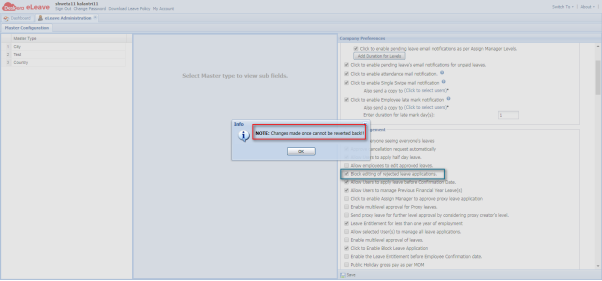
- Block editing of rejected leave applications.
Employees cannot edit rejected leave application. Changes made once cannot be reverted back. Rejected Leave cannot be edited. Leaves can be reapplied on Rejected Leave's date.
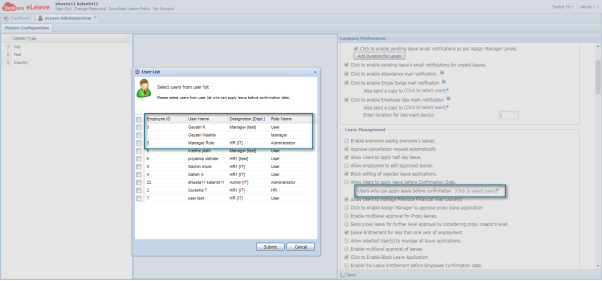
- Allow Users to apply leave before Confirmation Date.
Administrator can allow all users to be able to apply leave before Confirmation Date (End of probation period) by checking the checkbox or assign individual user by clicking on the link “Click to select users”
- Allow Users to manage Previous Financial Year Leave(s)
Allow Editing previous financial year leave. There has no impact on leave balance of current financial year.
- Click to enable Assign Manager to approve proxy leave application
Allow assigned managers to approve proxy leave application.
Please take note that if this is unchecked, then proxy leave application will be automatically approved
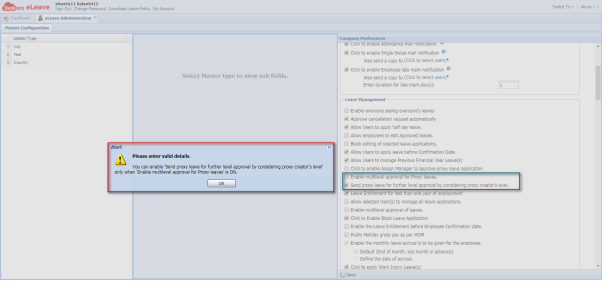
- Enable multilevel approval for Proxy leaves.
Multilevel flow for Proxy Leave is enabled. Leave traverse the Approval Levels set at User Administration - Configure Approval Levels set for particular user.
Please note this option and previous option cannot be selected together.
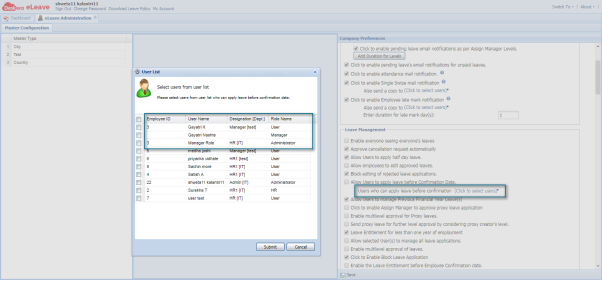
Please note that this option and option 4 from Email Notification (Click to enable pending leave approval and email notifications as per Assign Manager Levels) can not be selected at the same time.
- Send proxy leave for further level approval by considering proxy creator's level.
Applied leaves will be approved based on the pre-configured approval level for that employee.
Example: If creator of proxy leave is Level 1 Approver, the proxy leave will be pending for approval at level 2. And if the creator is Level 2, then the proxy leave is approved
Please note that you need to enable multilevel approval for Proxy leaves before you can select this option.
- Leave Entitlement for less than one year of employment
This is only for Singaporean companies where employees having YOS less than one year can be entitled with annual leave.
- Allow selected User(s) to manage all leave applications.
Selected user who will have access and control over leave applications
- Enable multilevel approval of leaves.
Similar to 10, multilevel flow for Individual Leave is enabled. Leave traverse the Approval Levels set at User Administration - Configure Approval Levels set for particular user. Please also note that this option and option 4 from Email Notification (Click to enable pending leave approval and email notifications as per Assign Manager Levels) can not be selected at the same time.
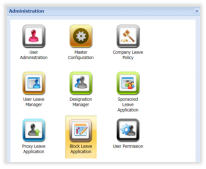
- Click to Enable Block Leave Application
Allow applying leave for multiple employees that apply for the same period of leave. Block Leave is Auto Approved.
- Enable the Leave Entitlement before Employee Confirmation date.
If company have probation period, employees will be entitled to leave before probation period ends.
- Public Holiday gross pay as per MOM
If an employee takes leave for three consecutive days and the second day is a public holiday, that holiday will also be counted as leave.
- Enable the monthly leave accrual is to be given for the employee: This is default setting when company is signed up. However we can edit it as long as there is no leave applications in the system
- Default (End of month, last month in advance)
This will affect the Earned leaves.
For example, if the leave is prorated by month, then at the end of the month, the leave is earned. An employee with 14 days entitled leaves will earn the leaves as follow:
Jan 1 to Jan 30: 14 x 0/12 = 0
Jan 31/Feb 1: 14 x 1/12 = 1.17
Feb 28/Mar 1: 14 x 2/12 = 2.33
- Define the date of accrual. You can set the date on which the leave is earned.
For example, if the leave is prorated by month, then at the configured date, the leave is earned. An employee with 14 days entitled leaves, accrual day set to 1st day will earn the leaves as follow:
Jan 1: 14 x 1/12 = 0
Feb 1: 14 x 1/12 = 1.17
Mar 1: 14 x 2/12 = 2.33
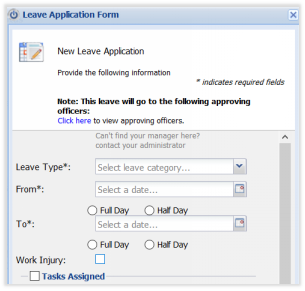
- Click to apply Work Injury Leave(s)
This function indicates if the employee is taking leave because of work injury.
- Exclude the probation period from Years of service
Years of service will not include probation period and YOS is calculated from Date of Confirmation.
- Leave Automation
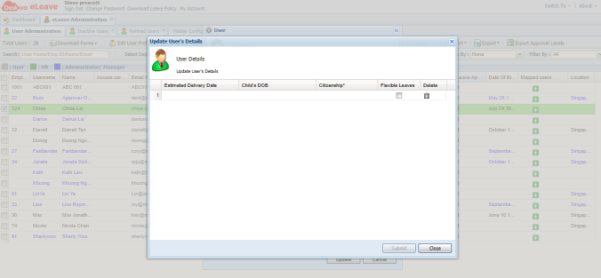
This automates maternity Leave implementation flow. If 'Enable Leave Automation' is enabled then under the user profile, there will be a link “Additional Details” added.
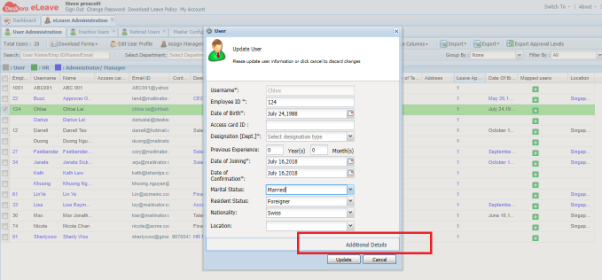
When clicking on this link, a window will promt out for you to fill in the details as below. The system will auto-generate the leaves based on these details and rules from MOM
- Consider unauthorized leave as unpaid. All unauthorized leaves are unpaid leave by default irrespective of the leave balance
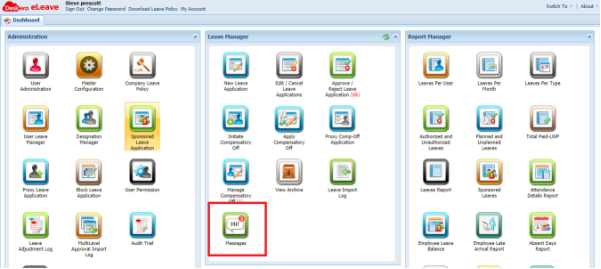
- Enable to show leave notification sent from Mobile Applications.
Enable this check will create Message icon under Leave Manager widget to notify messages to HR/Manager/Admin.
- Restrict Proration of Carry forward for Year of service Entitlement basis.
While Carry Forward: It is not prorated based on Two YOS ranges. It is taken as current range's YOS Max Carry Forward.
For instance,
0-1 YOS range- LCF is 5
1-2 YOS range- LCF is 10
And suppose User A lies in range 1-2.
which means 10 LCF will be carry forwarded in next FY.
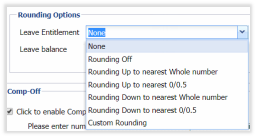
- Rounding option:
Round Leave balance and Leave Entitlement. Custom Rounding option is also available.
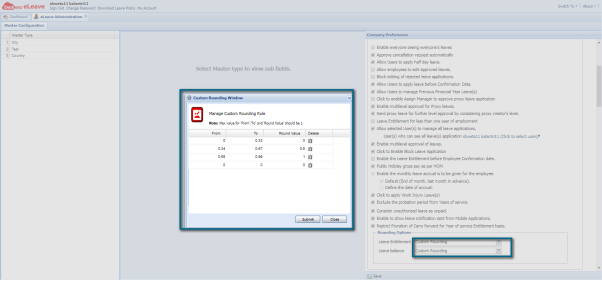
Custom Rounding is provided in which we can provide custom ranges with custom values.
 |
Run Your Business with Deskera |
Comments
0 comments
Article is closed for comments.