
Steps to import product prices:
1. To import Product Price first open Product Management, then go to Import→Import Product Price→Import CSV File.
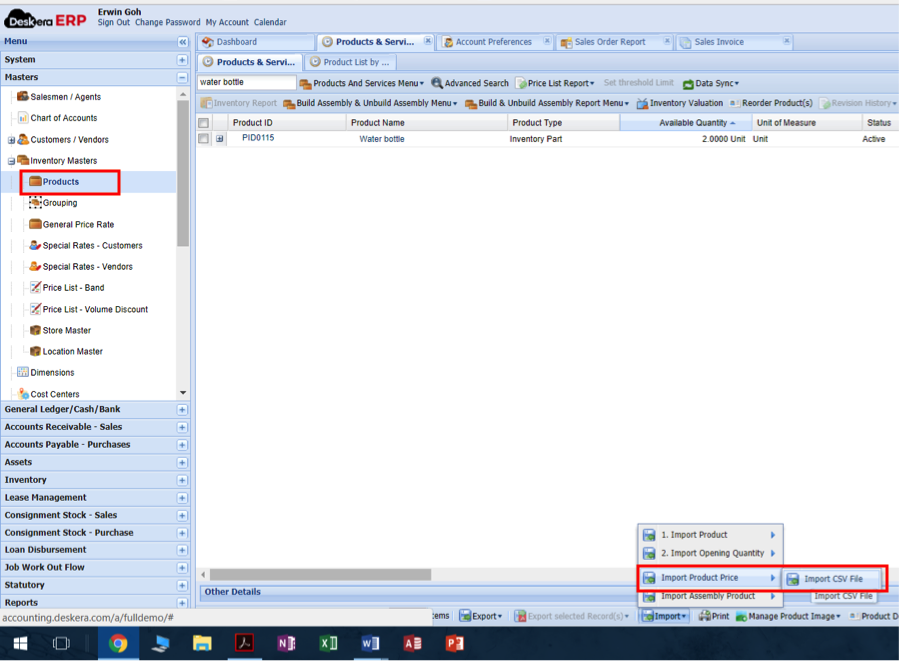
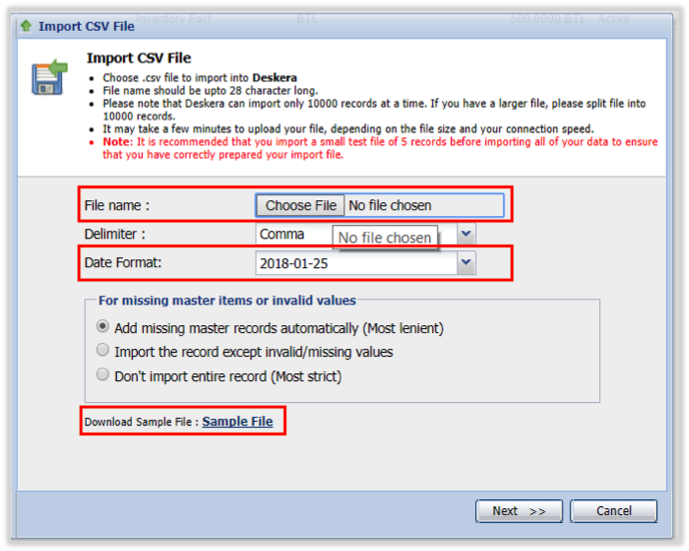
2. Select the file to be imported, select the date format as used in the file and click Next. If you need to download the sample file you can click on the "Sample File" link and refer to the file preparation section in this article for some samples.
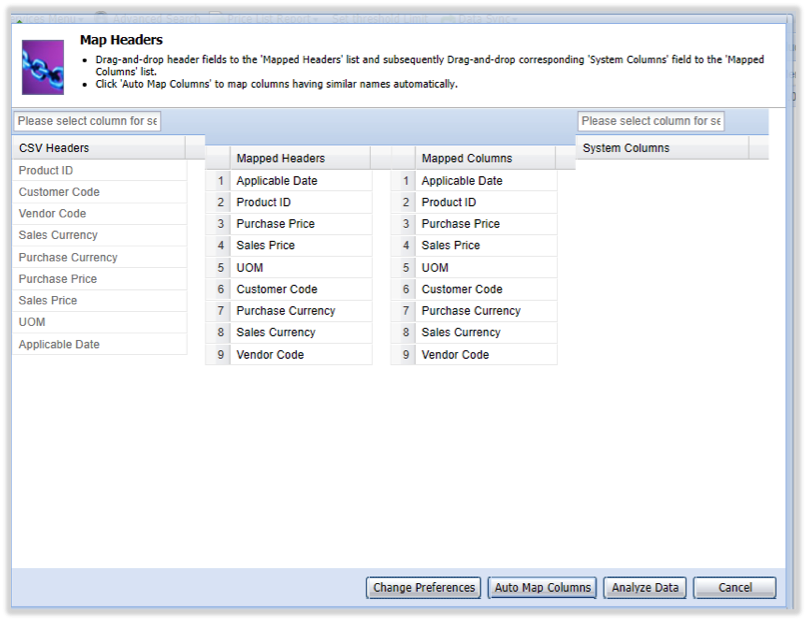
3. Proceed to Map the Headers with Column manually, or click “Auto Map Columns” for automatic mapping. When all columns are matched, Click “Analyze Data”
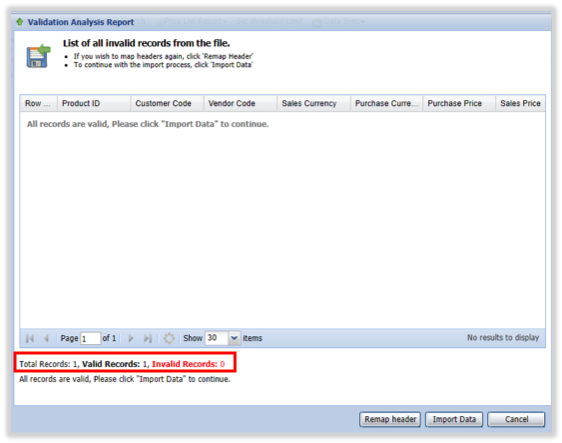
4. Make sure there is no Invalid Record, then click “Import Data”
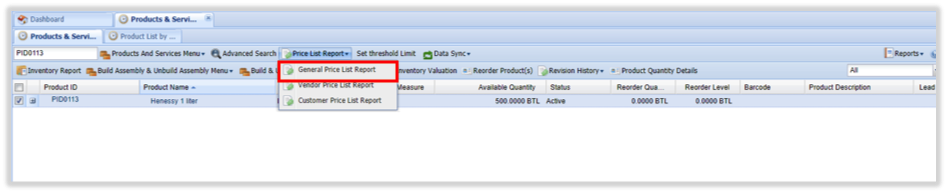
5. To review the imported price you can return to the Product Management screen, then go to “Price Report List” and choose “General Price List Report”

Import File Preparation:
Open the downloaded sample CSV file and enter the product which you want to update the prices for. Enter the required information for price updates.
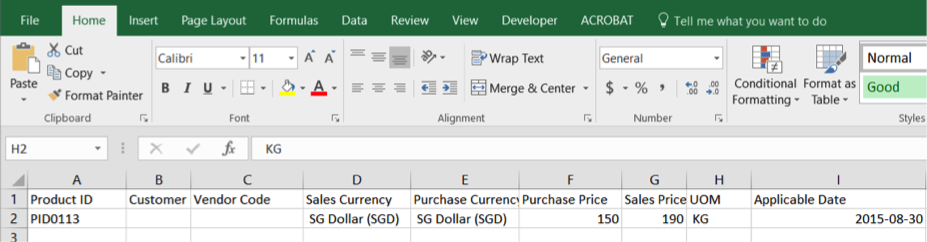
Product ID: Enter the Product ID which you wish to update the price.
Customer/Vendor Code: Leave these blank if you want the price apply to all customers and vendor. Or enter the specific ID if price is Customer/Vendor specific.
Sales/Purchase Currency: Enter the Currency of the applicable price. Currency must include both name and code, for example: SG Dollar (SGD) US Dollars (USD).
You can see other currency in the currency list, which can be found by going to:
System→Preferences→System Preferences→Download Exchange Rate.
Sales/Purchase Price: Enter the effective price related with the entered Currency.
UOM: Enter the Measurement Unit that the price is related to.
Applicable Date: Enter the date which the price will be effective from

Comments
0 comments
Article is closed for comments.