
To add more users to Deskera, please go to the Apps Dashboard and navigate to Administration under Quick Links.
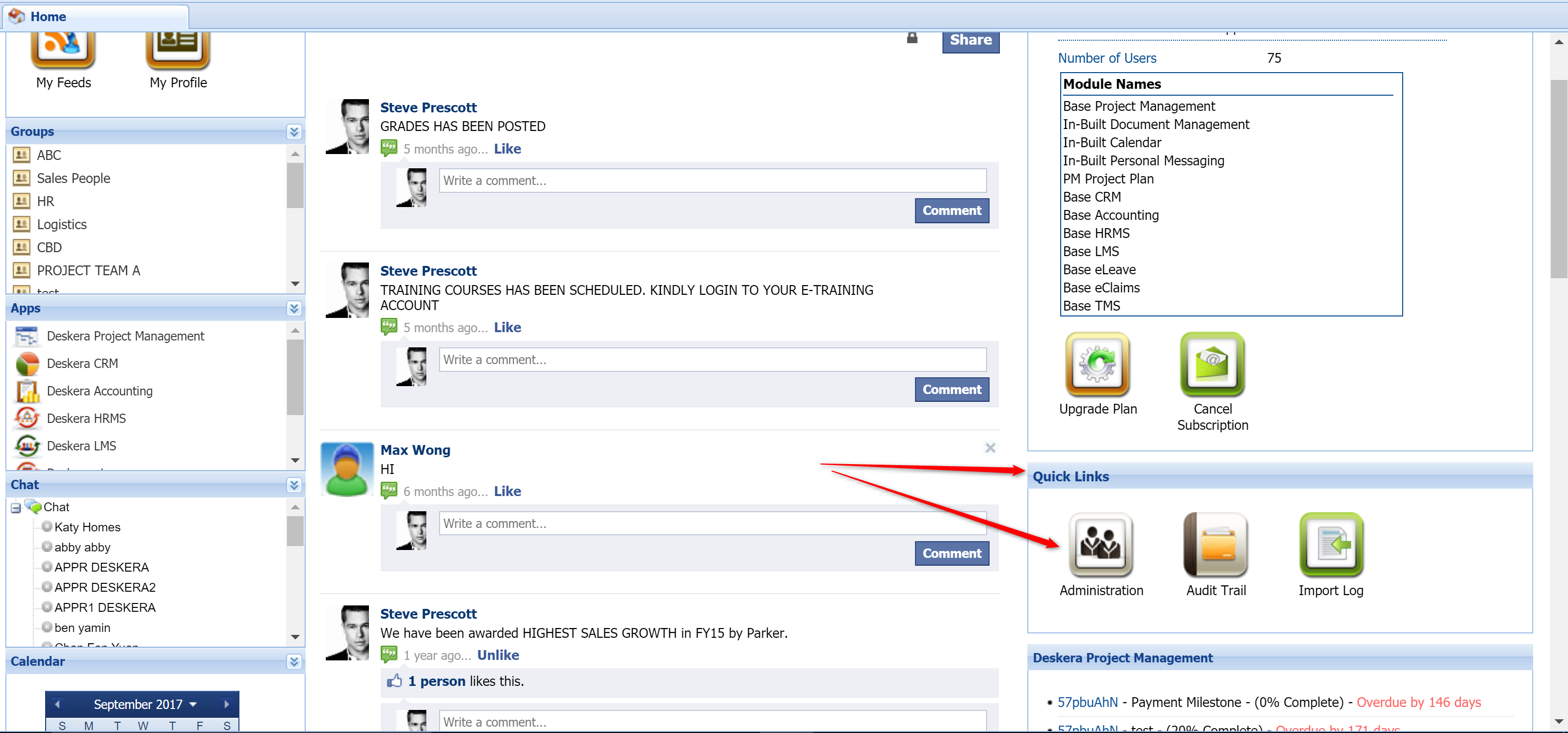
This will bring you to the user administration page.
Follow the steps given below to create users in Deskera:
- Click on Administration under Quick Links from Deskera Dashboard.
- A new screen with 2 tabs for User Administration and Company Administration is displayed.
- Click on User Administration tab to access the details related to the new and existing users.
- Click on User Management and select Create User from the drop down.
- Create new user(s) and assign roles and permissions for different Deskera Applications by entering details in the window that appears.


Edit User Profile
The administrator can edit the existing profile of a user by following the steps given below:
- Click on Administration under Quick Links on the Dashboard.
- A new screen with 2 tabs for User Administration and Company Administration is displayed.
- Click on User Administration tab to access the details related to the new and existing users.
- Click on User Management and select a user for which you want to edit the details.
- Select Edit User Profile from the drop down.
- A pop-up window will appear.
- Edit the details and click on Save to edit the user profile.


Delete User Profile
You can easily delete a user from the existing list of users by following the steps given below:
- Click on Administration under Quick Links on the Dashboard.
- A new screen with 2 tabs for User Administration and Company Administration is displayed.
- Click on User Administration tab to access the details related to the new and existing users.
- Click on User Management and select a user which you want to delete from the list.
- Select Delete User from the User Management drop down.
- The system prompts a confirmation message whether you want to delete the selected user or not.


Change Password
The administrator can select a user and change his/her password as and when required. Follow the steps given below to change the password for a user:
- Click on Administration under Quick Links on the Dashboard.
- A new screen with 2 tabs for User Administration and Company Administration is displayed.
- Click on User Administration tab to access the details related to the new and existing users.
- Click on User Management and select a user for which you want to change the password.
- Select Change Password from the User Management drop down.
- A pop-up window will appear in which you need to enter the new password.
- Click on Set to change the password for the selected user.


Reset Password
The administrator can reset the password for a particular user by following the steps given below:
- Click on Administration under Quick Links on the Dashboard.
- A new screen with 2 tabs for User Administration and Company Administration is displayed.
- Click on User Administration tab to access the details related to the new and existing users.
- Click on User Management and select a user for which you want to reset the password.
- Select Reset Password from the User Management drop down.
- The system will prompt a confirmation message whether you want to reset the password for the selected user or not.
- Click Yes to reset the password for the selected user else click No.
- The system displays a success message that the password has been reset and a link to reset the password is sent to the user.


Manage Application Access
You can assign/Un-assign access to Deskera Applications to users and also assign corresponding roles for the selected Deskera Application. This can be done by following the steps listed below:
- Click on Administration under Quick Links from Deskera Dashboard.
- A new screen with 2 tabs for User Administration and Company Administration is displayed.
- Click on User Administration tab to access the details related to the new and existing users.
- Click on Manage Application Access to grant accessibility permissions to the users.
- Select the application to which you want to assign user(s).
- A window with the new users at one side and assigned users at the other side is listed.
- Select the user from the new user and use the arrow keys to assign them the accessibility for that application.
- Click on Update to save the accessibility permissions for the users.


 |
Run Your Business with Deskera |
Comments
0 comments
Article is closed for comments.