
Deskera ERP and Deskera CRM allow seamless integration for multiple modules, including Customer Data, Quotations, Products and more. The most common sync option used is syncing of quotation between CRM and ERP.
Before you start syncing those quotations from CRM to ERP, there are a few settings which should be taken care of in Deskera ERP and Deskera CRM to ensure seamless integration.
- Make sure the Integration is enabled in both CRM and ERP
- All accounts in CRM are synced with Customers in ERP and vice-versa
- All products are to be created in ERP and then synced to CRM
- All Payment terms, Taxes, Invoice Terms are to be created in ERP and synced to CRM
It is highly recommended that in an integrated system, the user should define one point of entry for data. This helps in avoiding duplicates. e.g. if a customer is added manually both in CRM and ERP, then it is possible that while syncing the two, a copy gets created in both system. Generally, CRM should be the point of data entry for Customers and quotations and then synced to ERP and everything else should be entered from ERP and synced to CRM.
1) Enabling Integration
CRM
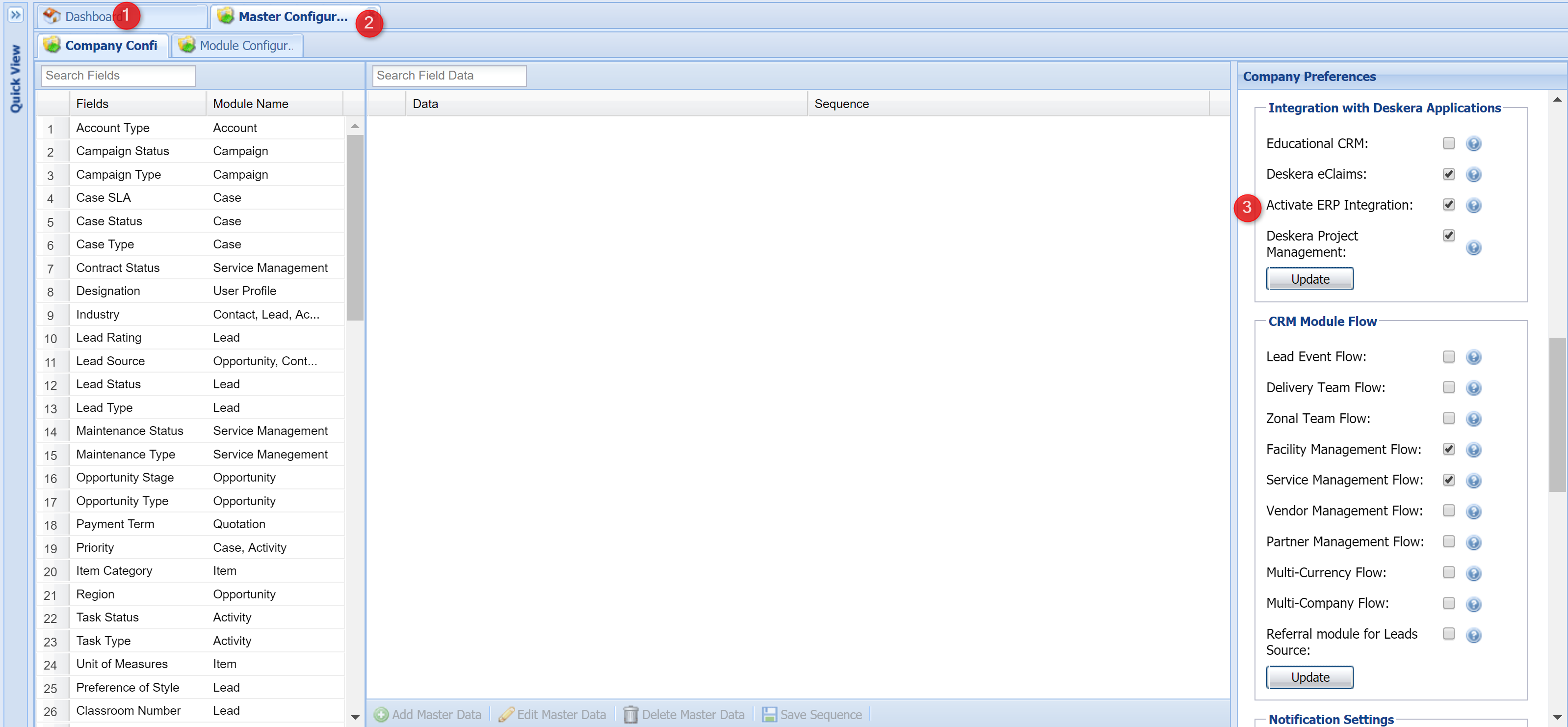
ERP

2) Sync Product Information from ERP to CRM
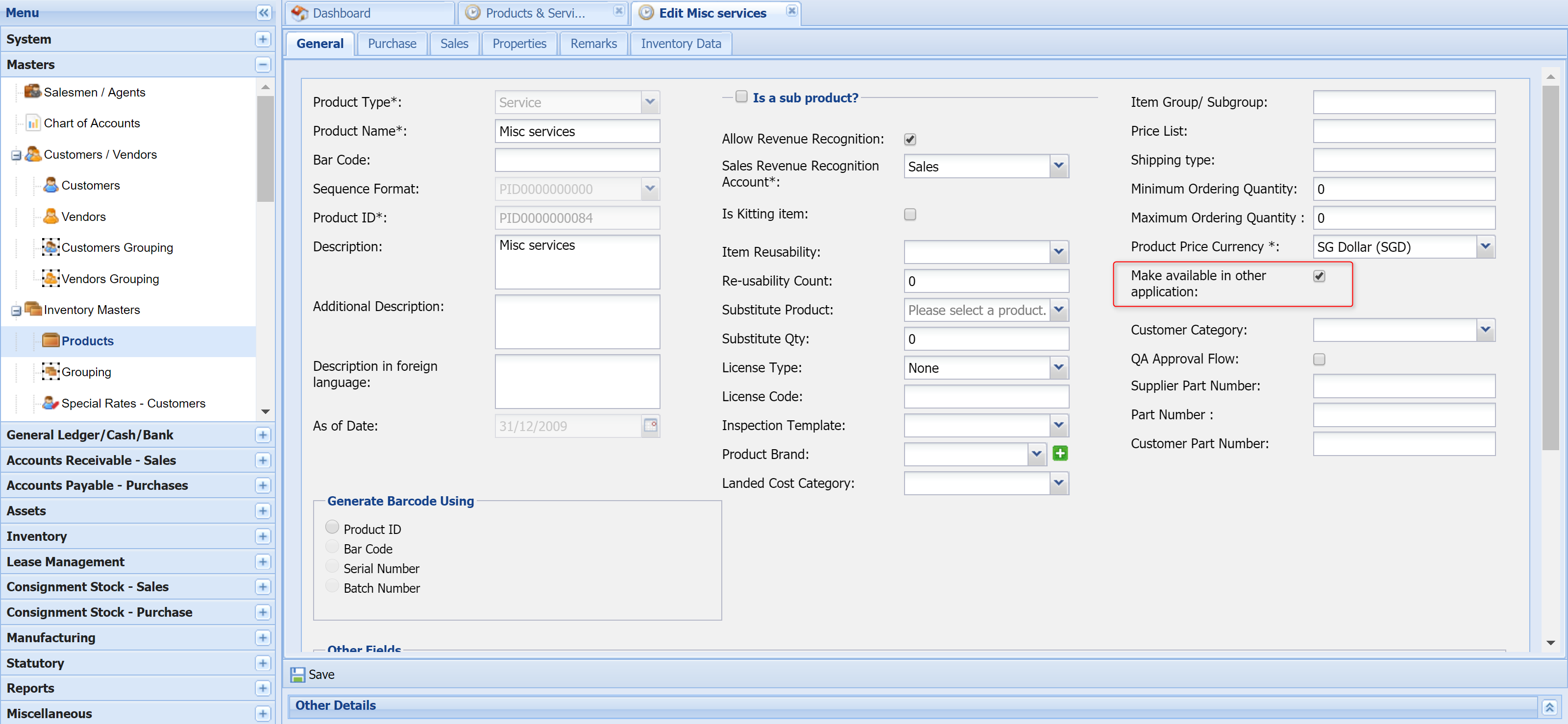
In Deskera ERP, make sure that the option shown in the screenshot below is checked for the products that are to be synced from ERP to CRM.
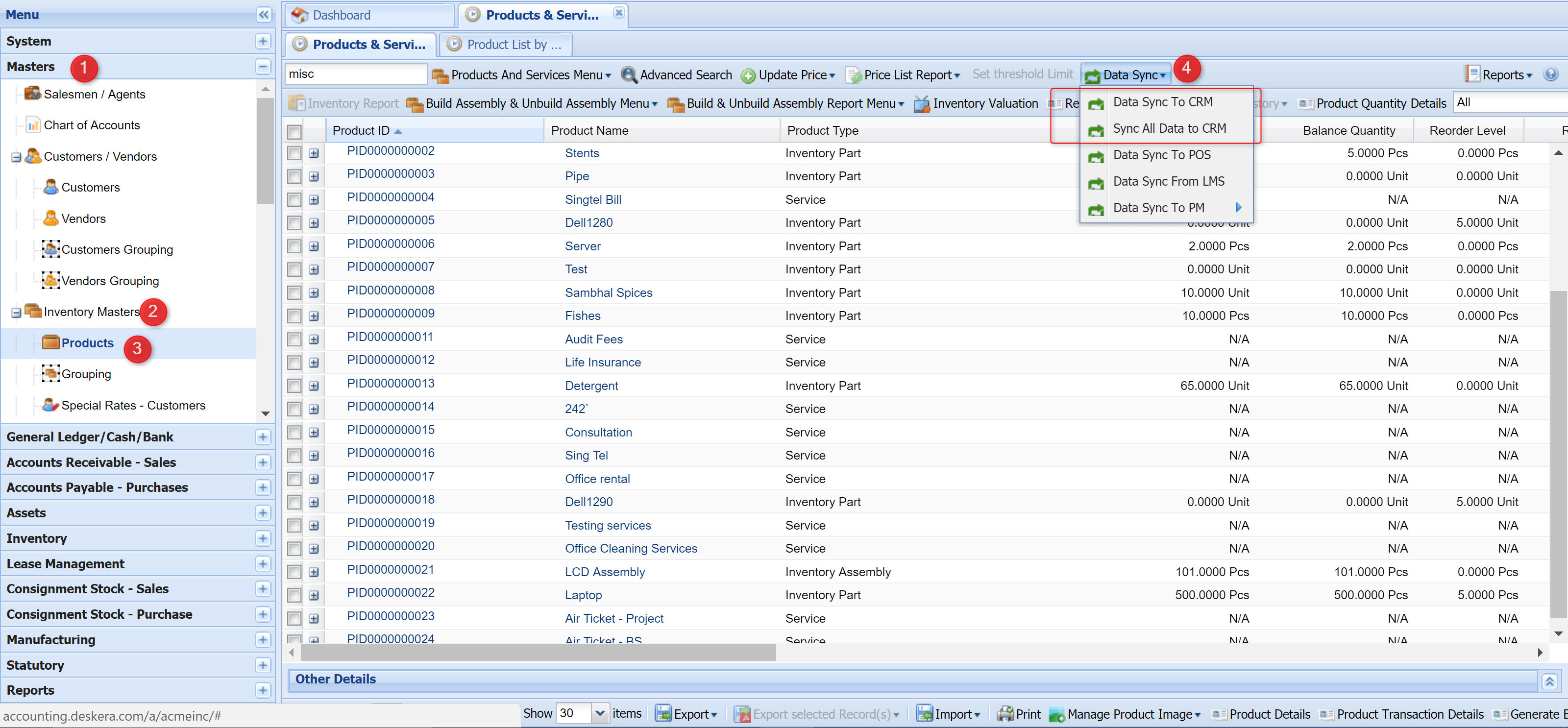
To sync the products, use the Data Sync button available in the Products and Services Menu as shown below. The Sync All data will sync all the products data to CRM, whereas selected products will be synced with the other option.
3) Syncing of Payment Terms, Invoice Terms, Taxes
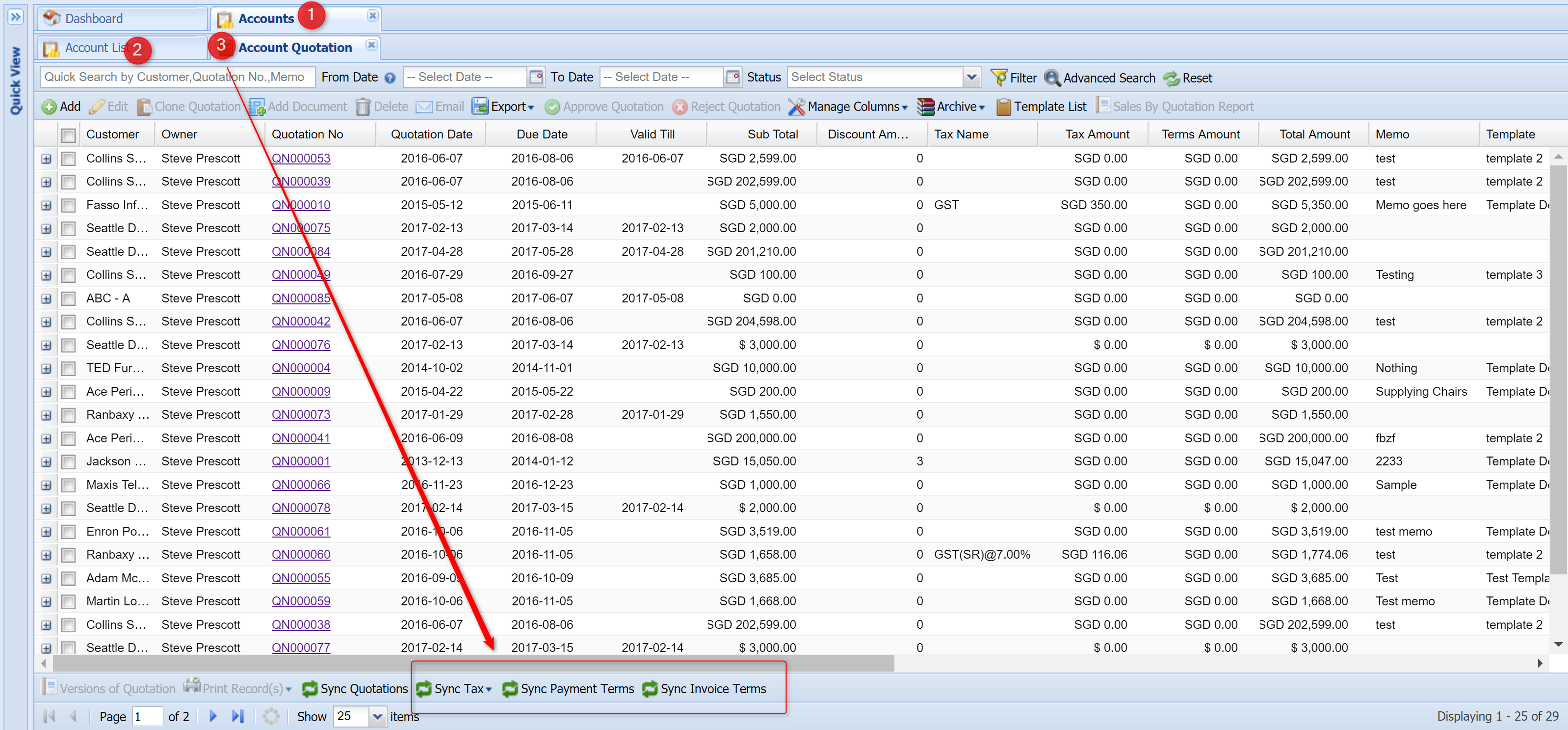
To sync payment terms, invoice terms and taxes from ERP to CRM, please go to Deskera CRM, then to Accounts, and then to Quotations. You will find the sync options available here in the bottom menu.
For taxes, it is always recommended to sync the taxes created in ERP to be synced over to CRM.
4) Syncing of Customer information
It is recommended that any new customer information be captured in CRM first and then synced to ERP. This will prevent duplication of data due to human error. To sync the customer data from Accounts in CRM to ERP, please go to the Accounts screen. Make sure that all data that has to be synced, like account code, account name, billing address, shipping address, contact information etc has been filled before syncing. Once ready, you may use the Sync option available in the bottom menu.
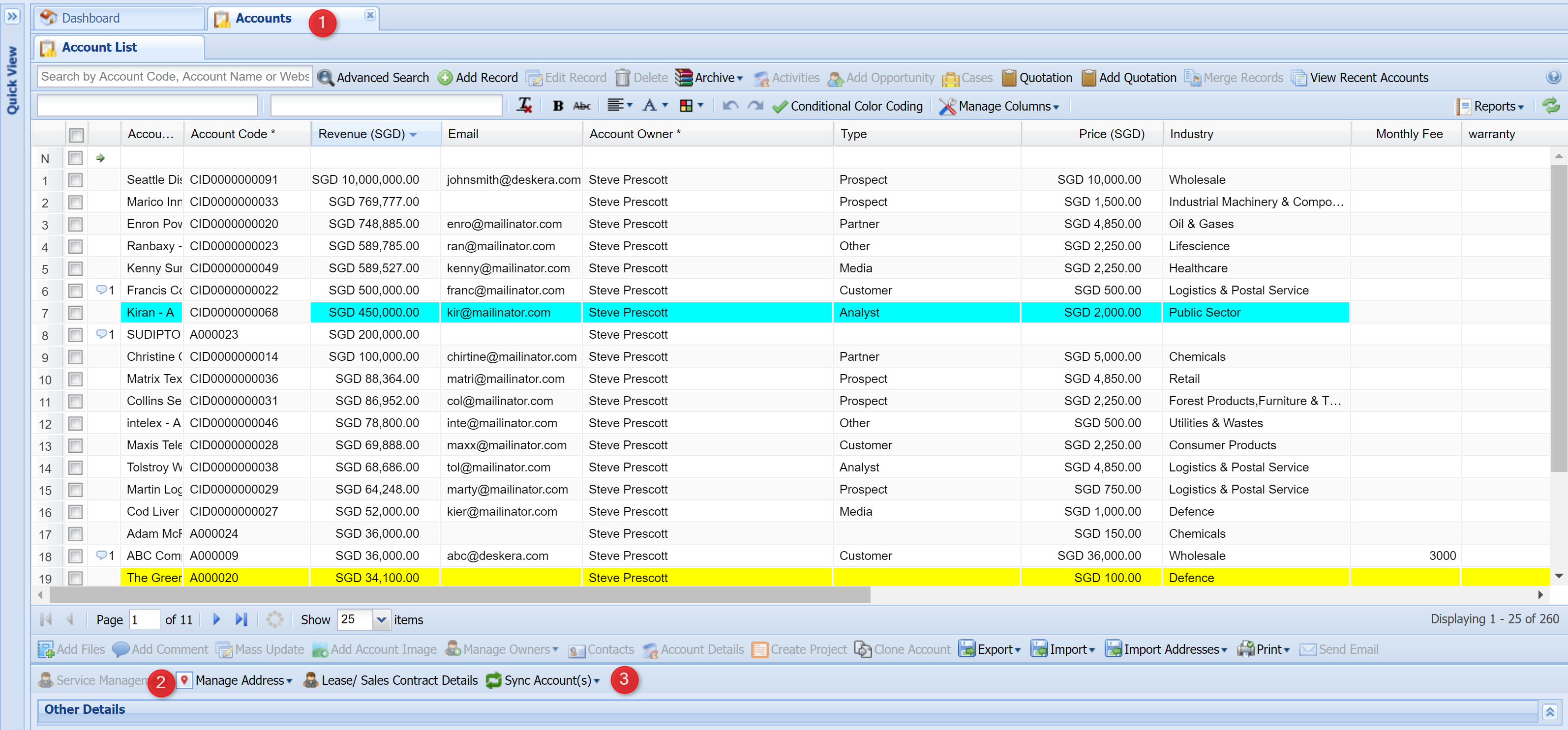
You can choose to sync data from ERP to CRM (recommended to be used one time to sync the opening information) or from CRM to ERP (recommended to be used when syncing any new customer added to the system via CRM)
 |
Run Your Business with Deskera |
Comments
0 comments
Article is closed for comments.